
Metadata Export
Download as PDFOverview
Export metadata as a TXT file for easy processing in standard spreadsheet applications. You can export metadata from media files in both the Media Processing area and the Archive.
Export Format details
Below is a table of available export options for TXT files. Use it as a guide to ensure the file opens correctly in your spreadsheet application.
| Field Names | Possible Options |
|---|---|
| Field separator | Tab Comma (,) Semicolon (;) |
| Text Start | Quotes (") Apostrophe (') |
| Character Set | Western Europe (iso-8859-1) Western Europe (Apple Macintosh) Eastern Europe (iso-8859-1) Unicode (utf-8) Unicode (utf-16) |
Field Mapping details
The available field mapping options are:
| Column/Details | Possible Options |
|---|---|
| Field Mapping | Available fields selected in Administration > Database Fields. |
| Language (for translatable fields) |
To select between languages, your Backstage must be configured with multiple languages under Administration > Language Settings. |
| Delimiter (for lists and for the content containing several parts) |
Free text input |
Note
Use different separators for field mapping than those in the export format area. This prevents conflicts with comma separation between columns and keywords.
Export metadata and assign relevant fields
To export metadata, proceed as follows:
- In Media Processing, select the folder containing the files you want to export metadata from.
- Select Edit > Metadata Export.
- Configure the following settings:
- Configure Export Format: Within this panel, you can define the format of your export file.
- Field mapping for the Export: Specify the exact metadata that you want to export by selecting relevant fields in the Field Mapping column.
- Language: Select a language for any field that can be in more than one language.
- Separator: Enter separators for any metadata that takes the form of a list; for example, you can separate keywords with a comma (,).
- Add more metadata fields for export with the plus icon
 or remove fields with the minus icon
  .
. - Click Start Export.
- A metadata file is generated, and you can save it to your desktop.
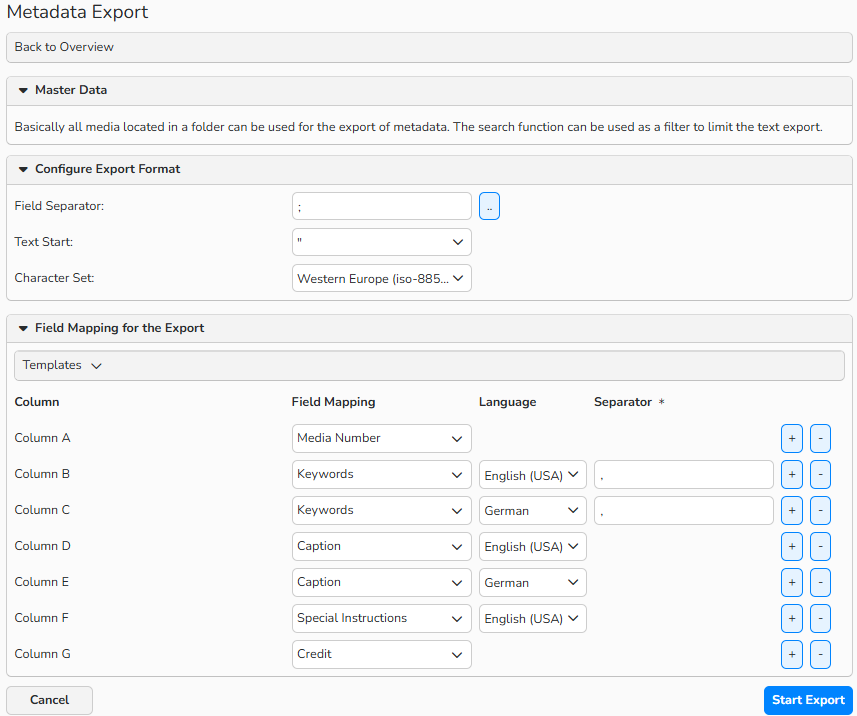
Metadata Export window
Tip
Save Mapping Templates
Save your export settings as a template for future use. In the Metadata Export dialog, go to the Field Mapping for Export section, select Templates > Save as Template. The template will then appear under the Templates menu for later use.