
New Photographer: Advanced Settings
Download as PDFOverview
As soon as a fee must be paid to the photographer, you need to define the conditions for it - that is, a contract and some restrictions (if applicable).
Set up a contract
The contract linked to a media file defines the fees the photographer receives its sale. Therefore, you must establish a contract for each photographer who provides not entirely owned content.
The first contract you create is the photographer's default contract which is linked to all their media files. If needed, you can set up additional contracts with different terms and assign them to specific media files.
To set up a contract:
- In Purchasing > Authors, select an author record and click the Contracts tab.
- In the Settings for Settlements panel, in Settlement Period select how often the photographer should be paid.
- When photographers earn only small amounts in royalties, you can set a minimum amount to generate a photographer’s sales report. To do this, enable the Limit Settlement option and specify the minimum amount. The sales report will only be generated once this minimum amount is reached.
- Click Save.
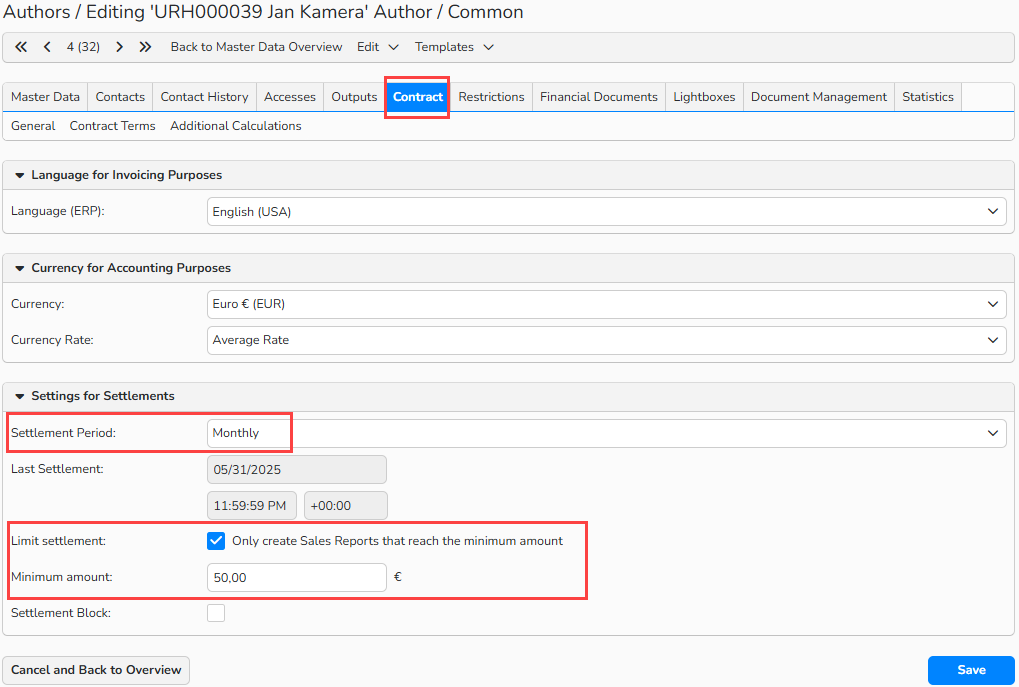
Author’s record > Contract tab - Click the Contract Terms sub-menu.
- Select Edit Contract Terms > New.
- Leave the Contract Number field blank. It will get populated automatically based on your Number Range settings in Administration > Company Settings > Number Ranges.
- In the Name field, enter a descriptive name for the Contract. For example, 50% Standard Contract – Jim Smith.
- Note: A descriptive name is especially important if a photographer has multiple contracts.
- In the Contract Date field, enter the date the contract should take effect.
- In the Contract Terms panel, enter the percentage or amount the photographer should receive for the sale of each media file that is associated with this contract.
- Click Save.
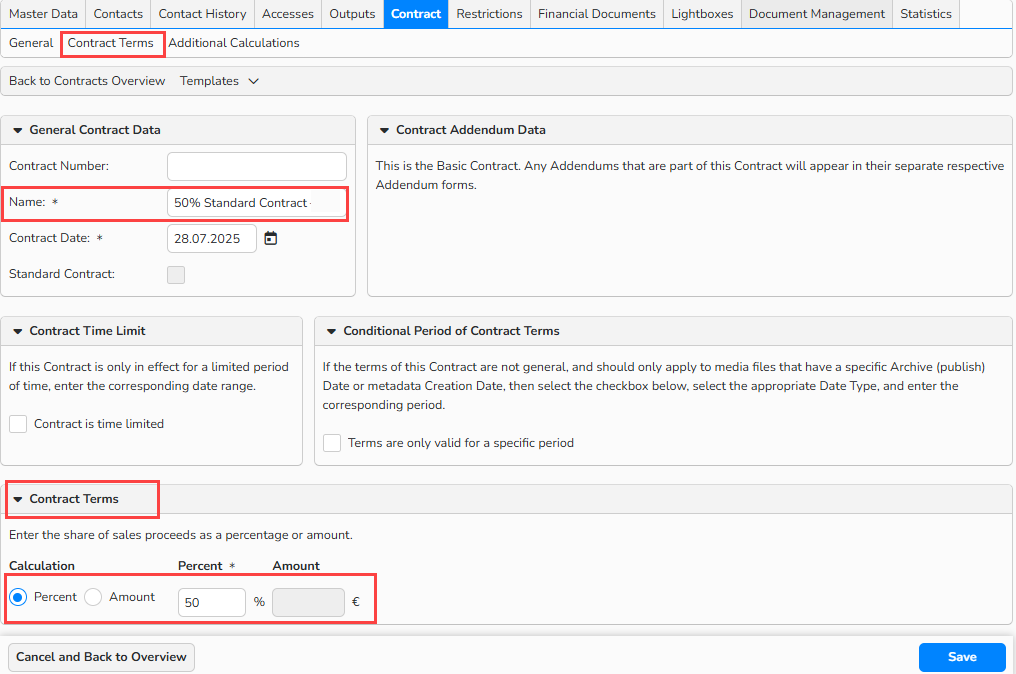
Author’s record > Contract tab: Contract terms
Note
If necessary, contracts can be more complex, with date limitations, exceptions based on metadata, and more.
Optional: Set up restrictions
If a photographer has any restrictions (for example, can only be distributed in the US), proceed as follows:
- Open the Restrictions tab.
- Select Edit Author Restrictions > New.
- The rights dialog will guide you through the configuration process based on the type of restriction you need to define.
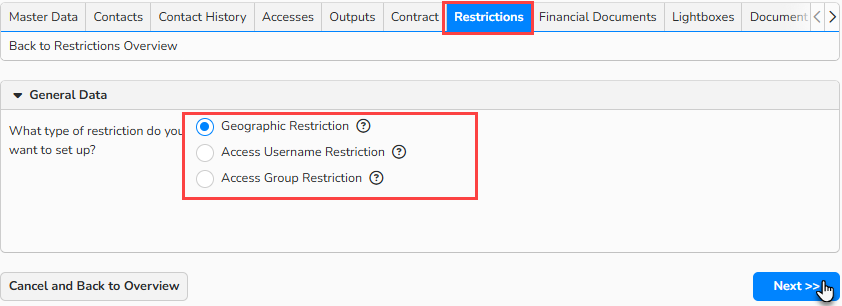
Author’s record> Restrictions tab
Note
Contact us at support@picturemaxx.com if you need help setting up a specific restriction.