
Additional Calculations
Download as PDFOverview
You can configure individual surcharges and discounts for Debtors (Customers) and Vendors (Authors) in Finance > Tax Rates and Calculations > Additional Calculations. These surcharges and discounts can be defined either as a percentage or as a fixed amount in the selected currency. You can specify whether and how these adjustments shall impact the final invoice amount.
Common examples of additional calculations include solidarity tax and KSV (Artist's social security contribution).
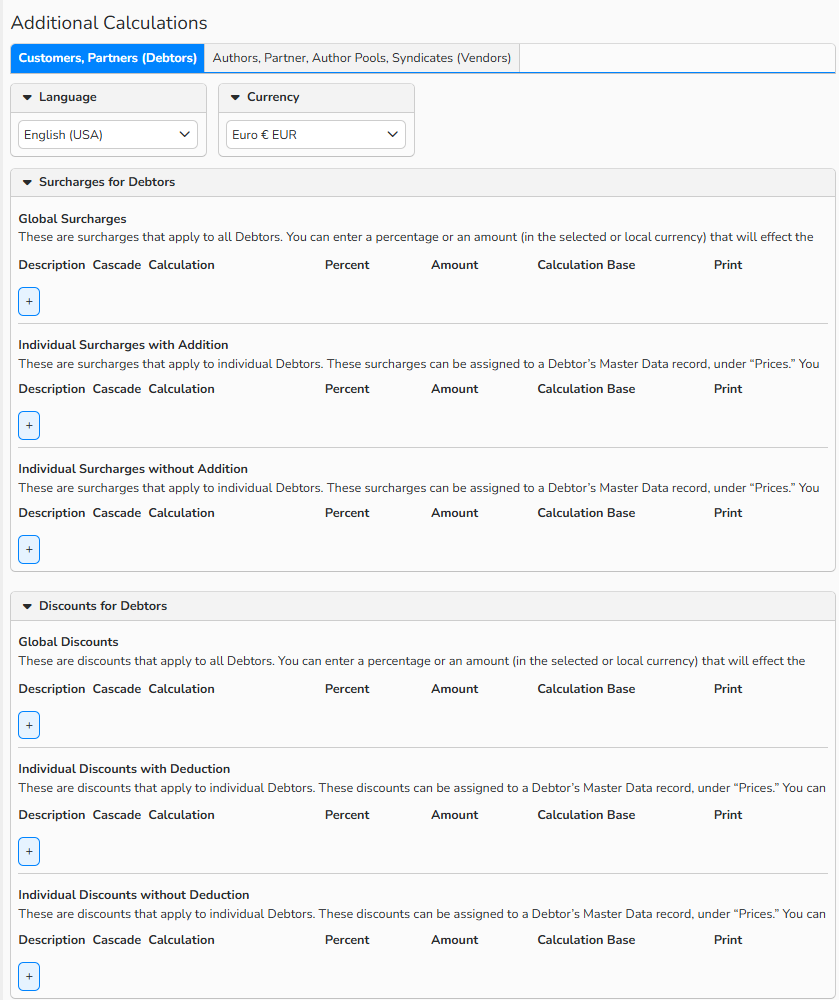
Additional Calculations setup window
Types of additional calculations
You can set up and apply the following additional calculation types:
- Global Surcharges/Discounts:
- Apply to all debtors and vendors.
- Can be set as a percentage or amount.
- Change the final invoice amount.
- Individual Surcharges/Discounts:
- Apply individually to specific debtors or vendors.
- Can be set as a percentage or amount
- Change the final invoice amount.
- Individual Surcharges/ Discounts without Addition/Deduction:
- Apply individually to specific debtors or vendors.
- Can be set as a percentage or amount.
- Do not change the final invoice amount.
Explanation of elements
The following fields and symbols are available for creating surcharges and discounts:
| Description | Defines the name of the surcharge or discount. |
 |
Opens the line for surcharges or discounts; inserts another line. |
 |
Removes the line and the surcharge or discount it contains. |
| Cascade | Enables “nesting” of surcharges and discounts. |
 |
Opens a sublevel for another value belonging to the surcharge or discount. |
| Calculation | |
 |
Specifies whether the calculation is performed as a percentage or as an amount. |
| Percent | Definiert den Prozentsatz, vorausgesetzt, dass Prozent als Berechnungstyp ausgewählt wurde. |
| Amount | Defines the amount, provided that Amount is selected as the calculation type. |
| Calculation Base | |
 |
Specifies whether the calculation basis for the surcharge or discount is the net or gross value. |
 |
Specifies whether the surcharge or discount is shown on the respective document. |
Apply additional calculations
Apply additional calculations as follows:
- Navigate to Finance > Tax Rates and Calculations > Additional Calculations.
- If the additional calculations refer to revenues (Invoices), select the Customers, Partners (Debtors) tab.
- If the Additional Calculations refer to expenses (Sales Reports), select the Authors, Partners, Author Pools, Syndicates (Vendors) tab.
- Specify Language and Currency (Optional for multilingual / multi‑currency accounting):
- If your accounting is multilingual (configured in Administration > Language Settings > Languages), select each language from the Language dropdown and configure the additional calculation for it. Click Save to confirm each selection.
- If your accounting is managed in multiple currencies (configured in Administration > Regional Settings > Currencies), select each currency from the Currency dropdown.
- In the corresponding Surcharges/Discounts for Debtors/Vendors panel, click the plus icon to open an input line for your entries. Configure the following:
- Description: enter a name for the surcharge/discount.
- Use the [+] icon to add/open a row for the surcharges or discounts.
- Use the Cascade arrow icon to open a sublevel for another value associated with the surcharge or discount. See Cascade calculation example below.
- Calculation: select the calculation type: Percent or Amount. Enter the respective amount in the Percent / Amount field.
- Calculation Base: specify whether Net or Gross amounts should serve as the calculation basis and select the general ledger account for automatic posting. If needed, you can remove the account assignment with the Remove button.
- Print: select the option to display the surcharge or discount on the invoice. The system will process the invoice even if the option is not selected.
- Description: enter a name for the surcharge/discount.
- Click Save.
Tip
Individual Surcharges – Flat‑Rate Expense Allowance
Do you pay photographers (Authors) fixed expense allowances such as per diems or travel flat rates? You can configure these as fixed surcharges under Finance > Tax Rates and Calculations > Additional Calculations.
The surcharge is applied to all authors assigned to it in their master data. If the amount changes, update it once under Additional Calculations. The new value is automatically applied to all linked master data records.
Example of cascade calculation
In this scenario, a 5% Spanish withholding tax is first applied to the net amount.
Based on the resulting value, an additional 5.5% solidarity surcharge is then deducted:
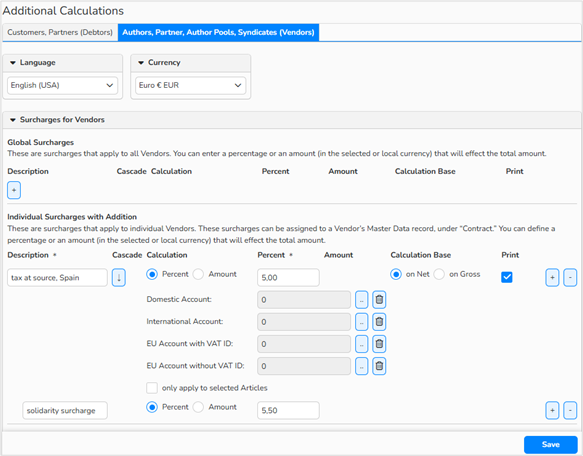
Additional Calculations setup window > Vendors tab: Cascade calculation
Tip
Configure individual deductions at country level
Since every country has its own double‑taxation agreement with Germany, it is recommended to define an individual deduction for each country.
This way, if a rate changes (for example, the deduction percentage for Spain), you only need to update it once in: Finance > Tax Rates and Calculations > Additional Calculations.
The update will automatically apply to all media suppliers, where the deduction is defined. All the rest will remain unaffected.
Use additional calculations in Master Data
Once you have defined surcharges and discounts in the Finance module, they become available within the master data for Sales (customers) and Purchasing (authors).
The system automatically applies the defined values whenever a billing process is triggered for the respective master data record.
- Navigate to Sales > Customers /Partners or Purchasing > Authors/ Partners.
- Double-click a record to open it.
- To view Additional Calculations:
- For Sales records, open the Prices tab; for Purchasing records, open the Contract tab.
- Select the Additional Calculations subtab.
- Click the plus icon to open the available surcharges and discounts.
- Select an option from the Description dropdown menu.
- Click Save
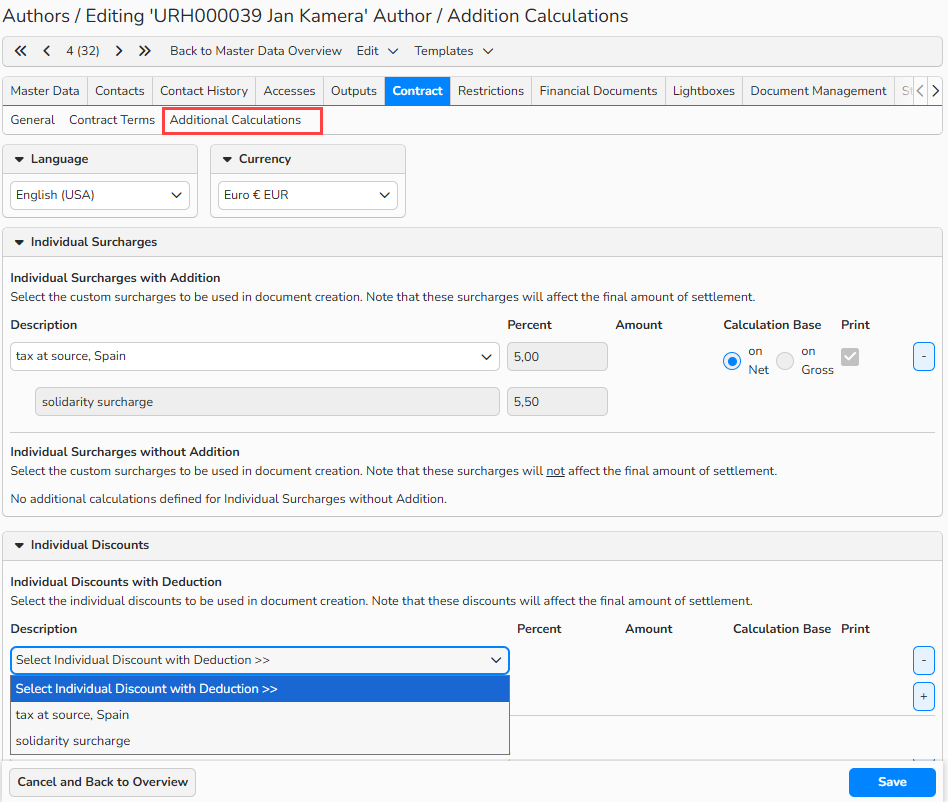
Purchasing Author record: Contract tab > Additional Calculation submenu: Selection of surcharges and discounts
Tip
Use master data templates
If you often use the same settings for additional calculations in your customers master data, you can simplify your workflow by creating templates in Finance > Templates > Financial Master Data.
When you create a new master data record (Customer, Partner, Author), the system automatically pre-fills relevant fields with the default values from the selected template.