
Email monitoring
Download as PDFOverview
Emails can be sent directly from Backstage, for example those containing a link to a lightbox or an electronic invoice. Please note that monitoring only covers the outgoing email messages on the Backstage side. Backstage does not provide confirmation whether the email was successfully received by the recipient.
You can view all outgoing emails in Administration > Email Settings > Monitoring.
Note
The menu item is NOT active in the standard configuration of Backstage. Please contact support@picturemaxx.com if you would like to use this function.
Email monitoring is divided into two sections:
- Unsent Emails
- Sent Emails
You can double-click any entry to open it and view the details.
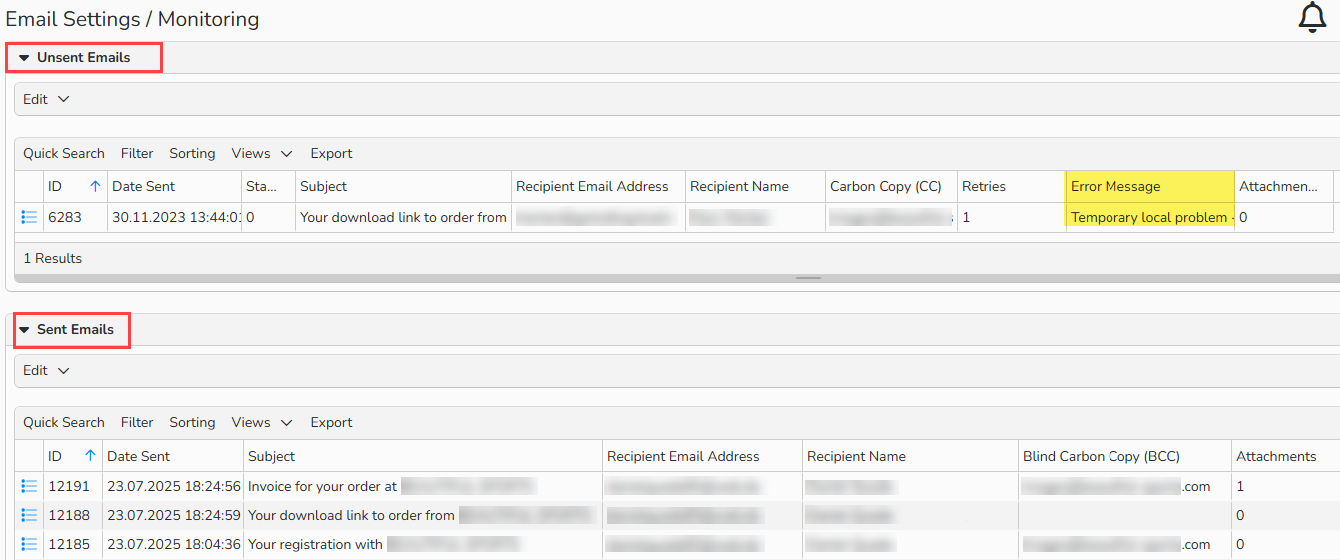
Email Settings Monitoring overview: Error Message in Unsent Emails
Note
You can remove the entries that are no longer needed with Edit > Delete. Please note that the system does not delete entries automatically.
Unsent Emails
In Administration > Email Settings > Monitoring, this section displays all emails that have not yet been sent or are still pending. Double-click an entry to open it and view details.
The following fields provide a quick overview:
| Status | Possible values: 0 = New / Waiting for dispatch 99 = Final failed (no further sending attempts) |
| Retries | This field remains empty until the email has not been initially sent (i.e. while it is still in the queue). As long as the "Retries" field shows a number ≤ 50 and the "Error message" field is empty, Backstage will continue attempting to send the email. |
| Error message | If an error occurs that prevents the email from being sent, the error message appears in this field. The error code comes from the SMTP server or destination server. |
Sent Emails
This section displays all emails that have been successfully sent by Backstage. In these cases, the status is set to 1.
Double-click an entry to open a detailed view:
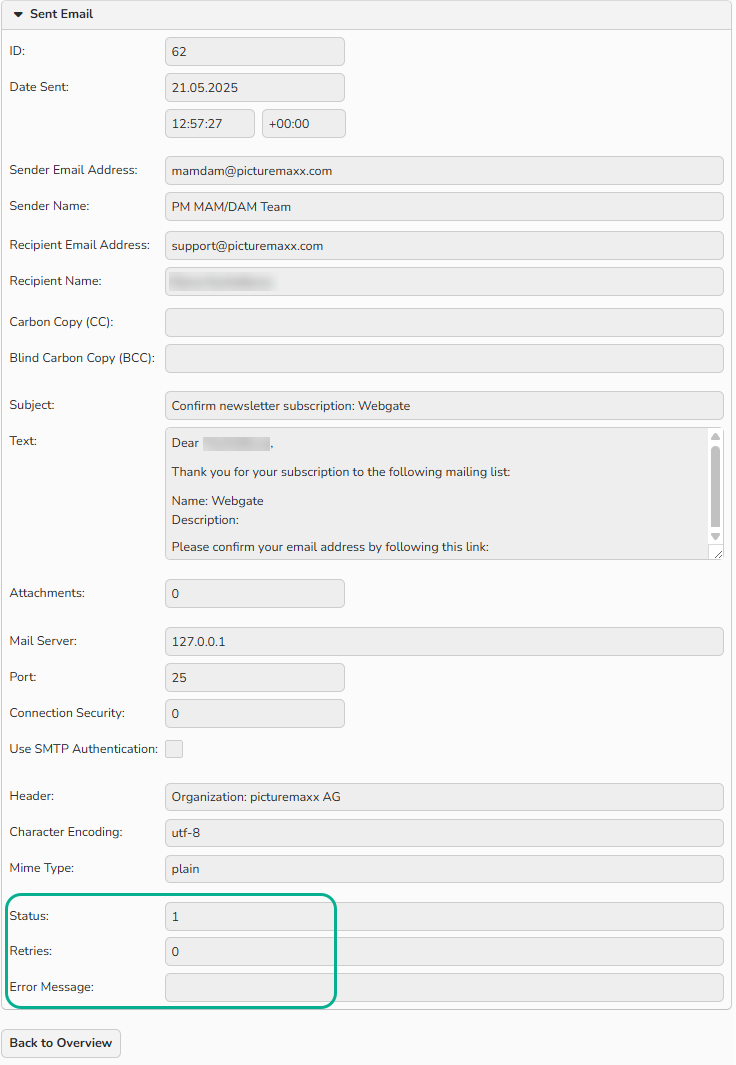
Email Settings Monitoring: Sent Email details
Email management in Backstage
You can set the email addresses to send messages from Webgate in Web > Settings > Email Addresses.
- Enter the default names and addresses for the emails your system sends to your website users.
For example, messages related to lightboxes, download links, new registration notifications or user data changes. - You can also define who should be copied (CC) or blind copied (BCC) on emails triggered by user actions such as registration, media downloads, or updates to “My Account” information.
- Separate multiple addresses with a comma.
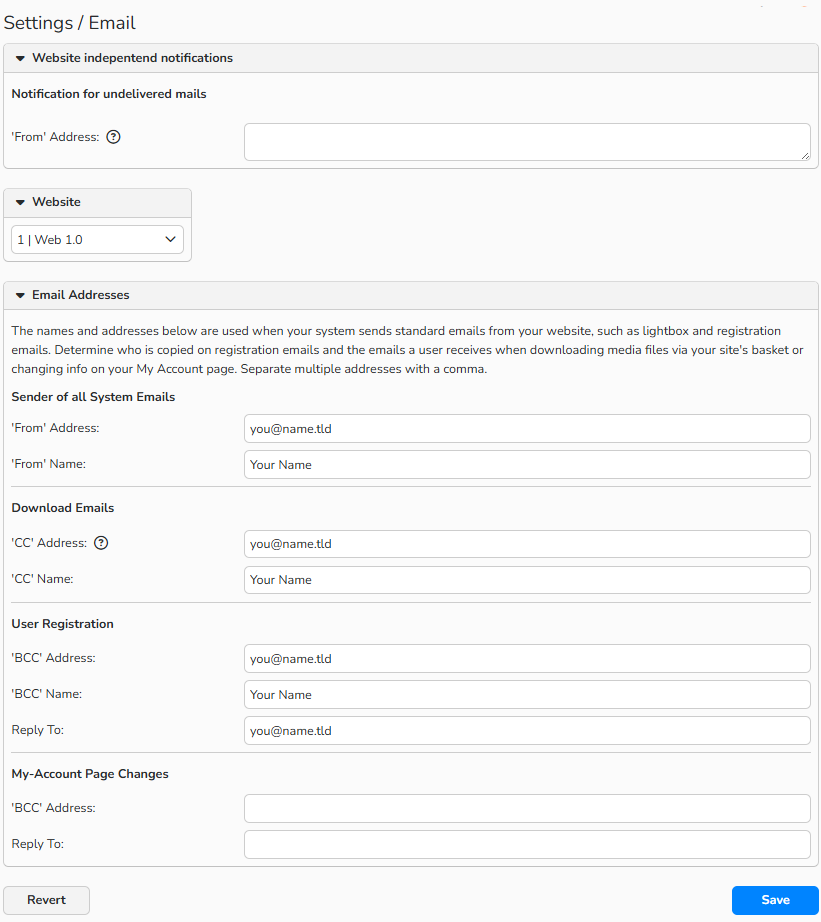
Set Web Email Addresses