
Languages
Download as PDFOverview
Before you start working in Backstage, select and configure the languages you need for your metadata, website, and finance-related documents. You can decide in how many languages you want to create, manage, and publish your multilingual content.
You need to activate at least one language for each of the following areas:
- Metadata
- Finance
- Web (published and unpublished)
Also, select a default language for Metadata and for Finance to enable advanced functions in these areas.
Activate Metadata, Finance, and Web languages
To activate languages in Backstage, proceed as follows:
- Navigate to Administration > Language Settings > Languages.
- Select default languages:
- Metadata: Preconfigured by picturemaxx; only picturemaxx can change it.
- Finance: Preconfigured by picturemaxx; you can select other languages from the dropdown.
- In the Select Additional Languages panel, enable the languages you want to make available for your Finance and/or Web areas.
- Additional Metadata languages can only be adjusted by picturemaxx.
- Click Save.
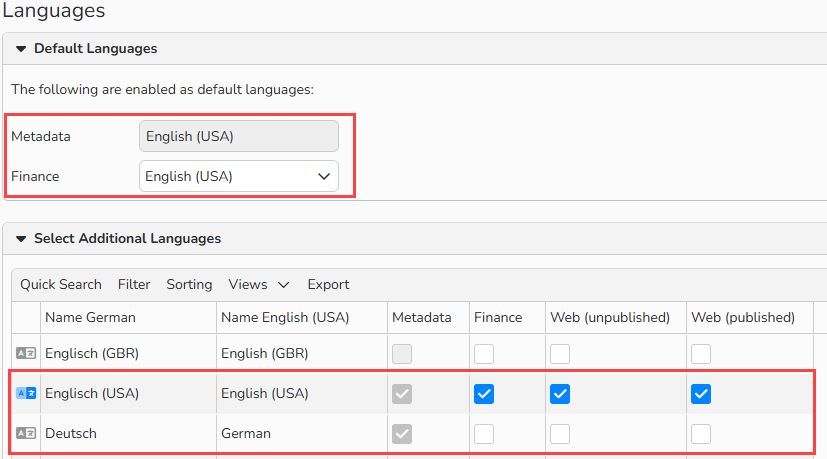
Languages window: Default and Additional languages setup
Metadata languages
With Backstage, you can enter your media’s metadata in multiple languages.
As part of your system installation, picturemaxx configured the metadata language(s) according to your preferences. These languages are selected in the “Metadata” column under Administration > Language Settings > Languages.
In the standard metadata editing form, a file’s metadata will appear in your default Metadata language. All languages activated for labeling are available on the dropdown menu.
You can configure a metadata editing form that shows more than one language, so that you can simultaneously edit the metadata of a file in two languages. Customize your metadata editing forms under Administration > Form Editor > Media Processing.
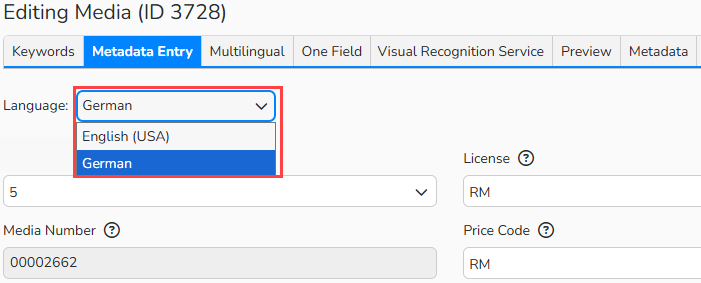
Metadata editing form that displays one language at a time
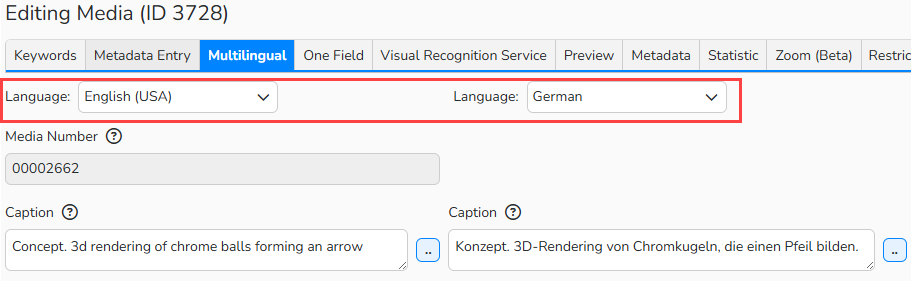
Multilingual Metadata editing form
Note
The default language serves as the primary language for the search index. Backstage processes all search queries in this language. When users submit queries in other languages, Backstage automatically selects the correct dictionary, translates the query into the default language, and runs the search. For more details, see the Dictionaries FAQ.
Finance languages
You can create and manage multilingual content for your finance-related data, such as print forms, billable items, customers, and tax rates.
The picturemaxx team set a default Finance language during your system installation. You can change this language at any time.
In the master data areas for Sales and Purchasing, as well as in all the Finance module settings, you will find drop-down menus for language selection. These are the languages predefined in the “Finance” column in Administration> Language Settings> Languages.
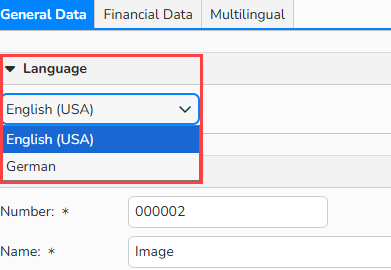
Language selection: Finance > Settings > Item Groups
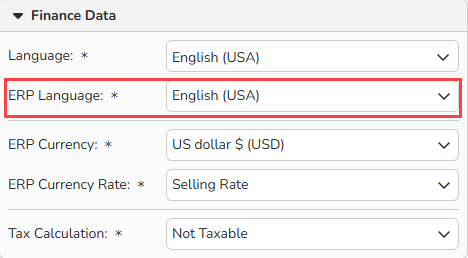
Language selection: Sales or Purchasing > Master Data > Finance Data
Note
Backstage displays your documents and finance settings in the default language. If you have activated additional languages for Finance, make sure that every term has a translation. If a translation is missing, Backstage shows the term in the default language.
For example, if a billable Item includes the English term "download fee,” and there is no equivalent German translation for this term, then the English term will be used.
If you want to change the language selection for Finance after setup, please contact us at support@picturemaxx.com, and the picturemaxx team will advise you on the impact of this change to your current setup.
Web languages
You can make the content and navigation menus of your website available in multiple languages.
Backstage distinguishes between the unpublished language for editing within your Backstage Web module and the published language for your website visitors.
Backend languages
Web (unpublished) option
Select all the languages in which you want to author Web content. In website articles, the available languages appear in text editors or as language selection options in page elements.
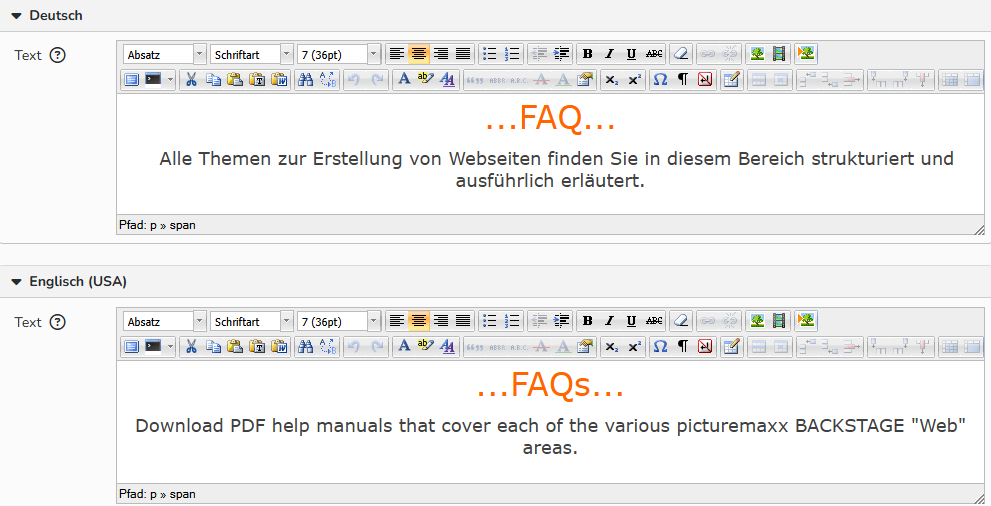
Web > Content > Articles: multilingual entry fields in text editor
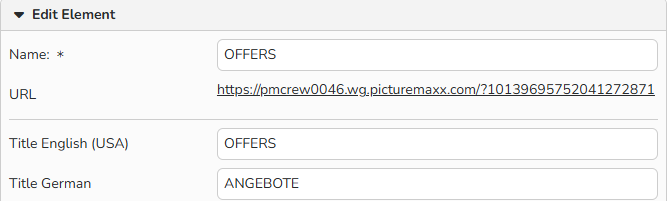
Web > Page Elements > Navigation: multilingual entry fields in page element
Note
If you do not enable the Web (published) option for a language, its content remains hidden from website visitors. This lets you prepare content in that language without publishing it immediately.
Frontend languages
Web (published) option
Select the languages that you want live on your Website. Your site’s visitors will be able to select the language to view your website.
Note
Changes to your Web languages save immediately, but they appear on your website only after you clear your browser cookies to remove the cached page.

Language selection on website
Note
If you manage multiple websites, you can configure the language settings individually for each site. To do this, please contact us at support@picturemaxx.com.