
Statistics
Download as PDFOverview
The Statistics area gives you powerful insights into customer activity, enabling you to respond more effectively to inquiries and provide additional resources when needed. All reports can be printed or downloaded for use in other applications.
The following information is available to you:
- All Downloads: Displays all downloads via my-picturemaxx and your website.
- Preview Downloads: Shows all preview downloads from my-picturemaxx and your website.
- High-Res Downloads: Lists all high-resolution downloads via my-picturemaxx and your website.
- Search Requests: Provides a list of all searches, including filters used by customers in your database.
- Preview Views: Displays all preview views accessed by users.
- Search Requests with Zero Results: Shows all searches that returned no results.
- Logins: Displays all login activities for website accounts and my-picturemaxx.
View download, search requests, and login statistics
To view the statistics, please follow these steps:
- Navigate to Sales > Statistics > Overview.
- In the Statistics / Overview window, select the desired category.
- You can narrow your results by choosing a date range.
- Click the Search icon to display the results.
- The statistics data appears in a table.
- To display more data fields in the table, hover over the header row and click the context menu icon. Now you can select fields from the list to show or hide them in the table view.
- To save the statistics, use the table’s Export menu.
Note
You can use the table’s built-in tools to search, filter, and sort records. For more details, including how to create custom views and export data, see Advanced Table Views.
Tip
Statistics for search queries and unsuccessful searches involve very large data sets.
To avoid unnecessary system load, we recommend retrieving these statistics using a date range of just one day. For further analysis, use the export function to open the data in a spreadsheet application.
Important
Do not disable statistics
The Save research and download statistics option is enabled for your customers, authors, and partners by default: Sales or Purchasing module > a corresponding Customer/ Author/Partner record > Accesses tab > Access for Searching and Downloading your Media panel.
If you disable the option in user access settings, the system stops recording searches and downloads. As a result, you lose any record of what customers searched for or downloaded.
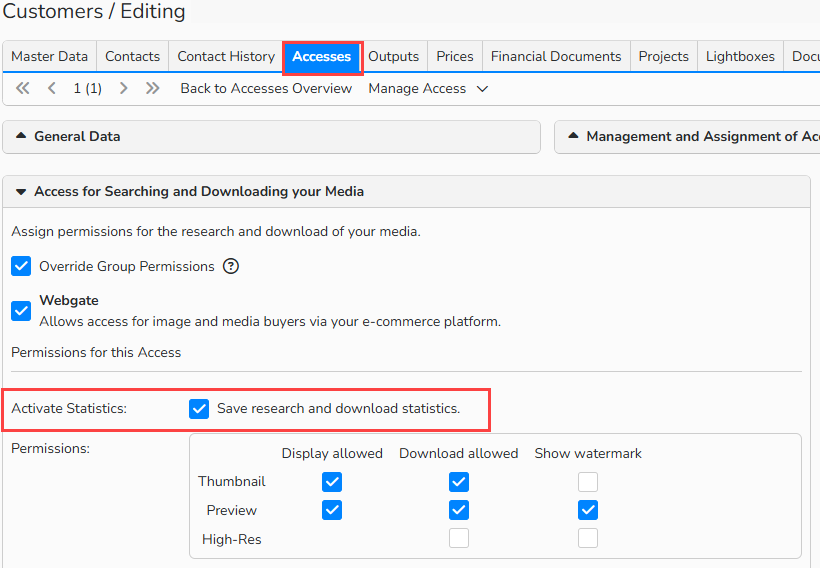
Customer master data > Accesses tab > Statistics feature enabled
Frequently Asked Questions
Q: Are the statistics generated in real time?
Yes, the statistics in Backstage are generated in real time.
Q: Does searching via my-picturemaxx mean that the participant searched only with me?
Not necessarily. When searching in my-picturemaxx, participants can choose to search across all agencies or select individual ones.
Q: Can I track my partners’ search queries in my statistics?
Yes, you can track your partners’ search queries in your statistics once an Opengate connection is established.
Q: How do I add synonyms so users can find media listed under “Search Requests with Zero Results” ?
To create new synonym groups, go to Media Management > Classifications > Synonyms. For more information about synonym groups, please contact our support team.
Q: Does the statistics feature also track when I create and download a lightbox for a customer in Backstage?
Yes, the statistics also record all searches and downloads performed via a customer account within a lightbox in Backstage.