
Tax Calculations
Download as PDFOverview
You can configure the system to handle tax calculations efficiently. The tax calculation settings determine whether tax rates should be applied in a specific case and provide appropriate labels.
Enter all tax calculation types you need for national and international billing and assign them to your Sales and Purchasing master data.
For special cases, assign a specific tax rate. This rate overrides the standard rate set in your Items or Media Items and applies to billing documents linked to the corresponding master data. For example, you can bill a specific author at 19%, even if the standard rate is 7%.
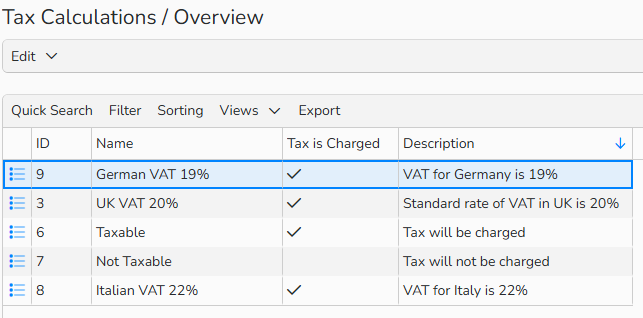
Tax Calculations overview
Set up tax calculation types
Configure all tax calculation types you need in the system. These will be available as selectable options wherever relevant.
- Navigate to Finance > Tax Rates and Calculations > Tax Calculations, then select Edit > New.
- Fill out the following fields:
- Name: Specify the label for the tax calculation.
- Calculation: Use the radio button to define whether a tax is applicable (Yes or No).
- Yes means that, where relevant, the associated Customer, Partner or Author should be charged the tax; No means they should not be charged the tax.
- Special Tax Rate: Enter an alternative tax rate for special cases.
- Language: Provide the label for the tax calculation in each financial language you’ve defined under Administration > Language Settings > Languages.
- Click Save.
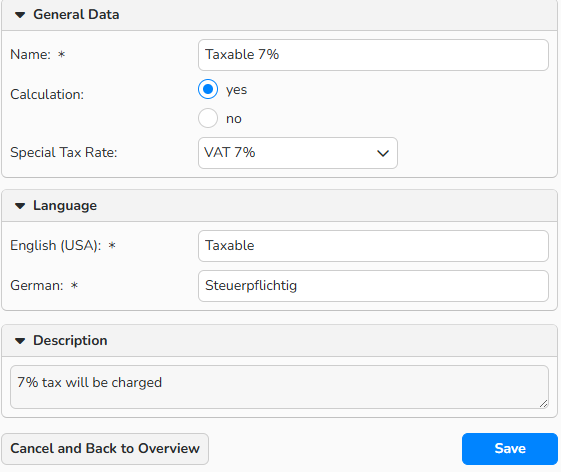
Tax Calculation setup dialog
Note
To learn how to activate more languages for Finance, refer to the Languages FAQ.
Select tax calculation on a master data record
Assign your tax calculation types to Sales and Purchasing master data records to define how taxes should be applied for customers, partners, authors, author pools, and syndications.
- Navigate to a master data record under Sales or Purchasing.
- In the Finance Data section, choose a record from the Tax Calculation dropdown.
- Click Save.
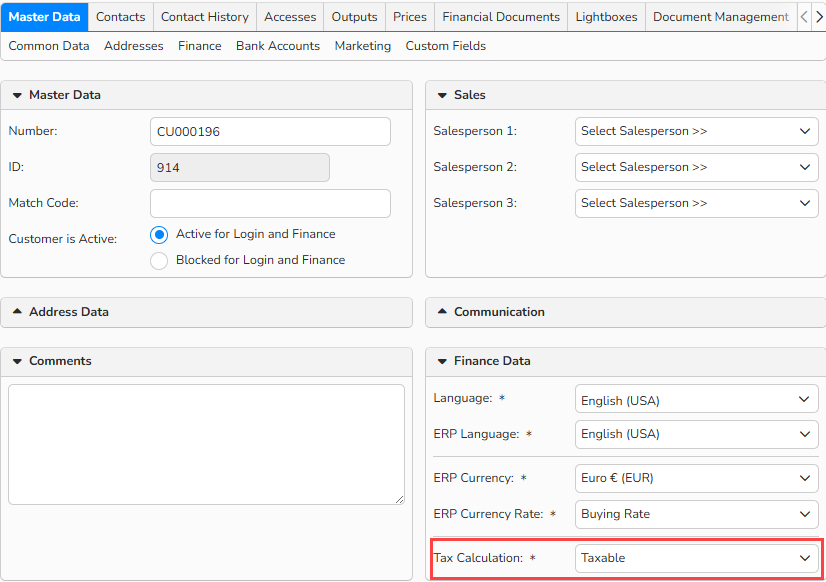
Customer master data - Tax calculation selection
Configure master data templates
If you use the same billing settings often, create master data templates in Finance > Templates > Master Data Templates. When you create a new master data record, the system automatically pre-fills the relevant fields with your default values. This is especially useful for mandatory fields.
When you create a new master data record or modify existing data, you can choose to override the defaults.
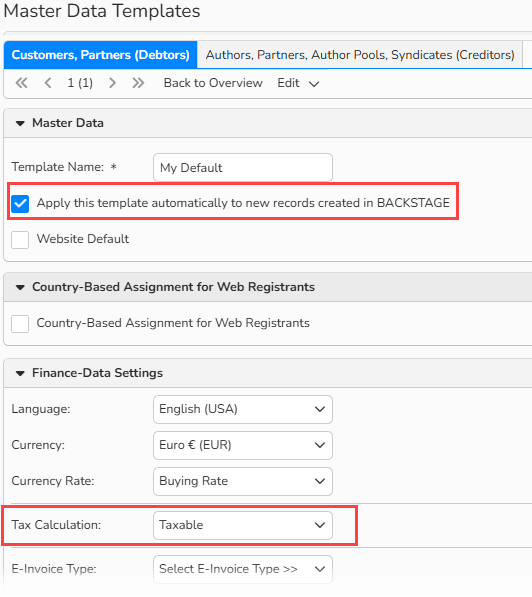
Master Data Template > Debtors tab: Apply this template automatically to new records created in Backstage
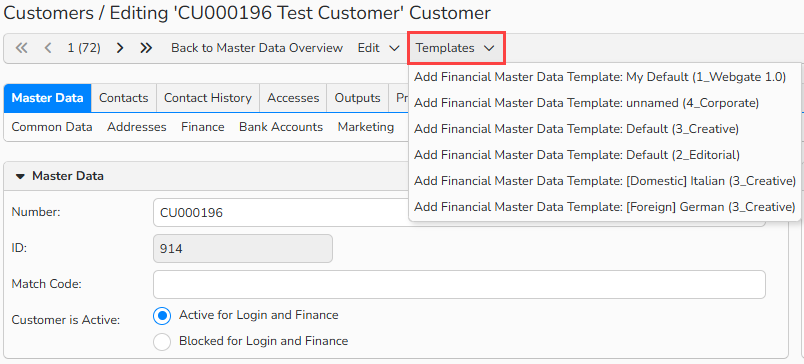 Customer master data window: Templates menu
Manage tax calculations
You can manage your tax calculations in Finance > Tax Rates and Calculations > Tax Calculations. The following functions are available:
Create a new tax calculation
Select Edit > New from the menu.
Edit an existing tax calculation
Double-click the entry or select it, click Edit > Open from the menu.
Copy an existing tax calculation
Select the entry you want to copy and click Edit > Copy from the menu.
Delete an existing tax calculation
Select the tax calculation you no longer need and click Edit > Delete.
Note
You can search, filter, and sort data records with the integrated table functions. To learn more about these functions, as well as how to set up custom views or use the export function, refer to the Advanced Table View FAQ.