
Series
Download as PDFOverview
A series is a collection of related media with one or more main items representing the entire set, such as an image sequence telling a story.
Series help media buyers search for related content and view connected media. You can also make series available in your webshop. Additionally, you can define search criteria, such as limiting searches to cover image in the series only.
Create series
To create a series, please proceed as follows:
- Navigate to Media Management > Collections > Series and select Edit > New. A New Series setup window opens.
- Fill in a Name the series that briefly describes its content.
- You can additionally enter the name in the languages you have enabled in Administration > Language Settings > Languages.
- To make the series available to your customers, enable the Active option.
- The following fields are optional:
- Date: Specify a date for the series to become available.
- Author: Select a record from the dropdown list.
- Top Collection: Enable the option if your website is configured to display top collections.
- Click Save.
- After saving, the Media panel becomes available for you to add the series’ media files from Archive:
- Enter the search terms into the Search box or select Edit Media > Add Media to open the Archive Search window.
- Select the images you want to add to the offer and click Choose.
- To select a continuous range of images: SHIFT + click.
- To select a non-continuous range of images: CTRL (PC) or CMD (Mac) + click.
- The selected images now appear in the Media section.
- To set the cover image for the series, select it and click Edit Media > Mark as Primary.
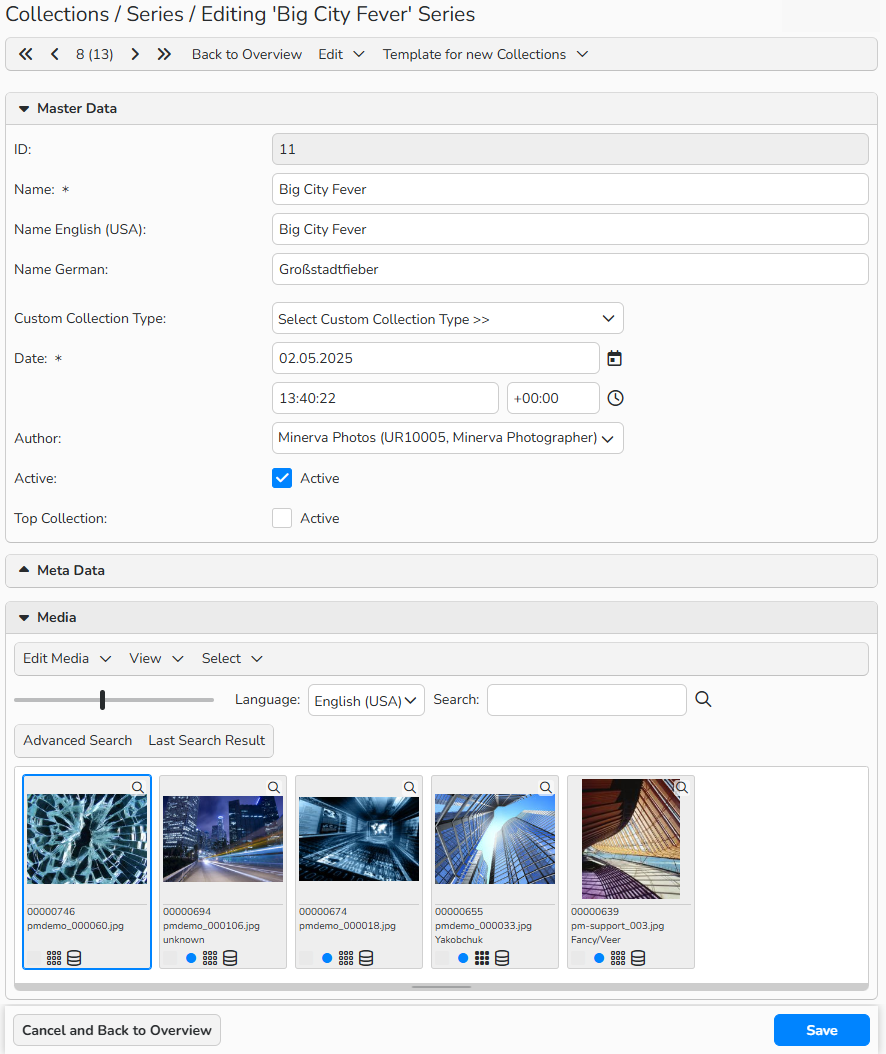
Collections > Series: Edit Series window
Note
A media file can belong to multiple series. When you assign the file to a series, the system marks it with the series icon  .
.
By default, the system uses the first image added as the series cover. The cover image is then marked with this icon  .
.
You can change the cover manually by going to the Media section of the series, selecting the desired image, and choosing Edit Media > Mark as Primary.
Tip
Create series with Fast Functions > Series
Use Fast Functions > Series to group media files into series before publishing.
You can activate the fast function individually for each media editing folder. Once activated, it appears in the folder’s menu and on the right side of your user interface for quick access. For more details, see the Folders FAQ.
Tip
Create series automatically using action runs
An action run is a series of actions executed one after another. Use the Action Runs feature to automatically create new series based on defined conditions.
For example, you can add specific information to your media files that the system will look for during import. All media containing this defined information will be grouped into a series. For more details, see the Action Runs FAQ.
Menu: Edit Media
The menu offers the following functions:
| Add media | Add media files to the series from the Archive, or use the Search box in the Media panel to find and add images. |
| Mark as Primary | Set a primary image to present the series. |
| Mark as Secondary | Remove the primary image mark from the media file that is currently set as primary. |
| Display Collection as Archive Search Result | Display the series’ media files in the Archive folder for further media processing with actions and action runs. |
| Display Collection as Lightbox Search Result | Display the series’ media files in Lightbox to manage the series with the functions available there. |
| Remove Media | Pick the files you want to delete from the series and then choose this option. |
Menu: View
With the View menu you can choose how to display your media files:
| Thumbnail | All media files appear as thumbnails with the media number, file name and author. |
| Thumbnail and Text | All media files appear in a list view with thumbnail, media number, file name, description and keywords. |
Menu: Select
Use the Select All option to quickly select all images in the current view for bulk actions.
Media display and search controls
In the Media panel of a Series setup window, use the following controls to search the images for a series and manage their display:
 |
Adjust the size of the displayed thumbnails. |
| Language dropdown menu | Set the metadata language you want to search for. Note: The system searches only the metadata mask of the selected language. |
| Search box | Start a new full-text search here. |
| Advanced Search | Open the Archive search mask for a more targeted media search. |
| Last Search Result | Return to the results of your most recent search. |
Save series as template for new collections
In the top menu, Template for New Collections offers the following menu options:
| Set Current Text and Settings as Template | Save the settings of the current series as a default template for future series. |
| Mark First Media File as Primary Automatically | Automatically set the first media file of the series as the primary image. |
| Delete Template | Remove the saved template. |
Add images to series in Media Processing
You can assign media files to a series during media labeling to expand your collections. Make sure the Collections database field is available in the Common labeling mask. You can activate this field in Administration > Form Editor > Media Processing.
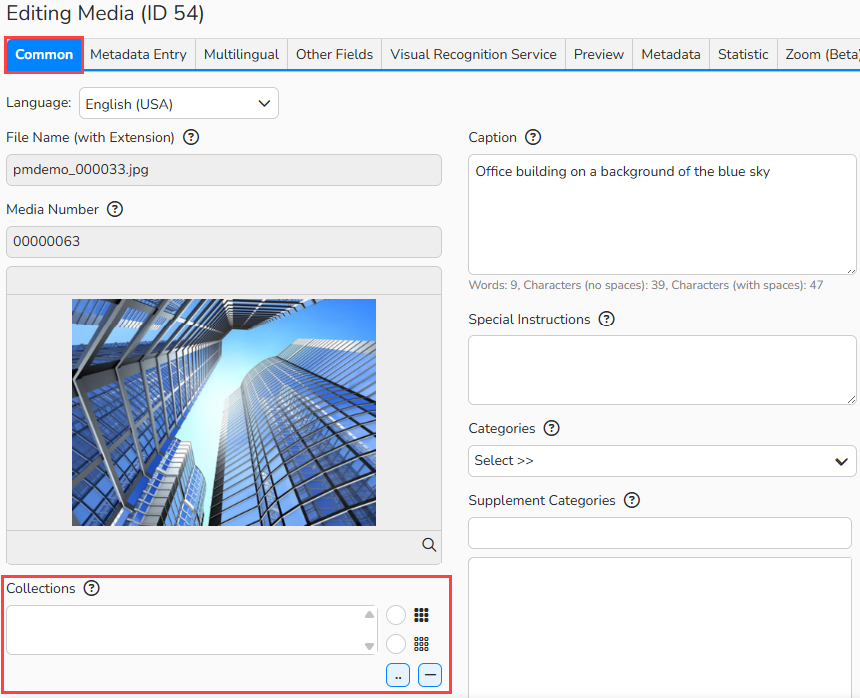
Media Processing: the Collections field available in the Common labeling mask
To add images to a series, follow these steps:
- Go to Media Processing and open a folder with the images you want to add.
- Select media files:
- To add a single media file, double-click it to open the Editing Media window.
- To add multiple media files:
- Multi-select the media files you want to add to a series.
- In the top menu, select Edit > Batch Process. The Editing Media window opens.
- To select a continuous range of images: SHIFT + click.
- To select a non-continuous range of images: CTRL (PC) or CMD (Mac) + click.
- In the Editing Media window:
- Locate the Collections field, click the lookup icon next to it to open a list of available series.
- In the list, select the series and click Choose.
- The series name is now displayed in the Collections field.
- To make the media file a cover image of the series, select the option and click Save.
- To view and manage the entire series, click the arrow icon (Open collection).
- To make the media file a cover image of the series, select the
Display series in webshop and in my-picturemaxx
To make a series available on your webshop or to your my-picturemaxx users, enable the Active option in the series setup dialog. Once activated, the series is published to your website.
Newly published series may take up to 10 minutes to appear while they are indexed. Series images are marked here with the series icon. Clicking on it allows you to view the entire collection.
In webshop, you can also support search by series with optional filters (only images in series or only series cover images). To configure the feature, please contact us at support@picturemaxx.com.
Manage series
In Media Management > Collections > Series you can find a list of all existing series.
Create a new series
- Select Edit > New.
Edit an existing series
- Select a record item and click Edit > Open.
- Make the necessary changes and click Save.
Batch process existing series
- In the table overview, select the series you want to edit.
- To select a continuous range of items: SHIFT + click.
- To select a non-continuous range of items: CTRL (PC) or CMD (Mac) + click.
- Select Edit > Batch Process from the menu.
- Configure the settings and click Save.
Delete a series
- Select a series in the table overview and click Edit > Delete.
- You only delete the series, not the associated images.
Note
The integrated table functions allow you to search, filter, and sort data records. You can also learn how to set up custom views and use the export function in the Advanced Table View FAQ.