
Synonyms
Download as PDFOverview
Synonyms are words with the same or similar meanings. With Backstage, you can create synonym groups and the search feature automatically takes them into account.
For example, if a user searches for "car", the OR method also searches for "vehicle" or "automobile". The metadata of the media file doesn’t need to contain all these words in a synonym group.
Create new synonyms
To create a new synonym group, proceed as follows:
- Navigate to Media Management > Classifications > Synonyms.
- Select Edit > New.
- In the Name field, assign an internal name for your synonym group.
- Click Save. The Edit Synonyms panel is now displayed.
- In the Edit Synonyms panel:
- The number of columns that appear for each metadata language depends on your language settings.
- Add synonyms: Enter words into the corresponding columns, and confirm with the plus button or press Enter.
- To remove a term, select it and click the minus button.
- To replace a term, select it, enter a replacing term in the column header, and click the replace button.
- Click Save.
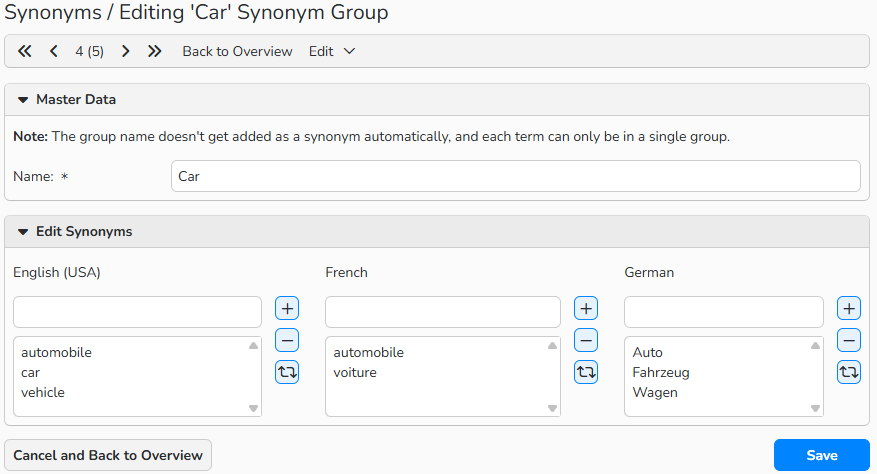
Edit Synonym Group window
Note
The system doesn’t automatically include the group name as a synonym word. The search feature always uses synonyms, when the search request contains a word that is present in a synonym group. For example, if you search for “car,” results for “vehicle” and “automobile” will also appear.
Handle duplicate words in synonym groups
Backstage prevents duplicate word entries to avoid conflicts. You cannot add the same word to multiple synonym groups. The system checks existing words when you create a new group.
Example:
The word "Auto" already exists in the synonym group "Car". For a new synonym group "Auto", you try to enter the word “Auto”.
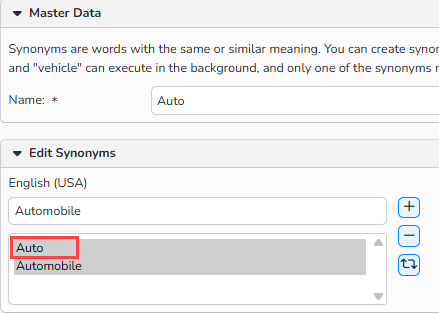
Edit Synonym Group window: Example of a duplicate word entry
- When you click Save, a warning message appears with two options to resolve the conflict:
- Remove from other Synonym Group: Deletes the word from the existing synonym group "Car".
- Remove from this Synonym Group: Keeps the word in the existing synonym group "Car".
- Select an option to resolve the conflict and click Save.
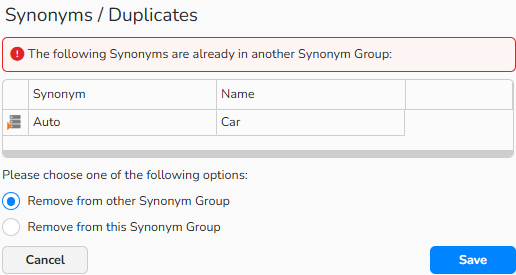
Synonym Duplicates: Warning message
Manage synonyms
You can find a list of all synonym groups in Media Management > Classifications > Synonyms.
Create a new synonym group
- Click Edit > New.
Edit a synonym group
- Double-click a group name or select it and click Edit > Open.
- Edit the list.
- To remove a word from a list, select it and click Remove.
- To replace a word, select it, enter a new word and click Replace.
Delete a synonym group
- Select a group name in the table and click Edit > Delete.
Note
You can search, filter, and sort synonym group entries with the integrated table functions.
The integrated table functions allow you to search, filter, and sort records. For more information on these functions, as well as how to set up custom views and use the export function, see the Advanced Table View FAQ.