
Notifications
Download as PDFOverview
Backstage allows setting up internal notifications about work status updates or assigned financial documents. You can view the messages directly in Backstage and configure to get them via email.
You can activate notifications for the following Backstage modules:
- Media Processing > Import
- Sales > Order Management
- Finance > Invoices and Sales Reports
- Project Management
Configure notifications
To view your notifications, click the bell icon in the upper right corner of the screen. A number on the bell icon shows your unread notifications.

Backstage top bar
- Click the bell icon to view a list of your notifications and configure email messages:
- Each notification message has a button to jump to the related section/document.
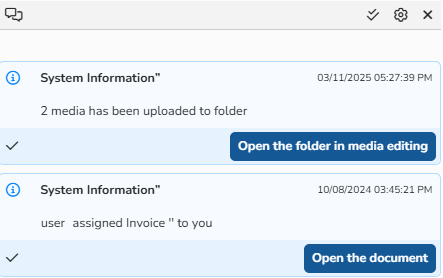
Notifications dialog
- In the dialog,, click
 to view the list of all notifications.
 - Click
 to mark all notifications as read at once.
 - Click the
 icon to access the Configuration tab where you can set how often you want to receive email notifications.
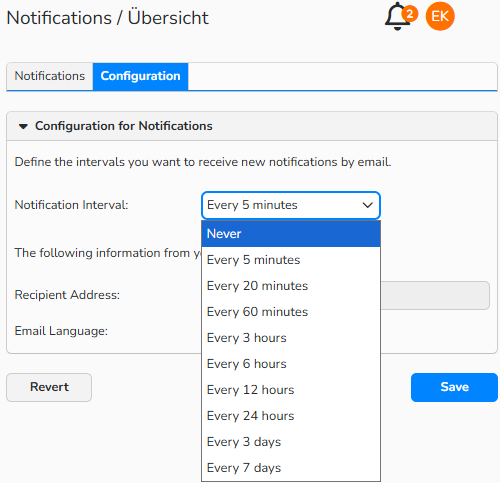
Notifications > Configuration tab: Set up email notifications
Activate notifications for an access or access group
Media Processing
Media Processing > Import
You can send notifications about new media upload to an Import folder and/or about media with an error status.
- To activate notifications about new media upload, right-click an Import folder and select Settings from the context menu:
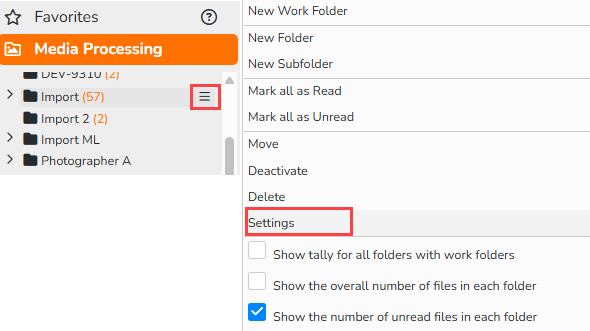
Context menu of an Import folder > Settings - In the Notifications tab, add access groups, accesses, or yourself to be notified, and activate New media and/or Media with error status options:
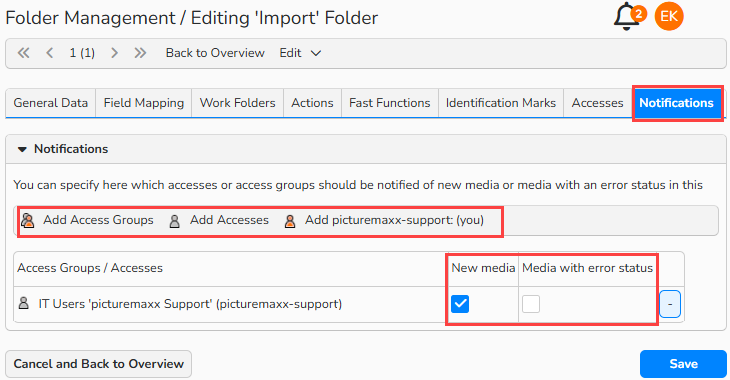
Folder Settings: Notification setup
The specified accesses or access groups will then receive notifications about new media upload and/or about media with an error status.
Financial documents
- Sales > Order Management
- Finance > Invoices and Sales Reports
When you select Salesperson 1, 2, or 3 in a financial document form (Delivery Note, Price Quote, or Invoice), the system assigns the document to that person and notifies them of any updates.
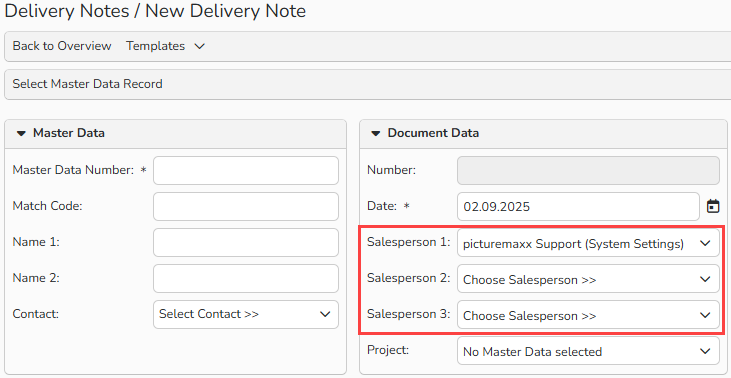
Financial document: Assign a salesperson
Project Management
In Project Management > Projects, you can specify Assignee 1, 2 and 3 for a project. They will then receive notifications when a project status changes.
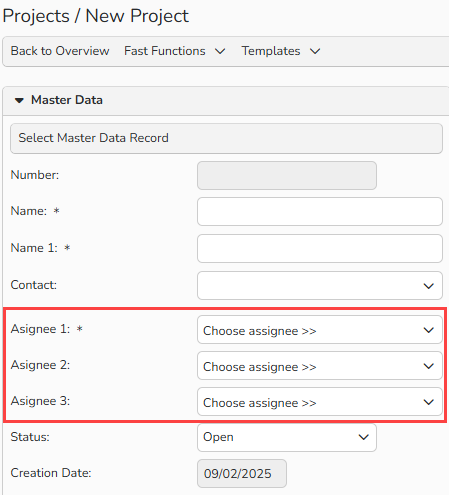
Project Management > Project: Set Assignees
You can also enable notifications for access or access groups in the Notifications tab of a project.
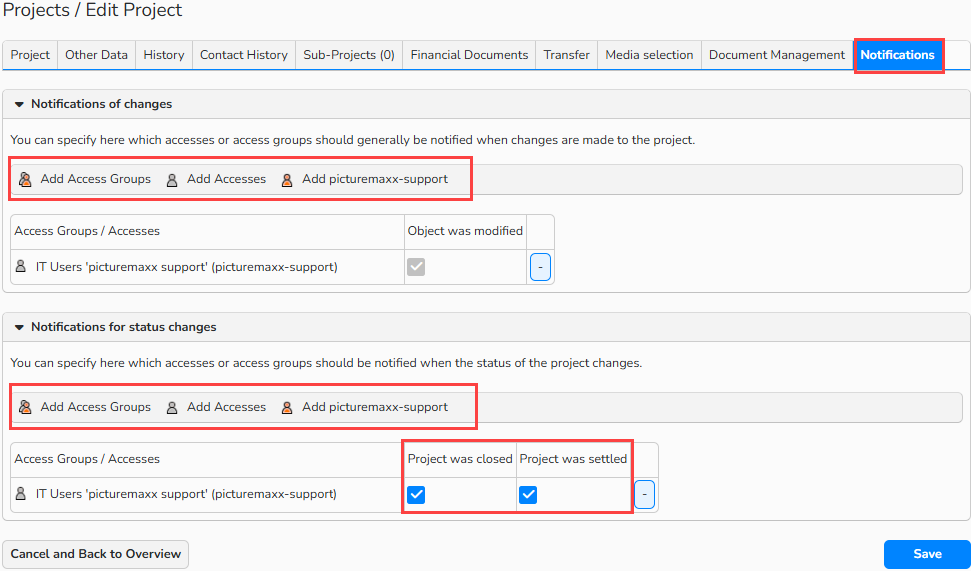
Project Management > Project: Notifications tab