
Salutations
Download as PDFOverview
Titles refer to salutations used to address a person or group, for example “Mr,” “Mrs,” or “Department”.
Create your preferred salutations under Administration > Settings > Titles. There you can manage all entries that should appear in contact record and in the registration area of your webshop.
Backstage already includes several default salutations. You can add more at any time.
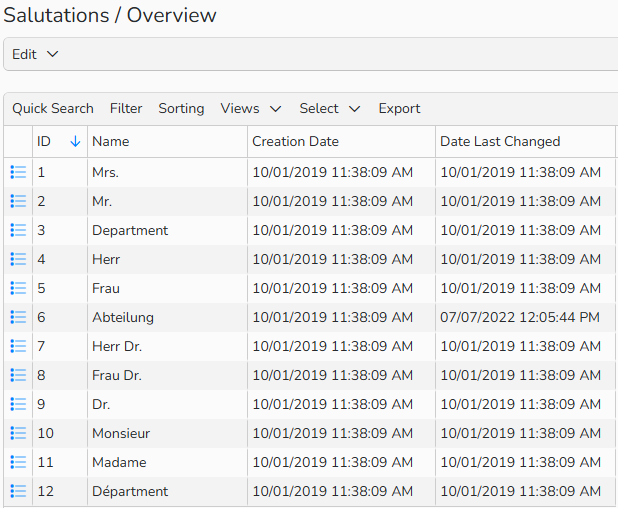
Salutations Overview
Create salutations
To add custom salutations to the default ones, proceed as follows:
- Navigate to Administration > Settings >Titles and select Edit > New.
- Enter a distinctive name for the custom salutation.
- Select one or more languages in which the salutation should be available.
- Choose the desired languages from the list of unassigned items and click Add.
To reverse the selection, use Remove.
- Choose the desired languages from the list of unassigned items and click Add.
- Click Save.
Note
The assigned language is relevant to your webshop. Users only see the salutations that match the language they select during registration.
In Backstage, all salutations are always available, regardless of language.
Use salutations in master data
Once you define your salutations under Administration > Settings > Salutations, you can use them throughout all master data areas (for example, Sales > Customers or Purchasing > Authors) in your system.
You simply select the appropriate salutation in the Contacts tab:
- Open a master data record, for example, in Sales > Customers or Purchasing > Authors.
- Go to the Contacts tab and select or create a contact record with Manage Contacts > New.
- In the contact’s master data, locate the Salutation field and select a title to assign it to the contact person.
- Click Save.
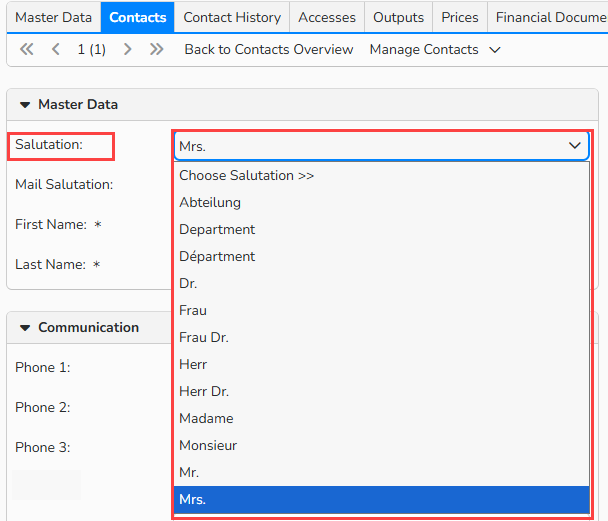
Master data record > Contacts tab: Select a salutation from the list
Use salutations in Webshop’s registration form
Salutations are also available to your webshop users during registration.
Depending on the webshop language selected by the user, they will only see the salutations that are assigned to that language.
Example: Language‑specific salutation options during the registration process:
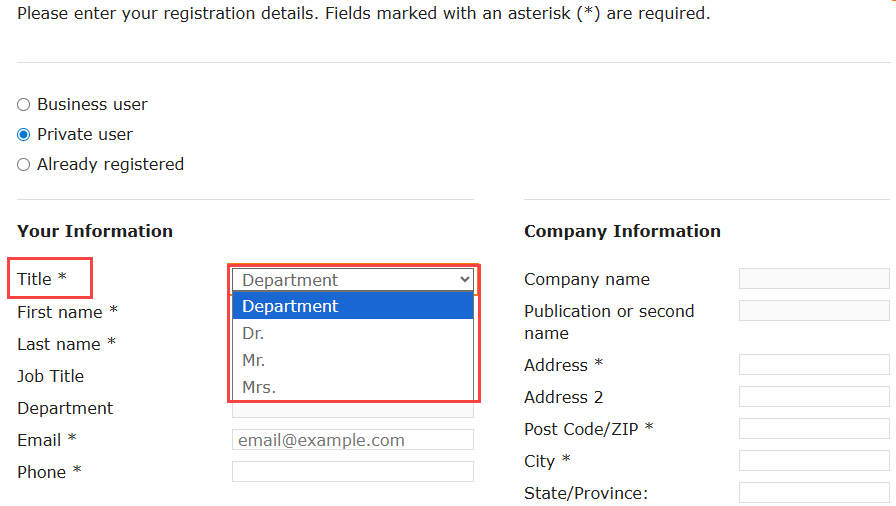 Webshop registration form > Select a salutation from the list
Manage salutations
You can manage salutations under Administration > Settings > Titles.
Create a record
- Select Edit > New.
Edit a record
- Double‑click the entry, or select it and choose Edit > Open.
- Make your changes and click Save.
Delete records
- Select the entries you want to remove and choose Edit > Delete.
Note
The integrated table functions allow you to search, filter, and sort records. For more information on these functions, as well as how to set up custom views and use the export function, see the Advanced Table Views.