
Tracking Code
Download as PDFOverview
The tracking code is a small piece of code that you add to your website. When someone opens your webpage, this code is noticed by a tracking server, which then collects useful information about the visit.
You can use this feature on your website, for example, to see how well your advertising campaigns are working.
Tracking services like eTracker, Google Analytics, Omniture, and TraceWorks offer these kinds of tools. They collect the data for you and show the results in an easy-to-understand way.
Important
Legal notice
We strongly recommend having a legal expert review your use of analytics services and the related privacy information on your website. Important legal bases include the Telemedia Act (TMG) and the Federal Data Protection Act (BDSG) in their current versions.
Add tracking code
To use a tracking code on your website:
- Log in to your analytics or tracking service (for example, Google Analytics, eTracker, or another provider) and copy the tracking code they give you.
- Your provider usually explains where to find it.
- Email the tracking code to us at support@picturemaxx.com.
- Once we receive your tracking code, we will add it to your website’s source code in the correct location so tracking can start automatically.
Check tracking code
You can always check the tracking code location in Backstage under Web > Settings > Tracking Code. The code shall appear directly before closing </body> tag (bottom):
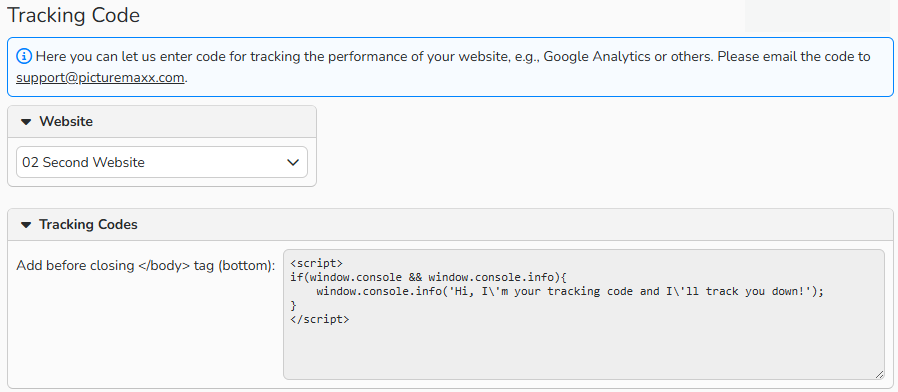
Tracking code in the website’s source code
Note
After you have the tracking code added, it usually takes up to 24 hours before data appears in your provider’s dashboard. If needed, check your provider’s support forums or FAQs to find out how you can verify in the meantime that the tracking code is working correctly.