
Search Engine Optimization (SEO)
Download as PDFOverview
To help your website rank higher in search engines like Google, Backstage gives you a tool for managing your meta tags. These tags tell search engine crawlers what your page is about, making it easier for them to index your content correctly.
With this tool, you can:
- Add a page title for every page on your website.
- Create custom meta tags that match each page’s content.
- Save commonly used meta tags as templates for faster setup.
Add meta tags for SEO
Follow these steps to add meta tags that help search engines understand your website:
- Go to Web > Page Elements > Meta Tags.
- Choose where you want to add your meta tags:
- Select Website to set meta tags for your whole site, or
- Select a specific page in the Navigation tree to set meta tags just for that page.
- Enter the main information, such as the page title and a short description. More fields are available for additional SEO details.
- Use the […] button next to the Name field, to open a list of predefined meta tags. Then enter the matching value in the Value field. You can add or remove input lines using the plus and minus icons.
- If your website uses multiple languages, add the meta tags in each language.
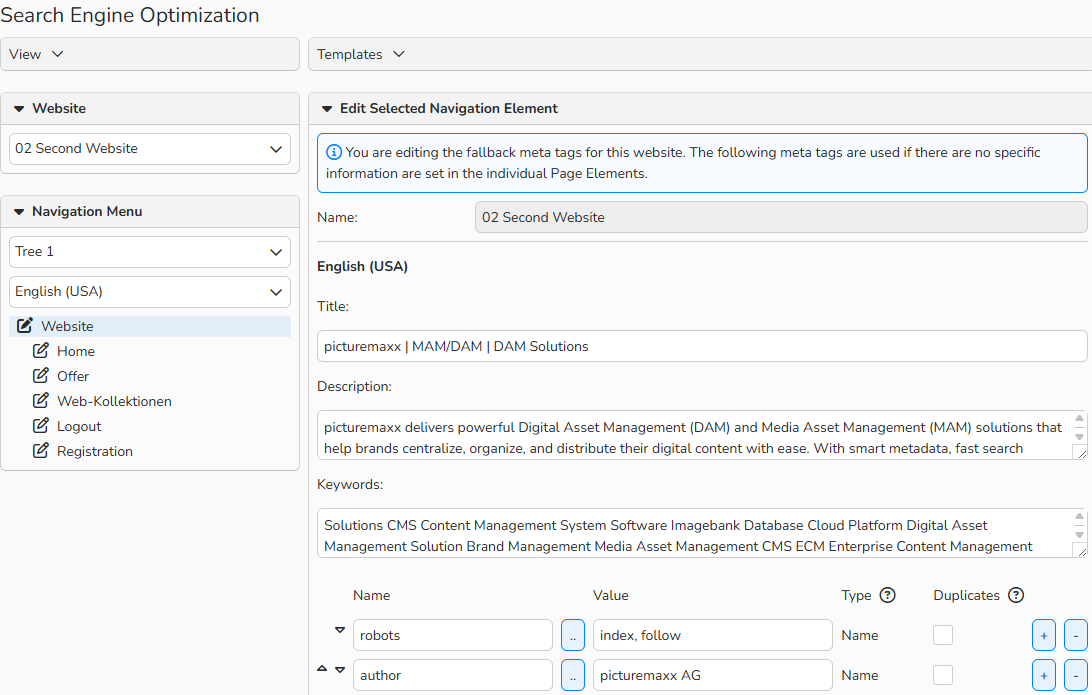
Search Engine Optimization window: Configure meta tags
Note
If you don’t add settings for a specific website, the system automatically uses the global default values.
Meta tags
Backstage provides several meta tags you can use to set up your search engine optimization (SEO). Below, you’ll find simple explanations for the most common ones.
For more detailed and up‑to‑date information, you can visit trusted online sources such as:
- https://www.google.com/webmasters/
- https://www.bing.com/toolbox/webmaster
…or consult relevant SEO literature.
Title
The title appears in the title bar of your website and is also used when a visitor saves your site as a bookmark.
It should be at least 20 characters (including spaces) and no more than 70 characters.
Description
Search engines may show this text in their search results.
Keep it under 150 characters so it doesn’t get cut off.
Robots
This tag tells search engines how they should index your page. Valid values include:
| INDEX | Allow search engines to include the current webpage. |
| NOINDEX | Do not allow search engines to include the current webpage. |
| FOLLOW | Allow search engines to follow the links on the current webpage. |
| NOFOLLOW | Do not allow search engines to follow the links on the current webpage. |
| NOODP | Allow the current webpage to be included in web directories (e.g., the “Open Directory Project”). |
Combinations of robots tags are also possible, for example:
| Combination | Effect | Possible Use |
|---|---|---|
| INDEX, FOLLOW | Allows the page to appear in search results and lets search engines crawl linked pages. | Offers / Product pages |
| INDEX, NOFOLLOW | Appears in search results but does not pass ranking to linked pages. | References / Testimonials |
| NOINDEX, NOFOLLOW, NOODP | Page is excluded from search results and web directories. | Imprint, Terms & Conditions |
| NOINDEX, FOLLOW | Page does not appear in search results, but linked pages can still be crawled. | Sitemap |
Note
If you don’t specify anything else, search engine crawlers will automatically assume the values INDEX and FOLLOW.
Tip
Avoid spam
Use unique, clear, and relevant information for every webpage that accurately describes its content. Adding too many tags or descriptions can harm how your site appears in search results and may negatively affect your ranking.
Manage meta tag templates
You can save text that you use often in meta tags as templates. This helps you fill in your SEO fields faster.
Create meta tag templates
- Go to Web > Page Elements > Meta Tags.
- Type the text you want to save as a template.
- Select Templates > Save as Template.
- Give your template a clear and unique name.
- Click Save Template.
You can then easily choose your template at any time from the Templates menu.
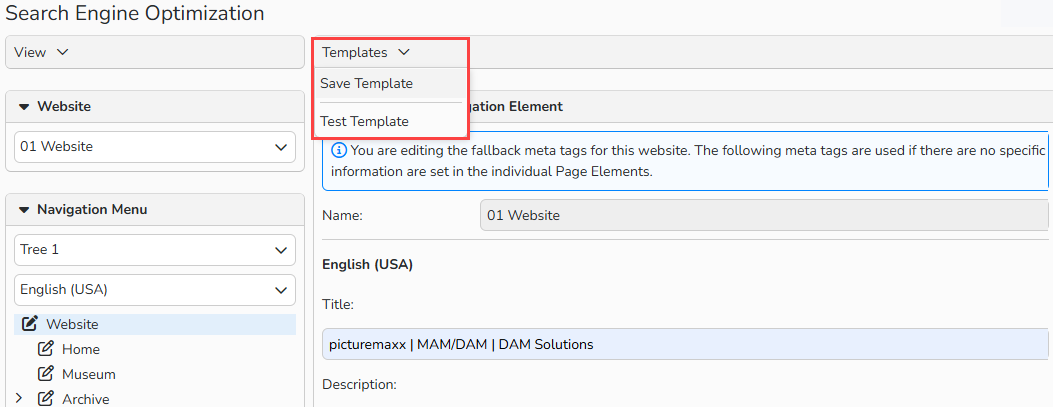
Search Engine Optimization window: Save meta tags as template
Delete meta tag templates
- Go to Web > Templates > Meta Tags.
- In the table overview, select the meta tag templates you no longer need, then choose Edit > Delete.
Note
You can search, filter, and sort the table using the built‑in tools. For more details, check the Advanced Table Views FAQ.
Tip
SEO Beyond Your Website
Your website’s ranking depends on many factors, not just meta tags. Links from relevant, high‑ranking websites can help improve your position.
For best results, follow advice from search engines, trusted online guides, or ask a specialized agency.