
Dictionaries
Download as PDFOverview
Backstage supports searching in up to 75 languages. There are 11 pre-installed dictionaries in the system. You can add and maintain more dictionaries to label your media files in other languages.
For example, if your media files only have a German label, foreign-language users can still find them due to the integrated dictionary functionality. The system translates search queries in real time and returns the corresponding results.
picturemaxx Dictionaries
We provide various pre-filled dictionaries in Backstage and i-picturemaxx. You can also create your own dictionaries in Backstage. In Webshop, you can display multiple languages in the Search section.
The following dictionaries are available by default:
Backstage
English <> German
English <> French
English <> Italian
English <> Polish
English <> Spanish
German <> French
German <> Italian
German <> Spanish
French <> Italian
French <> Spanish
Italian <> Spanish
i-picturemaxx
German
English
French
Polish
Backstage Webshop
To offer more search languages to your Webshop visitors, contact us at support@picturemaxx.com.
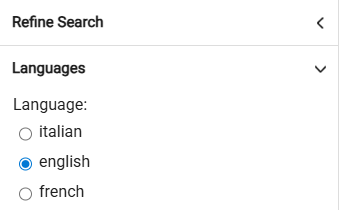
Search languages selection in Webshop
Create dictionaries
To create a dictionary entry, proceed as follows:
- Navigate to Media Management > Classifications > Dictionaries.
- Select dictionary languages from the two drop-down menus.
- Enter the term in both languages.
- Click Save and repeat for other terms.
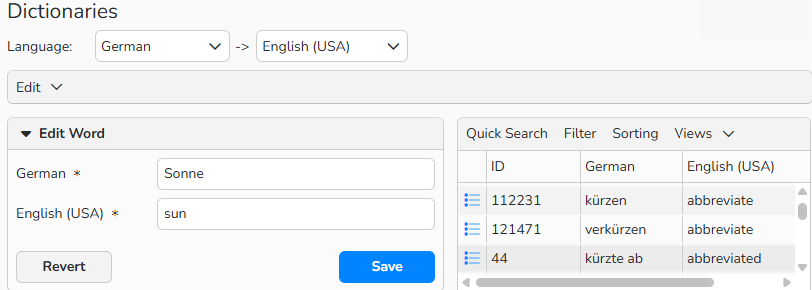
Dictionaries dialog: Enter terms in selected languages
Use dictionaries
To enable the dictionary feature, you must label your media. You can check your default labeling language under Administration > Language Settings > Languages. The system uses this language as the basis for dictionary translations.
For example, if your default labeling language is German, all words in your German media labels (such as keywords) are treated as German and translated accordingly.
Example search: German/English dictionary
Your company labels media files exclusively in German. To let English-speaking users find your media files, you require a German/English dictionary. The dictionary automatically translates the English user's search queries into German. This means that foreign-language users can also search for your media files and purchase them if they are interested.

Dictionaries dialog: German to English dictionary
Note
The system searches both for the original term and the translated term in your metadata, so it can still find proper names, for example “Ellen Wood”.
Manage dictionaries
In Media Management > Classifications > Dictionaries, you can view and amend the list of the dictionary terms.
Create a new word pair
- From the Edit menu, select New.
- In the Edit Word box, enter an original term and its translation.
- Click Save to add the pair to the dictionary.
Edit existing word pairs
- In the table, find and select the pair of words to edit.
- In the Edit Word box, make the necessary changes.
- Confirm with Save.
Delete existing word pairs
- In the table, find and select the pair of words to delete.
- From the Edit menu, select Delete.
- Confirm with OK.

Note
You can search, filter and sort the dictionary entries using the integrated table functions. Find out more about these functions and how to set up your own views or use the export function in the Advanced Table View FAQ.