
Archive Analysis
Download as PDFOverview
In the Archive Analysis section in Backstage, you can filter your media files by specific criteria and track downloaded and invoiced media.
Module structure
The Archive Analysis module in Media Management > Statistics > Archive Analysis is divided into two areas:
- Archive Analysis (1st tab)
- View all analysis runs
- Create new runs
- Executed Archive Analysis Runs (2nd tab)
- View all completed runs and their settings.
- View a list of all media files in the current selection for verification and export
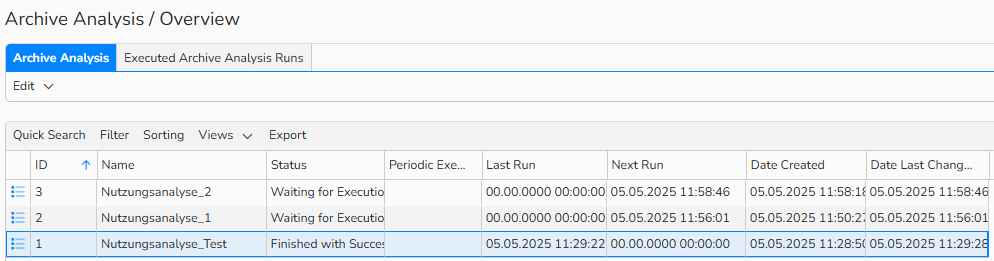
Archive Analysis Overview
Set up and run archive analysis
You can create an analysis template with specific criteria and run analyses multiple times, for example to evaluate:
- All media by a specific author that are older than 6 months
- All RM media from the past year
- All videos from the last 3 weeks
To create a template for your Archive Analysis and start the execution, follow these steps:
- Navigate to Media Management > Statistics > Archive Analysis.
- In the Archive Analyses tab, select Edit > New. In the New Archive Analysis window, configure the following:
- In the Name field, enter a descriptive name for the template.
- In the Media Selection panel, define the criteria for the analysis:
- Medium Date Filter: Enable the option to filter media by date, specify the reference date field and the time period or cutoff date for the analysis.
- Author Filter: Enable the option to filter media by author, select the authors, partners, author pools or syndicates for analysis.
- Metadata Filter: Enable to filter media for an archive analysis by metadata. Options include full-text search, searching within a specific metadata field, or filtering by media type.
- Click Apply Filter, the field will display how many media files meet the selection criteria.
- In the Marking of media in financial documents panel, choose how to review media files used in financial documents:
- Apply to financial documents: Turn on this option to review all media files linked to finance documents (such as invoices or credit notes).
- Documents per date: Also activate this checkbox to filter the finance documents by date (for example, to include only documents from the past year).
- When both options are active, the system displays the number of times each media file appears in financial documents and calculates the total net amount for the selected period.
- In the Mark downloaded Media panel, you can review media downloaded in high resolution, with optional filters by date and access type (for example, only downloads from the Sales area).
- Complete the usage analysis by clicking Save or Save and Execute Now.
- To view all completed analyses, go to the Executed Archive Analyses tab. There you can review all settings and see a list of all media in the current selection for verification and export.
Important
The analysis considers only high‑resolution downloads and excludes all preview downloads.
Further information on the overview
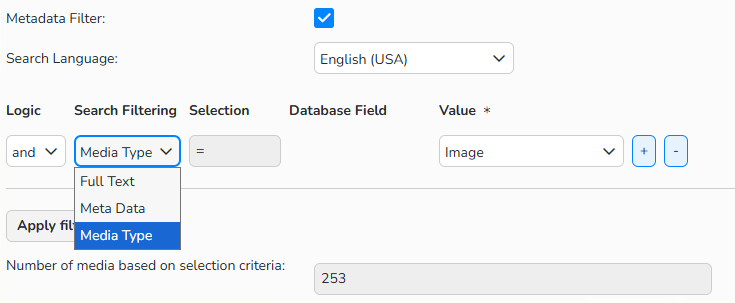
Archive Analysis window > Media Selection panel: Metadata Filter
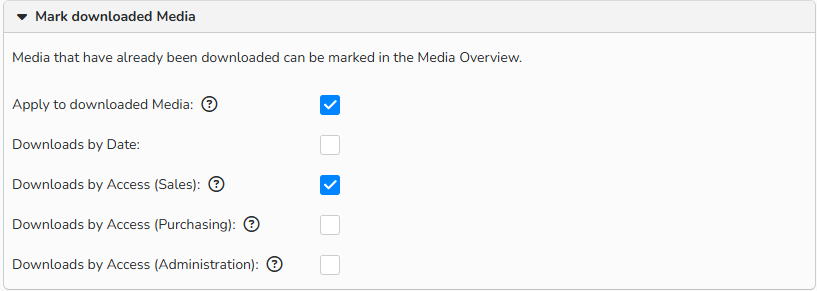
Archive Analysis window > Mark downloaded Media panel: Analysis setup to review high-res downloads by accesses in the Sales area
Review archive analysis results
In the Executed Archive Analyses Runs tab, you can view all completed analyses with their settings.
At the bottom, in the Media based on selection criteria table, there is a table overview of filtered media for review or export. The table displays the following details:
- Status: Downloaded / Billing-Relevant
Indicates whether a media item was downloaded or used in billing-related documents.
If both apply, the higher status Billing-Relevant is shown. - Number of downloads
Shows the count of high-resolution downloads for selected media. Any date or access restrictions are applied (for example, only downloads from the past year by Sales users). - Uses in sales relevant documents
Displays how many times the selected media file appears in billing-related documents (for example, invoices, credit notes). Date restrictions are applied if set (for example, only last fiscal year). - Net Sum
Shows the total net amount generated by the selected media across all documents. Date restrictions apply (for example, only last fiscal year).
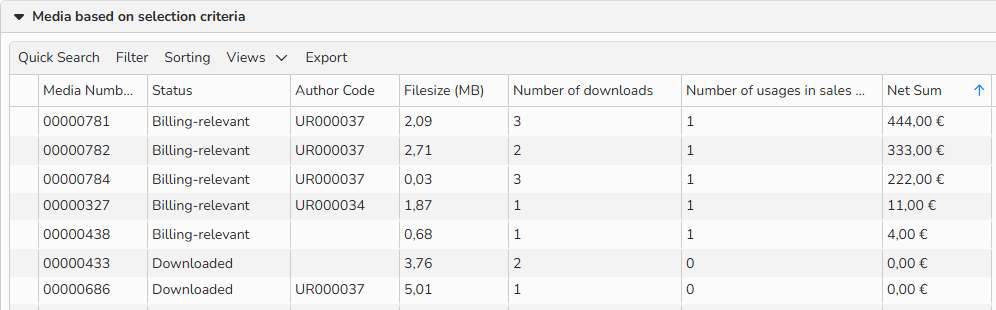
Archive Analysis window > Executed Archive Analyses Runs tab: Analysis results based on the selected criteria
Note
The integrated table functions allow you to search, filter, and sort records. For more information on these functions, as well as how to set up custom views and use the export function, see the Advanced Table View FAQ.