
Units and Items
Download as PDFOverview
Define all the units you need for invoicing all your billable Items under Finance > Settings > Units.
Whether you bill by volume, media sizes, hours, days, or per service, you can set up the required units and then simply select them when invoicing. The Download and Volume units are set up by default in Backstage.
Add units
Once a new unit is added, it is available in the various relevant areas of your system.
Create units
- Go to Finance > Settings > Units and select Edit > New.
- Fill in an internal name for the unit in the Name field.
- Enter a name for each language available for your Finance area. These names will then appear on the invoices that are created in their respective languages.
- Click Save.
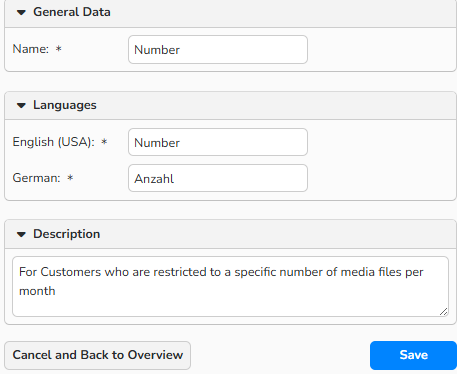
Unit dialog
Tip
Set the languages under Administration > Language Settings > Languages in the Finance column.
Assign units when configuring Items
In Finance > Settings > Items, you can manage media and other billable items and services for which you create invoices, such as Images, Videos and Download Fees.
When you set up a new item, you can directly associate it with a unit via the Unit dropdown menu:
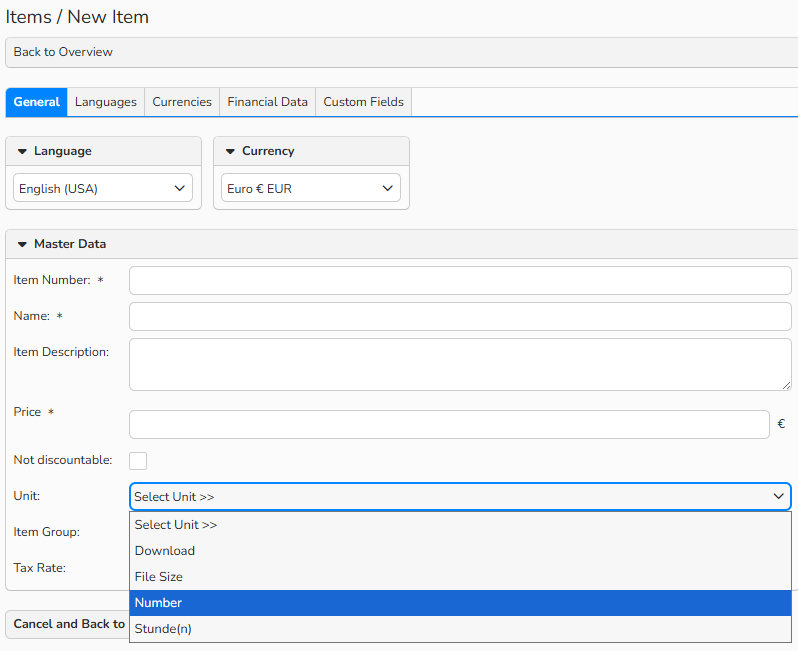
New Item dialog: Unit dropdown
Assign units when configuring Download Fees
In Finance > Prices > Download-Based Pricing, you can configure all the media sizes that are used in Download-Based Pricing. The corresponding system items are created automatically. By default, only the Download unit is displayed when editing download fees. This cannot be changed at this point.
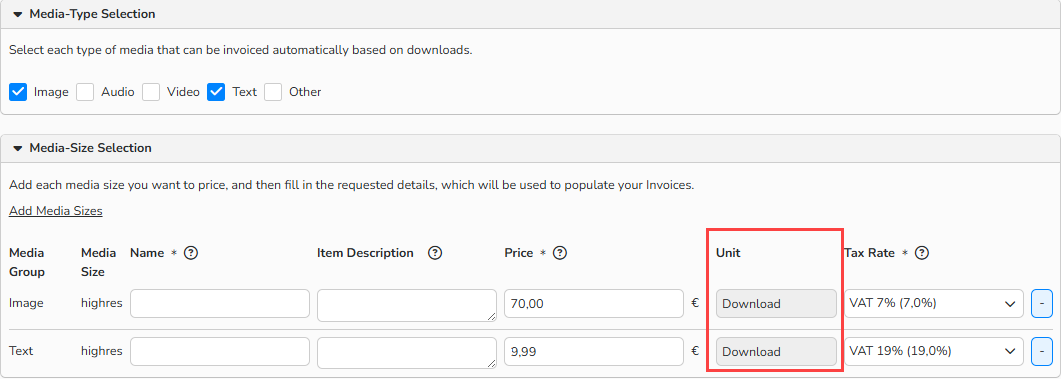
Download-Based Pricing dialog: Media Size Selection > Download units
Note
For more information, refer to the Download-Based Prices FAQ.
Assign units when configuring Invoices
You can display units when invoicing your items if necessary.
Important
You can adjust units only for unposted invoices.

Invoice dialog: Unit field in the Acquisition of Items panel
Note
For more information, refer to Financial Document Creation.
Manage units
In Finance > Settings > Units you can find a list of all available units.
Add a new unit
- Select Edit > New.
Edit existing units
- Double-click the unit in the table overview or select it and click Edit > Open.
- Make the necessary changes and click Save.
Copy existing units
- Select a unit and click Edit > Copy.
Delete existing units
- Select a unit you do not need any more and click Edit > Delete.
Note
The integrated table functions allow you to search, filter, and sort data records. You can also learn how to set up custom views and use the export function in the Advanced Table Views FAQ.