
Tax Rates
Download as PDFOverview
The application of legally regulated tax rates is essential. To simplify your workflow, Backstage allows you to define up to 20 different tax rates. These rates can be assigned and calculated on the invoices and across various financial areas of the system, such as Items or Media Items. When you create a document, the appropriate tax rate is automatically applied.
Add tax rates
To define tax rates in the system, proceed as follows:
- Navigate to Finance > Tax Rates and Calculations > Tax Rates.
- Enter the tax rates relevant to your business operations.
- Optional: If your system supports multiple financial languages, enter the appropriate tax rates for each language individually.
- To add more tax rates, click the plus icon. To remove a tax rate, select it and click the minus icon.
- Use the radio button to define the default tax rate.
- Optional: You can adjust existing tax rates based on specific dates. For temporary changes with a defined start and end date, proceed as follows:
- Select the checkbox for the tax rate you want to modify.
- Set the start date for the change. This date marks the beginning of the adjustment.
- Choose a new tax rate from the dropdown.
- To add tax rates to the dropdown, first add them as relevant tax rates with the plus icon.
- For these additional tax rates, select the checkbox and set the date when the original tax rate should return to the original values.
- Select the original value from the dropdown menu.
- Click Save.
- Now, you will have your original tax rates modified on a specific date (e.g., July 1, 2025) and the change is reversed on a different date (e.g., January 1, 2026).
- Click Save.
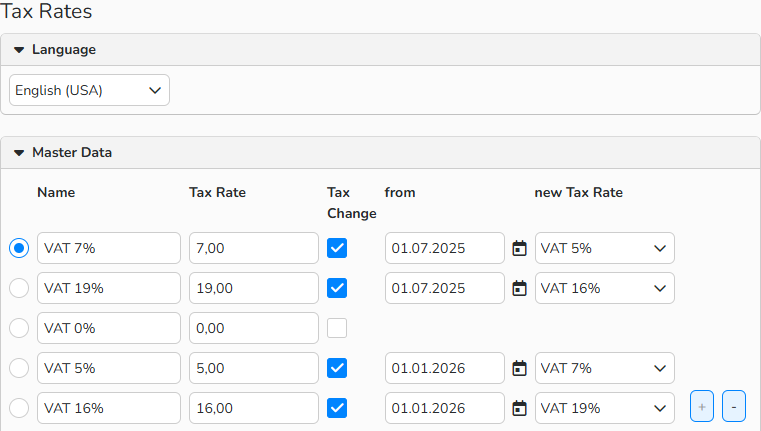
Tax Rates list: temporary tax rate change
Note
Use the Languages dropdown list to switch between the languages you have defined in the Finance column in the Select Additional Languages panel under Administration > Language Settings > Languages.
Enter the tax rate names in the selected language. The name will appear on the invoices and other printable documents. If you a translation is missing, the system will use the default language.
For more information, see Languages.
Apply temporary tax rate changes correctly
When you apply a temporary tax rate change, always make sure the service provision date is correct. If you update existing tax rates, Backstage automatically detects the change and applies the correct rate.
By default, when you create a new invoice, the system uses the current date as the service provision date. You can change this date manually, for example, if you're issuing an invoice retroactively or in advance.
To do this, go to Finance > Invoices, select Edit > New, and update the service provision date in the Document Data section.
To adjust the date on an existing invoice, open the invoice under Finance > Invoices and change the date in the Document Data section.
- If the date falls within the tax‑change period, the new tax rate is applied.
- If the date is outside that period, the original tax rate is used.
For invoices with multiple items that have different service dates, you can set the date per item manually. Backstage will apply the correct tax rate based on each item’s individual service date.
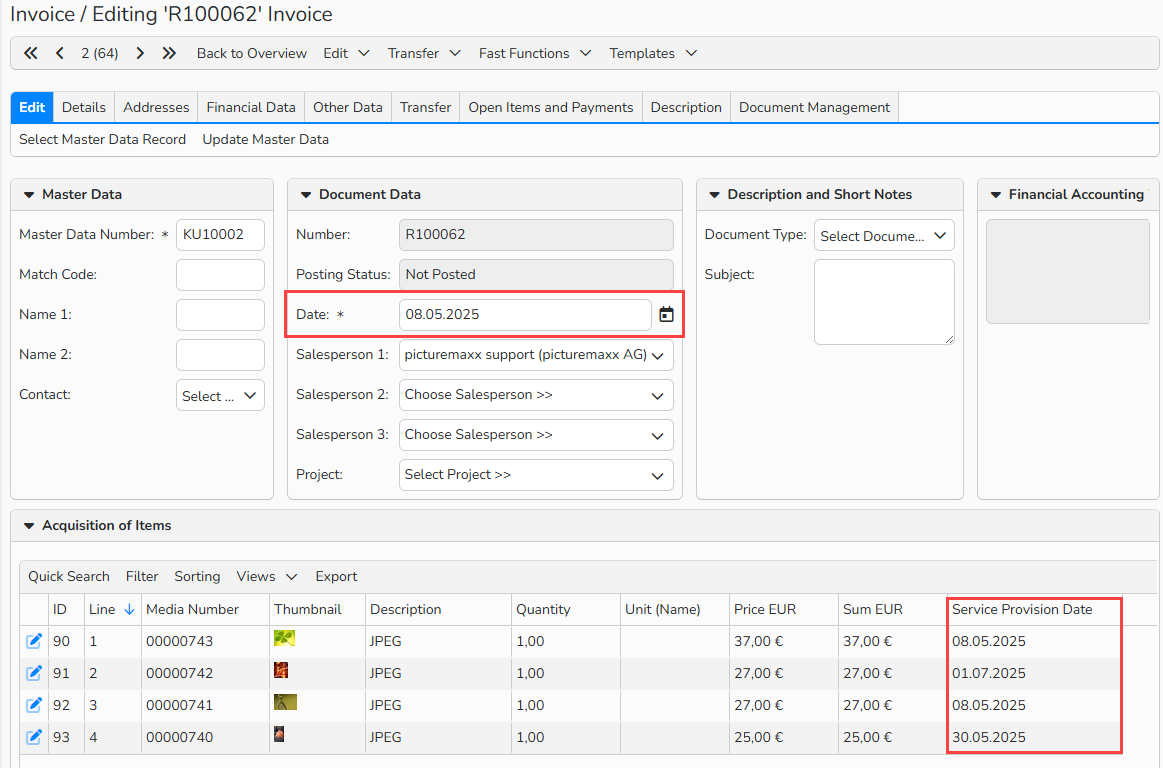
Invoice window: set Service Provision Date for each item
Assign tax rates
You can assign tax rates to forms, items, and VAT calculation settings. These rates will automatically appear on invoices and other financial documents. The system suggests the default tax rate you set under Finance > Tax Rates and Calculations > Tax Rates, but you can manually adjust it at any time.
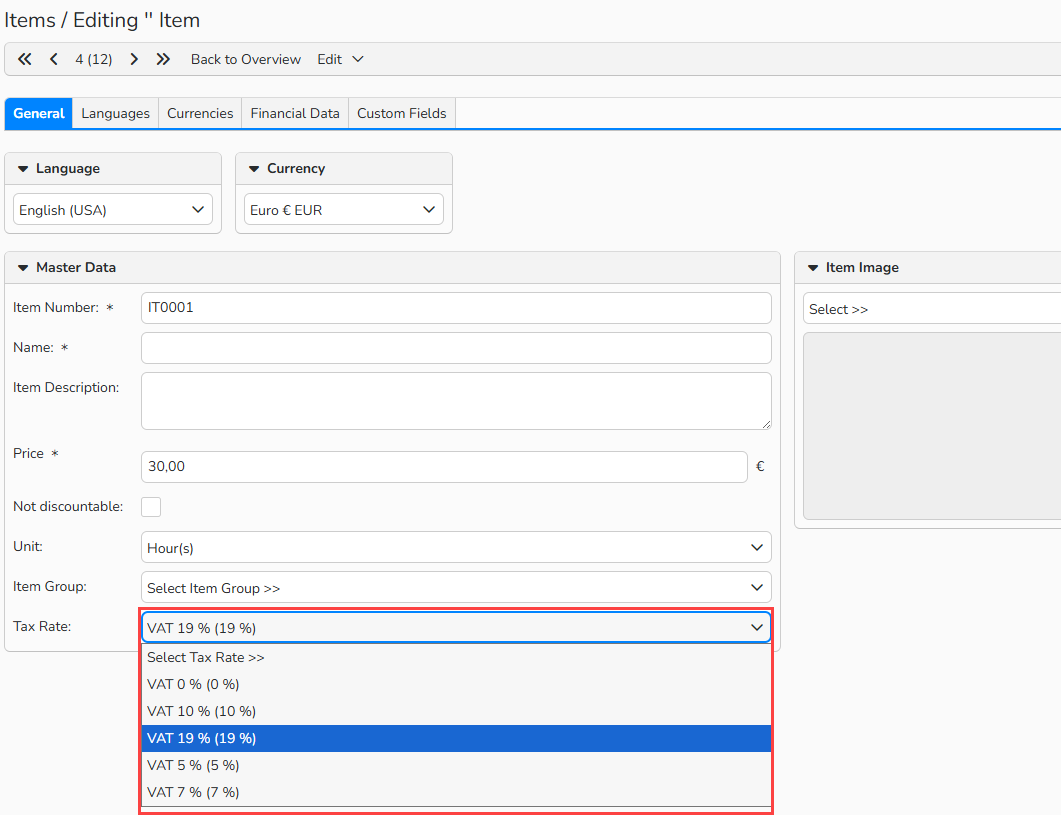
Items window: Tax Rate selection
Manage tax rates
You can access a list of all tax rates under Finance > Tax Rates and Calculations > Tax Rates.
Language
Define the language to display the tax rate names.
Name
Enter a name for each tax rate in each language. It will appear on your Invoices and other printable documents.
Tax Rate
Enter an amount for each Tax Rate. This amount will also appear on your Invoices and other documents.
Tax Change From
Define the date of the tax change and whether the tax change is active.
New Tax Rate
Set the amount of the new tax rate. The system automatically applies it to invoices based on the service provision date.