
Download-Based Pricing
Download as PDFOverview
Backstage allows you to automatically generate invoices based on downloads made by customers and sales partners. You can charge per download or apply a flat rate (for example, for subscription models). You can also set specific prices per customer or use standard pricing.
First, set up download prices for all relevant media types. The system will apply these prices when you run a download settlement in Finance > Invoices > Settlement Run: Downloads.
Then, include customers and sales partners in this automated invoicing process. Configure download fees in the Prices tab of the Customer/Partner master data records.
Set up default download-based prices
The download-based prices will populate the invoices you generate that are based on individual downloads, unless the customer has custom pricing.
To set up default download-based prices, proceed as follows:
- Go to Finance > Prices > Download-Based Prices.
- If you invoice in multiple languages and/or multiple currencies, make sure to configure the following for each combination:
- In the Media-Type Selection panel, select media types you want to invoice based on downloads (images, audio, video, text, other):
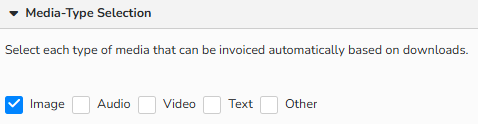
Download-Based Pricing window > Media-Type Selection panel - In Media-Size Selection panel, click Add Media Sizes to select records from a predefined list and enter prices and the data required to create invoices:
- Media Group: Displays the selected media group
- Media Size: Specifies the selected media size.
- Name: This text will populate the “Item” field of generated download invoices.
- Item Description: This text will populate the “Long Text” field of generated download invoices.
- Price: Specify the price to be charged per download.
- Unit: Indicates the billing unit, which is “Download”.
- Tax Rate: Select the applicable tax rate.
- Click Save.
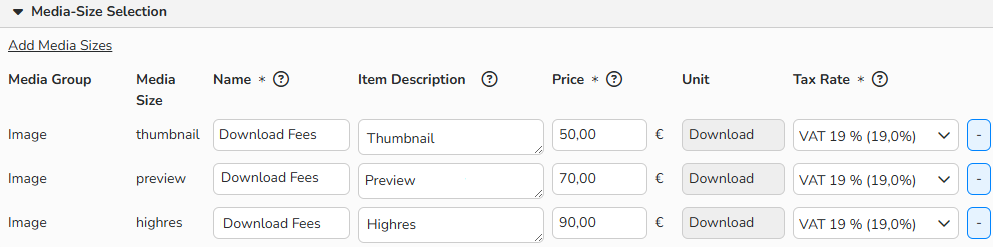
Download-Based Pricing window > Media-Size Selection panel
Tip
To configure more media sizes, go to Administration> Media Attributes > Media Sizes.
Note
Find more information in Languages, Currencies, Media Sizes, Units and Items, and Tax Rates.
Activate download-based invoicing in the Sales master data
To activate specific customers and partners for download-based Invoicing, proceed as follows:
- Go to Sales > Customers or Sales > Partners.
- Double-click the record of the customer you want to activate.
- Select the Prices tab > Download-Based Prices.
- To activate download-based invoicing, select yes.
- Choose your Settlement Type: Per Download or Download Flat Rate.
- Per Download: Select this option to charge the customers for each file they download.
- The standard prices configured in Finance > Prices > Download-based pricing will appear.
- Click Save to apply them to the master data record.
- Alternative: You can set up custom prices with the Override the standard download prices option.
- Per Download: Select this option to charge the customers for each file they download.
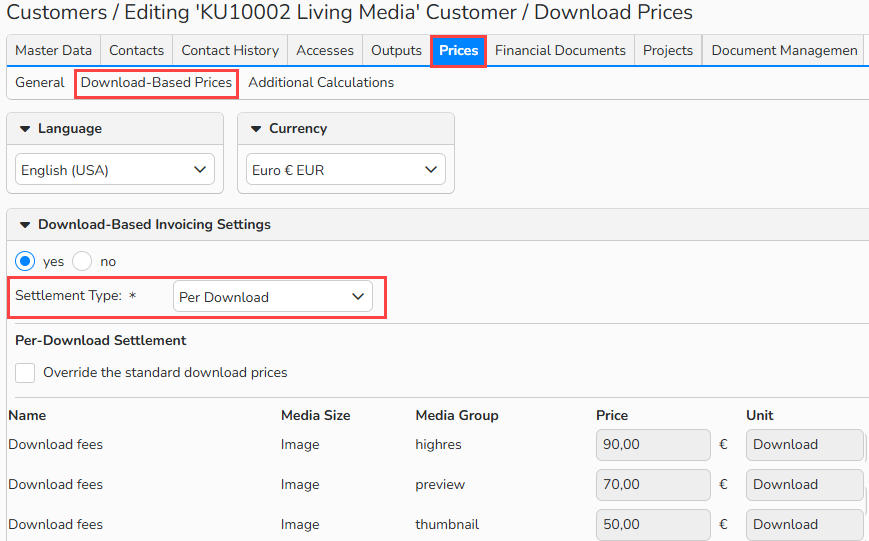
Customer master data > Prices tab > Download-Based Prices submenu: Settlement Type “Per Download”
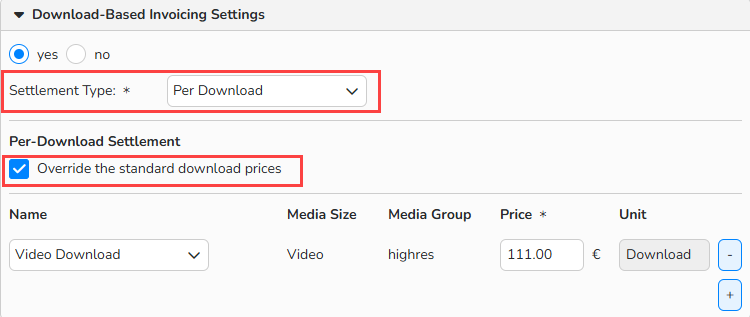
Customer master data > Prices tab > Download-Based Prices panel: Settlement Type “Per Download”, Override the standard download prices
- Download Flat Rate: Select to charge customers a flat rate for all the downloads within each billing cycle.
- Next to the Item field, click the […] button and select the appropriate flat-rate item.
- All your billable Items that are not specific media files are set in Finance > Settings > Items.
- In the Price field, enter the flat-rate price, that should be distributed proportionally among the downloads generated during the selected period.
- Click Save.
- Next to the Item field, click the […] button and select the appropriate flat-rate item.
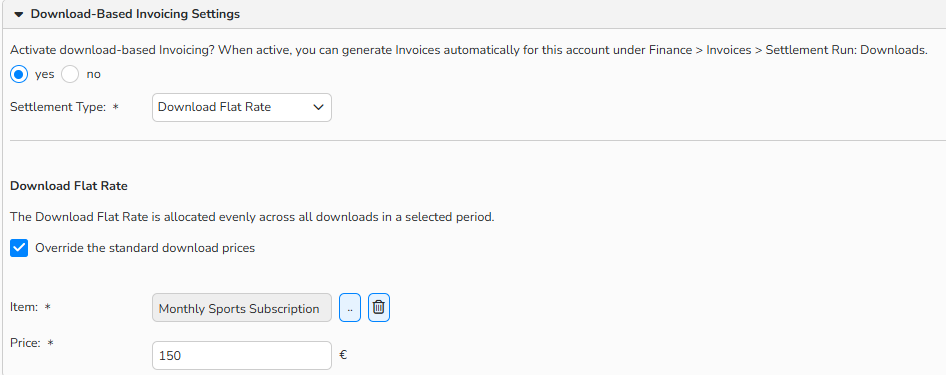
Customer master data > Prices tab > Download-Based Prices submenu: Settlement Type “Download Flat Rate”, Override the standard download prices
Manage download-based prices
You can manage your download-based prices in Finance > Prices > Download-Based Prices.
If you work with individual pricing for customers or sales partners, you can configure those directly in their respective master data records in Sales > Customers or Sales > Partners.
Important
Backstage download statistics
Make sure the Save search and download statistics option is enabled for every Access username that will download files. If this setting is off, the system will not log any downloads.
To limit the number of downloads for a user/user group, set the Download Limit and the Time Period on a user’s Access/Access Group record.
The figure below shows how this works
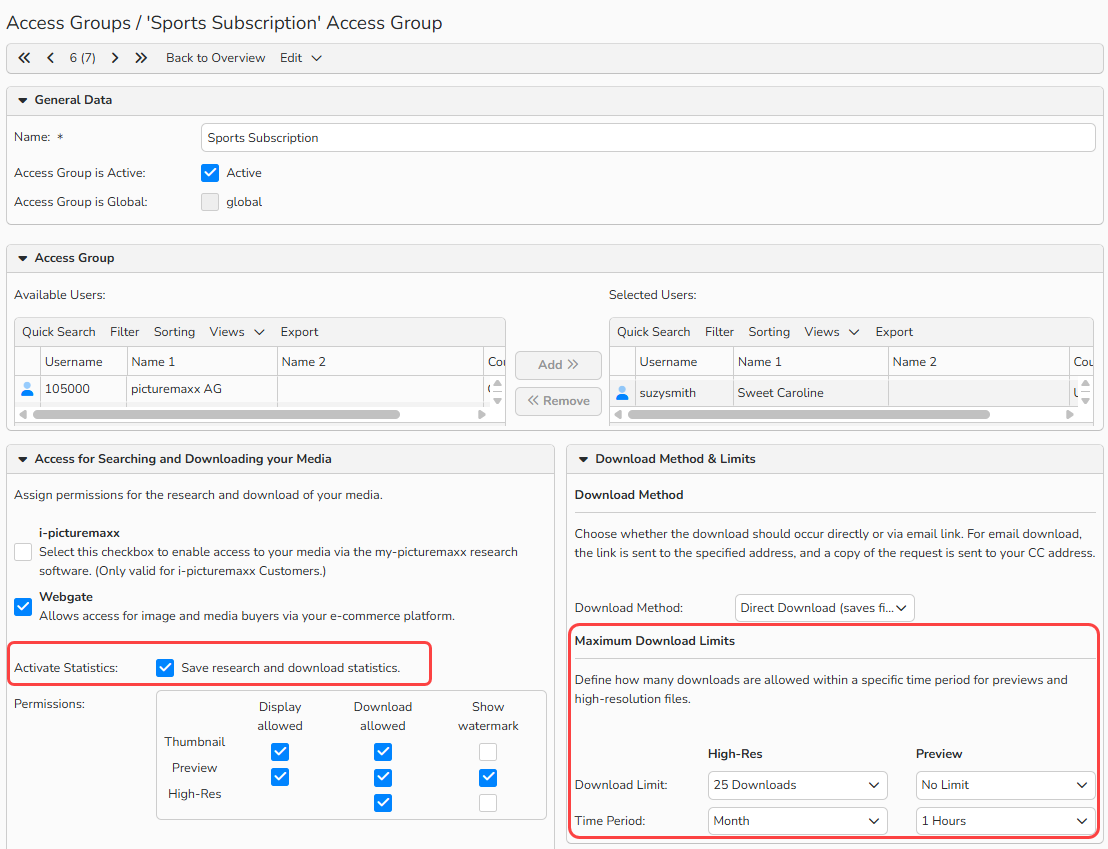
Sales > Customers > Access Groups: Download Statistics activated, Download Limit set