
Zip Codes
Download as PDFOverview
The default German postal codes provided by picturemaxx form the basis for creating your national and international address directory. This data is available in all areas where address information is used.
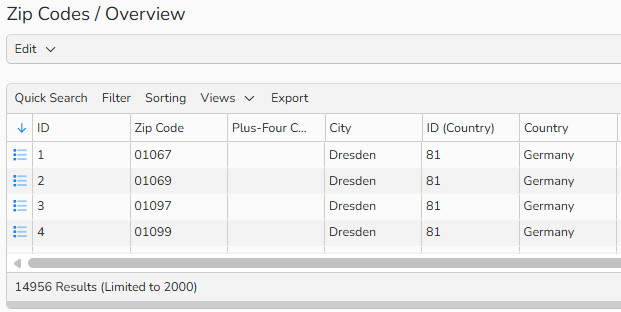
Overview Zip Codes
Add zip codes
To add custom zip codes to the existing ones, proceed as follows:
- Navigate to Administration > Settings > Zip Codes.
- Select Edit > New.
- Enter the zip code and the city.
- Click Save.
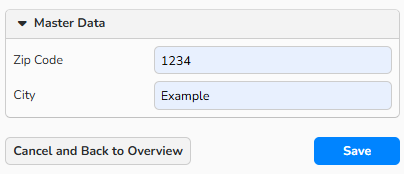
Create Zip Codes
Tip
Import Zip Codes
If you have your own list of zip codes and cities, please contact us at support@picturemaxx.com. We will send you a migration template, which you can fill out and return. This approach ensures a smooth and accurate integration. The German postal codes are already available to you by default.
Select zip codes in the system
The default and custom zip codes are available in all areas where address information is required. This applies primarily to all master data records (e.g., Sales > Customer or Purchasing > Partner), but also to your general company information under Administration > Company Settings > Company Data.
Use the […] lookup button to view and select stored zip codes and cities.
To apply a zip code to a master data record, proceed as follows:
- Navigate to master data records and double-click the record in the list to open it.
- In the Address Data panel, click the
 button next to the Zip Code or City field to open the overview dialog.
- In the overview, search and select the desired entry and click Choose.
- The system automatically populates the address fields with matching city and zip code.
- Click Save.
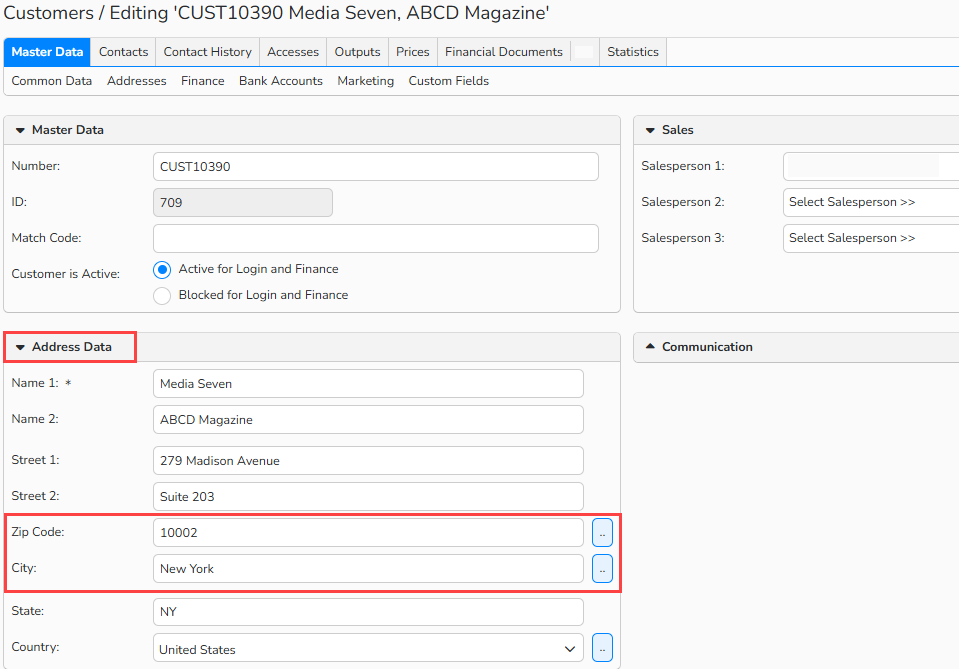
Customer master data > Address Data panel: assign Zip Code and City
Manage zip codes
Go to Administration > Settings > Zip Codes to see a list of all the Zip Codes you have in the system.
To create a record:
- Select Edit > New.
To edit an existing record:
- Double-click its name or select it and click Edit > Open.
- Make the necessary changes.
- Click Save.
To delete a record:
- Select the Bank Codes you don’t need and click Edit > Delete.
Note
The integrated table functions allow you to search, filter, and sort records. For more information on these functions, as well as how to set up custom views and use the export function, see Advanced Table Views.