
Media Database Fields
Download as PDFOverview
You can choose from a list of predefined database fields that are already available in the system and activate the ones you need. These fields store metadata and can be used across different areas of Backstage, such as media labeling, field mapping, or media processing with action runs.
Important
Backstage imports metadata only for database fields that already exist and are activated.
Before uploading media, activate all required database fields.
You can customize database fields to fit your workflow by renaming them and setting multi-language labels directly in the system interface.
Find all available database fields under Administration > Database Fields > Media. Here you can control which database fields appear in your interface:
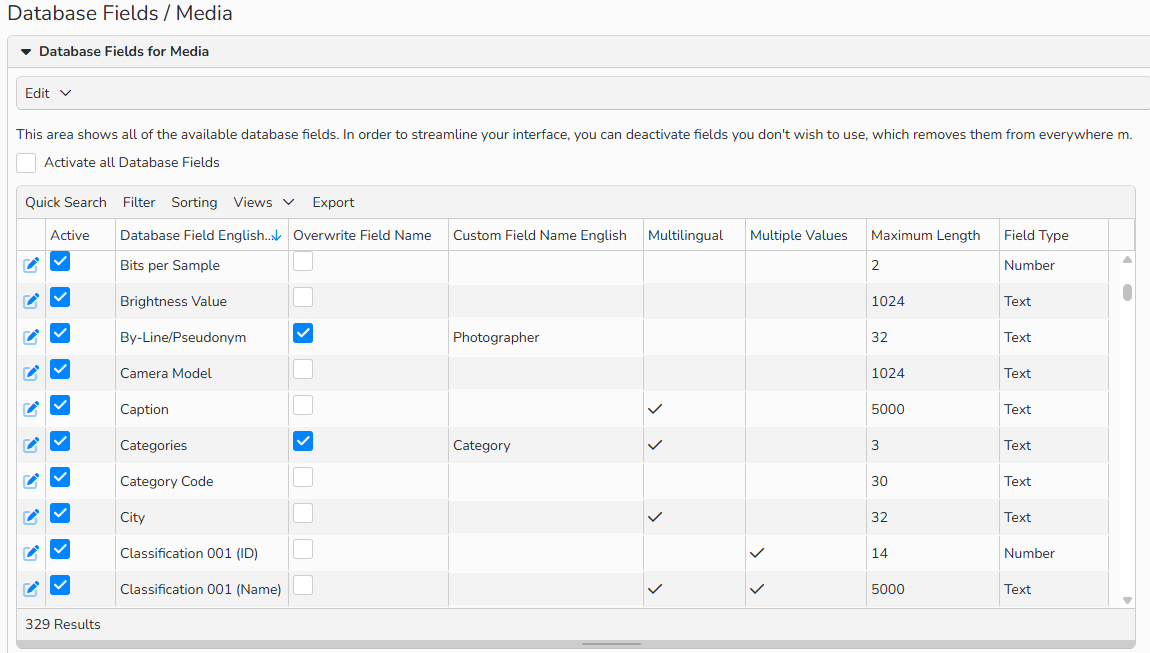
Available database fields
Important
Visible vs Searchable
Activating a database field makes it visible only. It does not automatically make the field searchable.
To make a field searchable, our engineering team must first add it to the search index. Please contact us at support@picturemaxx.com if you want a field to be included in search.
Make metadata field searchable
To make any field searchable, our engineering team must first add it to your search index. Please send us a list of the fields you would like to add or remove from the index.
For each field, let us know:
- Where should it be searchable?
- Only in Backstage
- Also in frontend full‑text search
- Which search method should be used?
- Full‑text search
- Exact match
| Searchable In / Search Method | Details | Backstage (Backend) | Web (Frontend) |
|---|---|---|---|
| Backstage and Web | These fields are part of the full-text (free text) search. | Searchable | Searchable |
| Only Backstage | These fields are indexed with ADMIN and are only visible in Backstage (backend). They do not appear in frontend search results. | Searchable | Hidden |
| Full‑text search | Default for all indexed fields. | Applies to all standard indexed fields except special cases. | Applies to fields visible on frontend. |
| Exact search | Enabled upon request. | Available on request. | Available on request. |
Check which metadata fields are searchable
You can review searchable fields directly in Backstage. If you’d like to review the fields that are not searchable on the frontend (ADMIN fields), just contact us at support@picturemaxx.com and we’ll share the list.
To see which metadata fields are currently searchable and whether they use full‑text or exact search, follow these steps:
- Go to Media Processing > Archive.
- Enable Advanced Search.
- The All Searchable Fields tab shows the complete list of fields that are currently included in your search index.
- Hover over the question mark icon. A tooltip will appear showing details about the field:
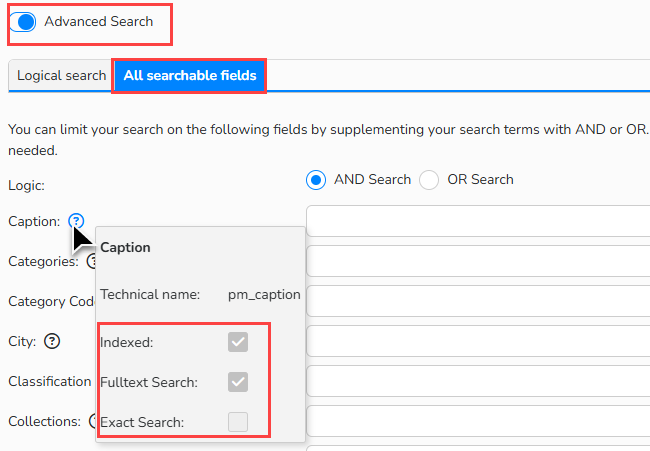
Archive > Advanced Search > All searchable fields tab: Field details tooltip
Tip
You can check whether a field is searchable and its search method in the media processing area.
Open an image from the search results and hover over the question mark next to a metadata field to see its details in the tooltip.
Review predefined database fields
Customize the overview of the Database Fields details with the context menu.
To show/hide the field properties, hover the mouse over the table header, click the context menu icon, and select the relevant options:
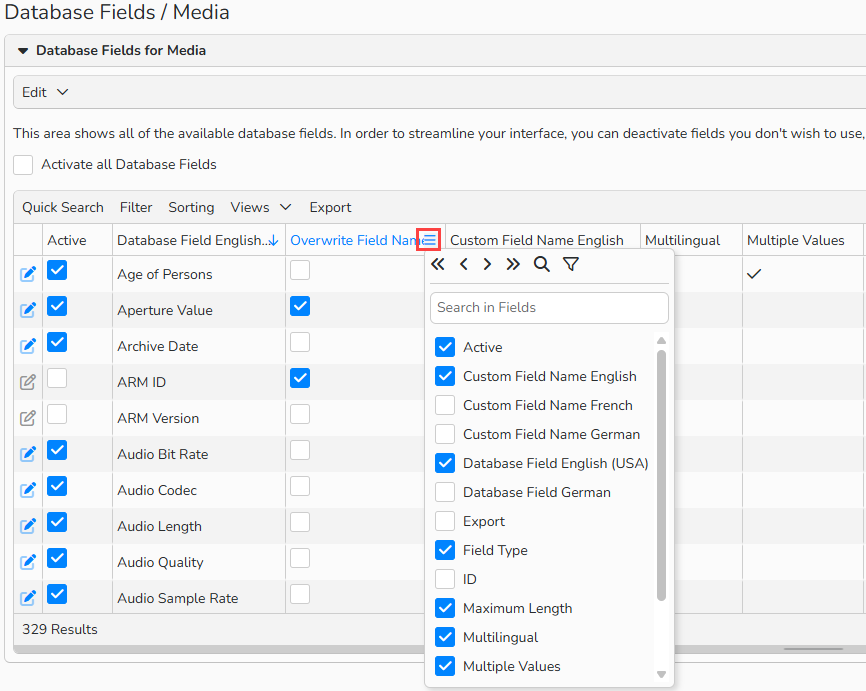
Database fields overview: select the options to appear in the table
The overview displays these field options by default:
| Active | Clear the Active option for the fields you don't wish to use. The deactivated fields are removed from everywhere in the system. To activate all fields at once, enable Activate all Database Fields. |
| Database Field German | Displays each field’s default name as it appears in the German interface. |
| Database Field English (USA) | Displays each field’s default name as it appears in the English interface. |
| Overwrite Field Name | Activate the option to customize the default name for each interface language. Then enter a new name to Custom Field Name German/ Custom Field Name English cells. |
| Custom Field Name German | If Overwrite Field Name is active for a field, you can enter your custom field name here for the German language interface. To learn more, see Customize database field names below. |
| Custom Field Name English | If Overwrite Field Name is active for a field, you can enter your custom field name here for the English language interface. To learn more, see Customize database field names below. |
| Predefined Menu | Activate the option to set up a custom dropdown for a field, so users can only choose items from a dropdown list. The option is available only for the single-value fields. For more info, see Set up drop-down menus below. |
Configure field properties
You can tailor database fields with the following field properties:
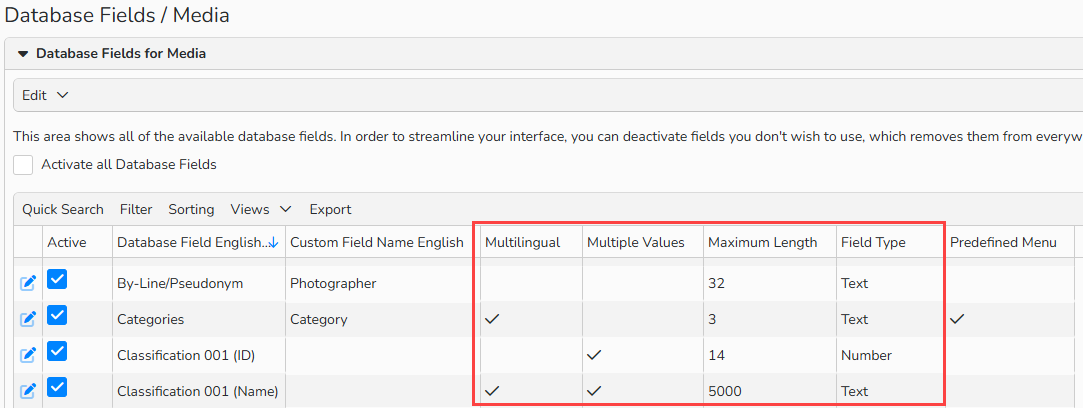
Database fields overview: field properties
Multilingual
This property defines whether a database field supports translation. If enabled, the field will offer input options in each of the labeling languages you’ve activated. Certain field types, such as numeric and date fields, cannot be translated.
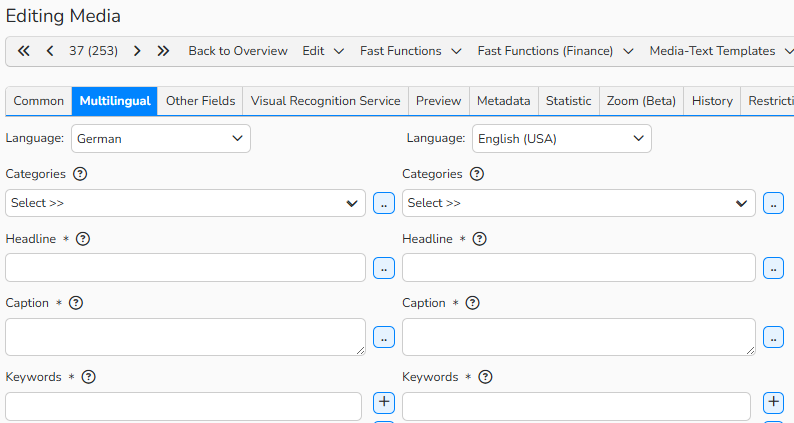
Media Processing > Multilingual tab: Multilingual property enabled
Note
You can review what metadata languages are active in Administration> Language Settings> Languages. To modify your metadata languages, contact support@picturemaxx.com.
Multiple
Indicates whether the field can contain multiple values, for example, Keywords.
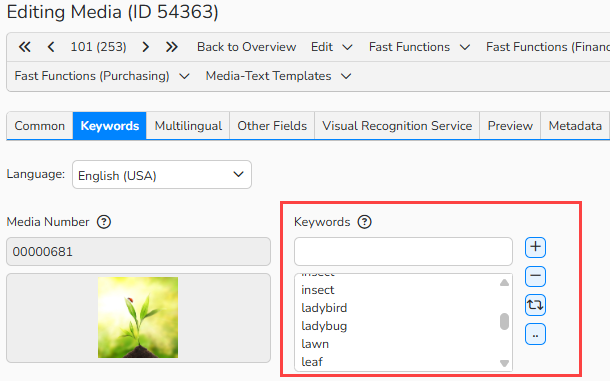
Multiple field property: Keywords field
Maximum Length
Displays the maximum number of characters that can be displayed in each field. For example, in the Keywords field, each keyword can be a maximum of 64 characters, and the number of keywords is unlimited.
Field Type
Specifies the type of data you can enter into the field, for example:
- Text: Caption
- Date: Creation Date
- Number: Urgency
Note
The integrated table functions allow you to search, filter, and sort records. For more information on these functions, as well as how to set up custom views and use the export function, see Advanced Table Views.
Enable/Disable Database Fields
Under Administration > Database Fields > Media, preselect the database fields you will need in Backstage.
Only the fields selected here will actually be used in Backstage. Database fields that are not selected cannot be used or displayed later.
To enable all database fields:
- Navigate to Administration > Database Fields > Media.
- To quickly select all fields, check the Activate all database fields checkbox.
To enable individual database fields:
- Navigate to Administration > Database Fields > Media.
- By checking or unchecking the checkbox in the Active column, you define which database fields are made available for use in the system.
Rename database fields
You can overwrite the default metadata field names with custom names:
- In Administration > Database Fields > Media, enable Overwrite Field Name next to any field name you want to customize.
- Click the respective cell in Custom Field Name English/Custom Field Name German and enter new field names for the English/German interface.
- Hit the Enter key to save and exit renaming.
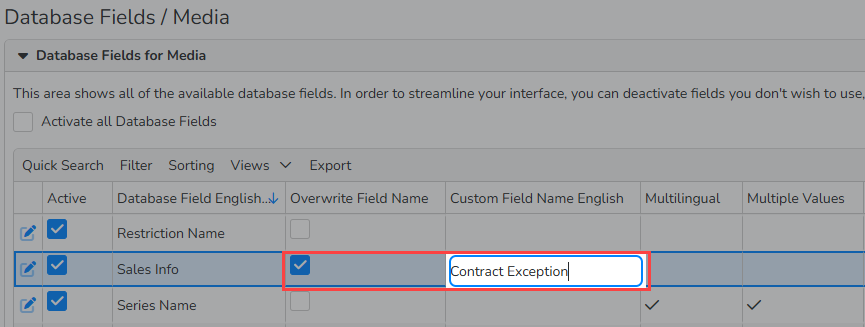
Rename a default database field
Set up drop-down menus
If a metadata field should only contain specific values, you can create a custom drop-down list for that field. This helps keep your labels consistent and makes data entry easier.
- Drop-down lists are available only for single‑value fields such as Categories.
- This feature does not work for multiple‑value fields such as Keywords.
- For multilingual fields, you can define drop-down menu items for each language separately. However, during media processing, the system stores input only for the currently active language.
To add a drop-down:
- Go to Administration > Database Fields > Media.
- Select the metadata field in the overview table.
- Click Edit > Set Menu Items.
- In the Set menu items dialog, enable Use Predefined Menu.
- Follow the on-screen instructions to add menu items and click Save.
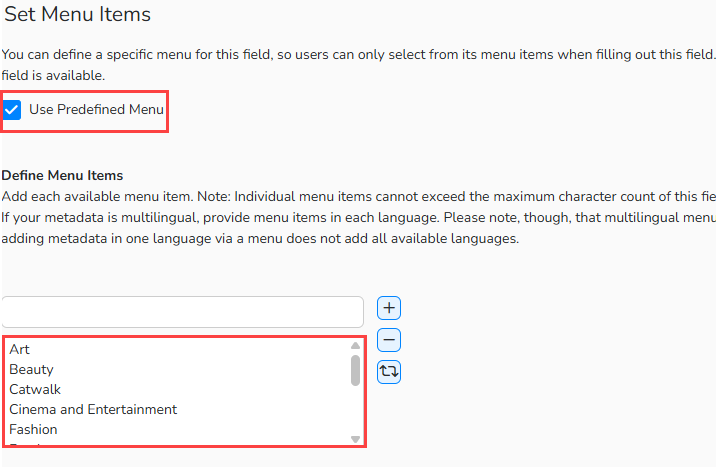
Set Menu Items dialog: create the Category Code drop-down
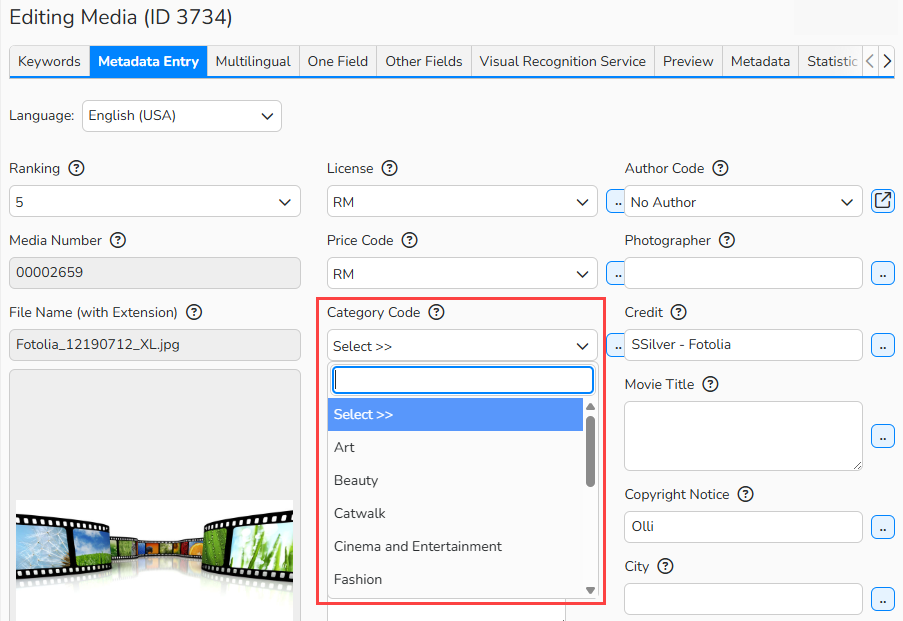
The Category Code field configured as Predefined Menu appears as a drop-down list in Media Processing
Note
- Creating drop-down lists is only possible for single-value fields, such as categories.
- If the metadata field contains a historical value that is not included in the drop-down list, that value remains and can be edited.
- If you define a drop-down list for a multilingual database field, you can also create settings for each language. However, when labeling your media, an entry is only saved for the active language.
Apply database fields in media processing
Database fields are the basis for editing your media. The way you configure these fields directly affects how they appear and function within the system.
Activate database fields in Administration > Database Fields > Media to make them available in Backstage. For example:
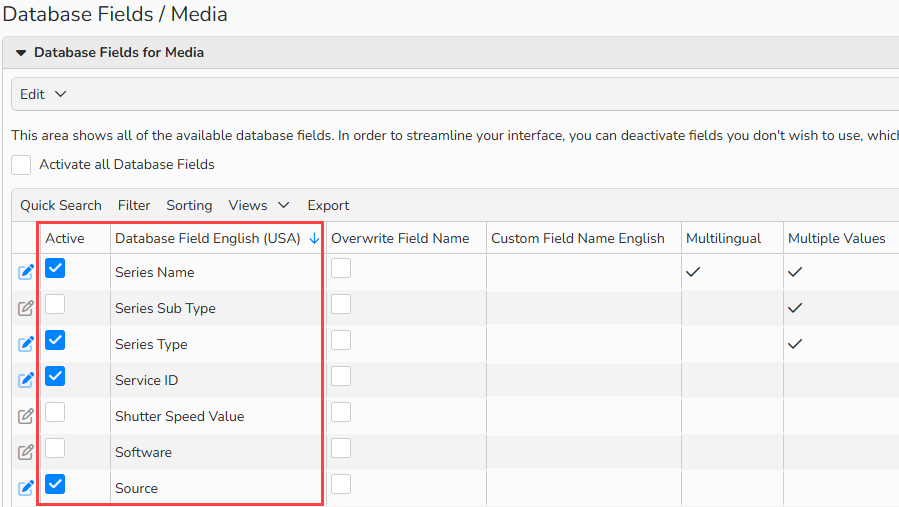
Database fields selected in Administration > Database Fields > Media
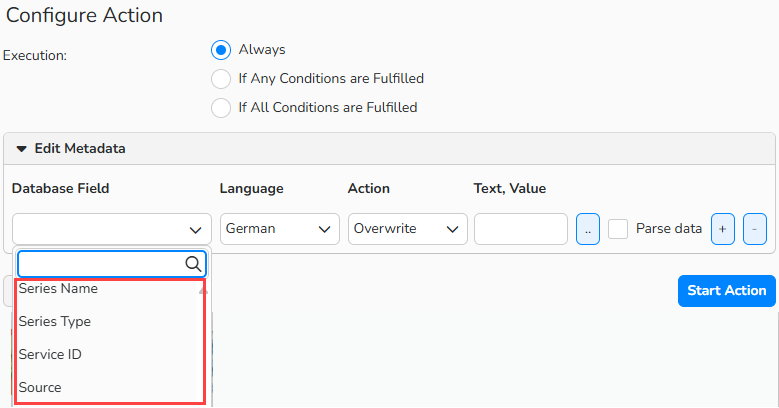
Available database fields in the “Replace and Edit” action. The list mirrors the selection in Administration > Database Fields > Media.