Translate Pages and Menu Items
Overview
You might want to go global and build a multilingual website. English and German are the standard languages we initially set up. For information about additional language options, contact us at support@picturemaxx.com.
Translate pages
If you have at least two languages set for your website, you can create a linked copy of the original language page. Add content in another language to translate the page.
Once pages are available in multiple languages, the language switch icon is displayed within the header menu on your website.
Important
The Translate feature does not automatically translate the page content for you.
To translate a page:
- In Main Administrative Menu, navigate to Content and locate a page you want to translate.
- Click the Edit dropdown button and select Translate.
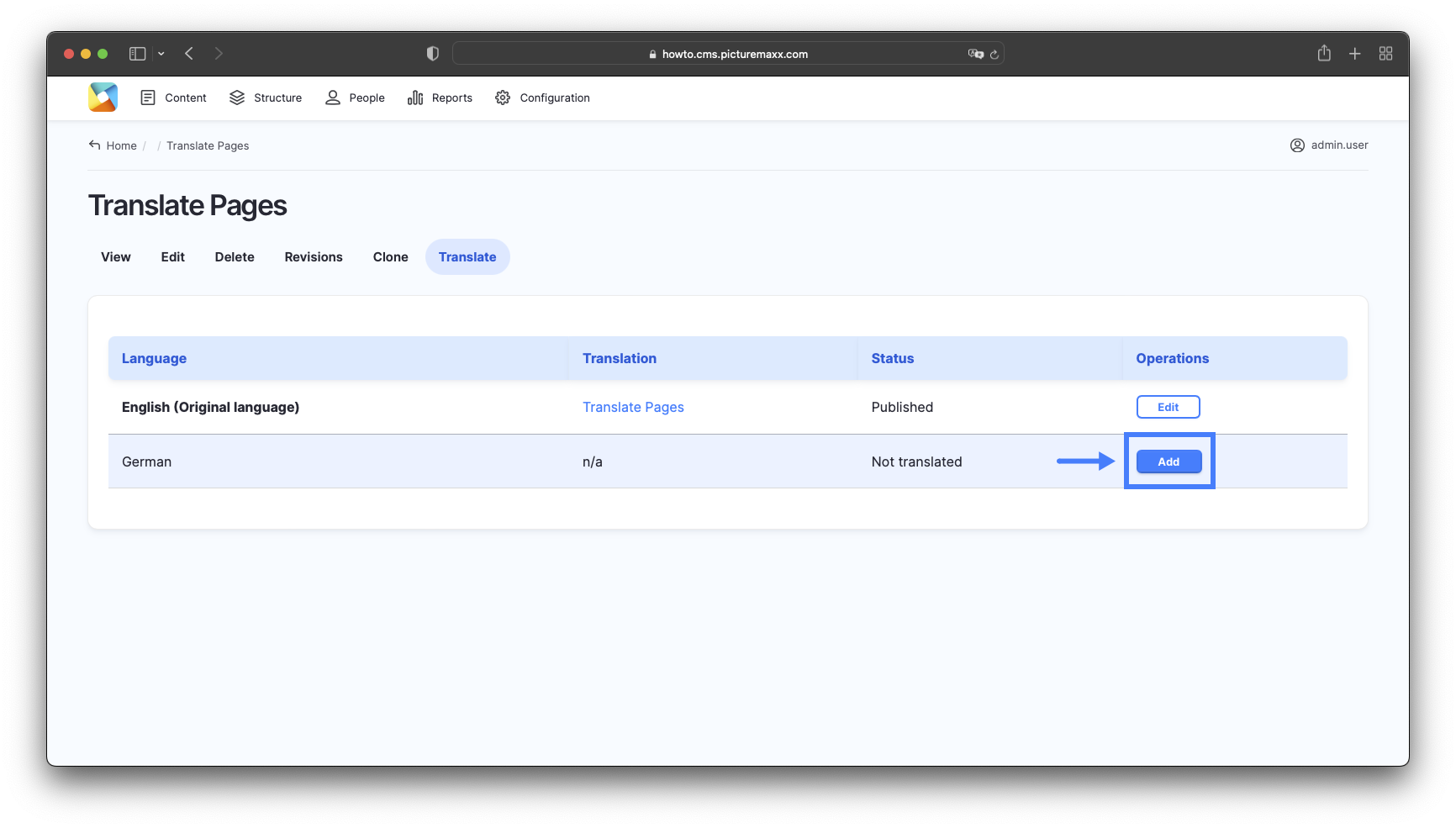
- A linked copy of the original page is created and listed under the Original language page.
- Click Add to start entering content for the translated page.
- Click Save (this translation).
The page appears in the Content list twice - as the original page and its translated version.
Important
Removing a translated page using Edit > Delete also removes the original page.
For the recommended procedure, see Delete translated pages below.
 Editing shared content on translated pages
You cannot edit the layout of some shared content elements on translated pages. If the Remove, or Change order options are not available for an element, make the change on the original language page instead. The changes will then be applied to the translation.
Example:
You cannot delete or reorder FAQ items within an FAQ Group on a translated page. To remove an item or change its order, open the page in the original language, make the required changes, and save your updates. The updated FAQ Group will automatically appear in all translation versions.
Translate menu items
If your website supports multiple languages, you can create a version of each menu link for every language. Link translated menu items to the matching translated pages. When users select a different language, the menu will automatically show the translated links.
- In Main Administrative Menu, navigate to Structure > Menus > Main Navigation. A list of available menu links is displayed.
- Click the Edit dropdown button next to the menu item you want to translate and select Translate.
- A linked copy of the original menu item is created and listed under the Original language menu.
- Click Add next to the created copy to create the translated version of the menu link.
- Enter a translated menu title.
- If a translated version of the page already exists, the menu link will automatically point to that translated page.
- Click Save.
The translated menu link is now available and will appear when users switch to the corresponding language on your website.
Delete translated pages
Important
This is the only way to remove a translated page without deleting its original-language page.
Do not use Edit > Delete next to a translated page. Doing so deletes both the translated page and its original-language page.
To delete only the translated page and keep the original page:
- In Main Administrative Menu, navigate to Content.
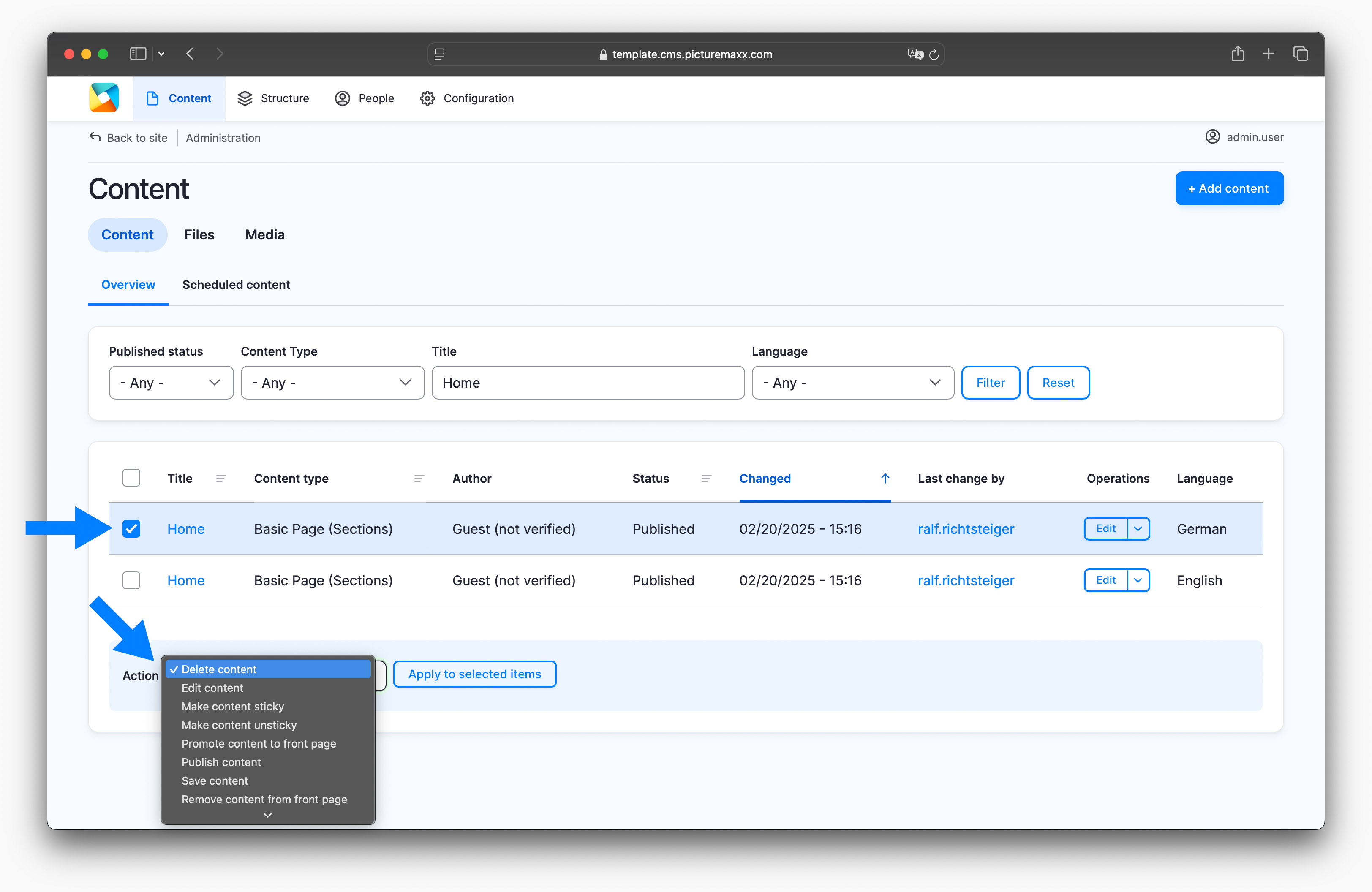
- Locate the translated page and select its checkbox. This ensures you delete the right page.
- The original page and its translated version usually have the same title unless you change it.
- Scroll to the bottom of the list. In the Action dropdown, select Delete content and click Apply to selected items.
The translated page is deleted, while the original page remains unchanged.