View Section
Overview
Use the View Section feature to automatically display lists of content, such as News Articles, Artists, Publications, or Events.
Each time you create and publish a new content element, the View Section updates dynamically to include it in the listing. You can add View Sections to a dedicated listing page or embed them within an existing page layout.
Note
You can add View Section only to the Basic Page content type and only published content will appear in the listing.
Add a View Section
- From the Main Administrative Menu, select Content.
- In the Content Overview table, locate the page where you want to add the View Section and click Edit. It opens the page editor.
- Scroll to the bottom of the page editor.
- From the Add Section dropdown menu, select Add View Section.
- (Optional) In the Headline field, enter a title or descriptive text for the section. Use the Text Editor toolbar to apply formatting and styling as needed.
- Configure the Display Options for your listing. Refer to Field Reference below for details on the available settings and display options.
- Save your changes to display the listing on the page.
Field Reference
Headline
Use the Text Editor toolbar to add, format, amd style the free-form text that appears at the top of the View Section.
View
Select the type of content you want to display: Artists, Departments, Events, Publications, News Overview, or Team.
Display
Choose how the selected content type will be presented. Available display options vary depending on the selected View.
- Artists
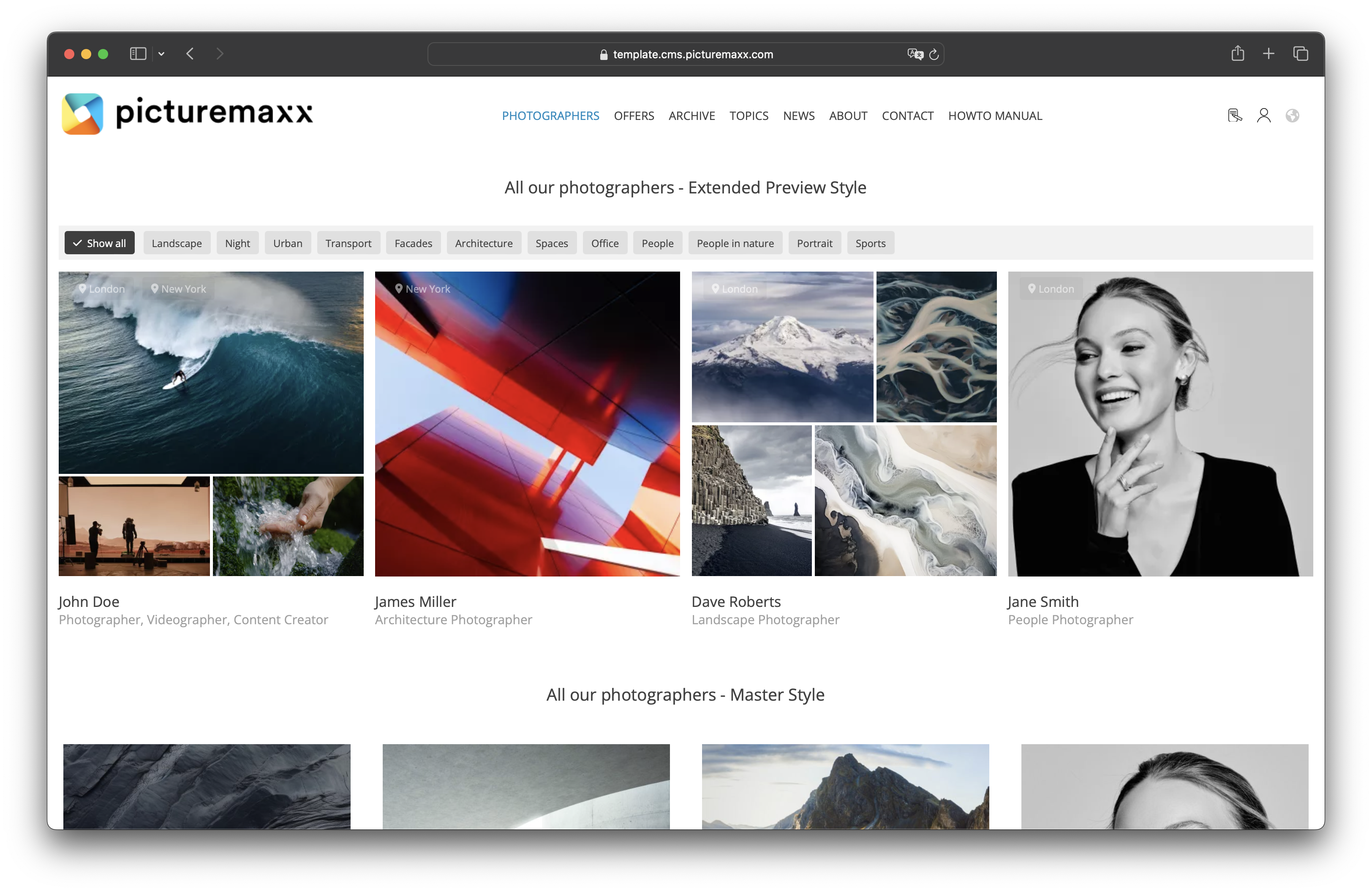
Extended Preview
Displays up to five preview images for each artist. The city or cities in which the artist works appear in the upper-left corner of the artist card.
Glossary
Displays artist names only. Artists are organized alphabetically, with columns grouped by the first letter of each artist's surname.
List-Style
Presents artists in a list format, focusing primarily on names, locations, and themes. You can upload one photo as a thumbnail for each artist.
Master
Displays a single preview image for each artist. - Team
Master and Department Members
Both display team members, but each uses a different layout. - Publications
Overview - Lists all created publications.
Teaser - Displays the three most recent news articles. - Events
Archive - Lists all events, including expired ones.
Master and Preview - Display events using different layouts. - News articles
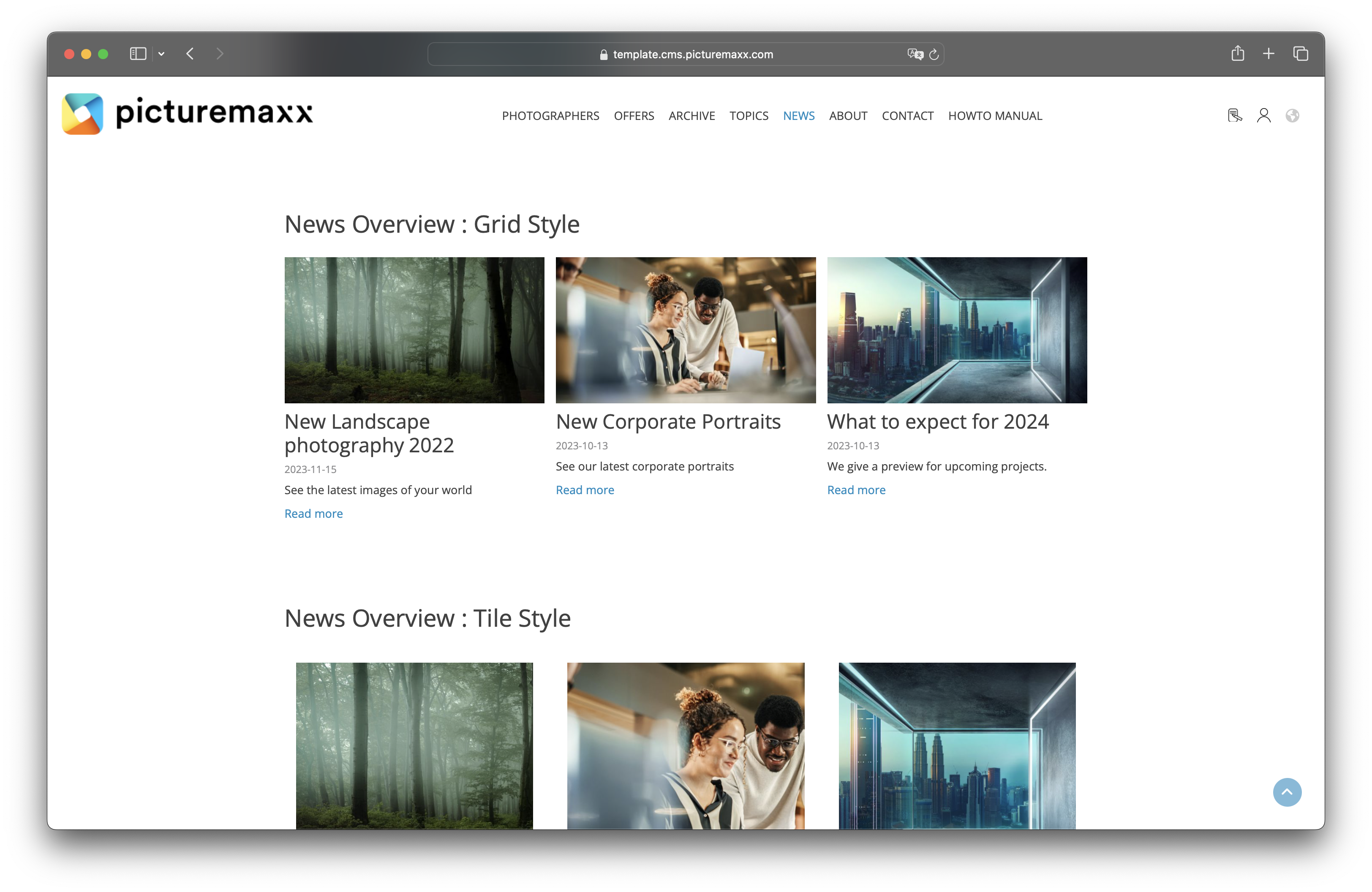
Master - Lists all published news articles.
Teaser - Displays the three most recent news articles.
Filter Options
- Department
Department is currently under development and is not yet available. Please ignore this field until further notice. - Team Member
Filter the displayed results by one or more team members. The filter can be applied to any View type, provided the content has been tagged with the selected team member(s). - Tags
Filter the displayed results by tags. This option only applies to Events, Publications, and News Overviews.
Related content: Learn more about tags in Smart Linking.
Display Options
- Background-Media Paragraph
Add an image or video as a background to your View Section. - Background-Color Paragraph
Pick a color for the background of the View Section. To add or manage background colors, see Change Look & Feel → Define background colors for paragraph types.
Examples of display layouts
Visit our Demo Page to explore all available display layouts:
Artists listings: https://template.cms.picturemaxx.com/photographers
News listings: https://template.cms.picturemaxx.com/latest/news