
CMS Menus
 Overview
The Main Administrative Menu and Content Menu in the backend allow you to create and manage the structure, design, and content of your pages in picturemaxx Drupal CMS. Explore the possibilities both menus have to offer.
Tip
Learn about the website’s Main Navigation menu in the frontend here: Add pages to Navigation Menu.
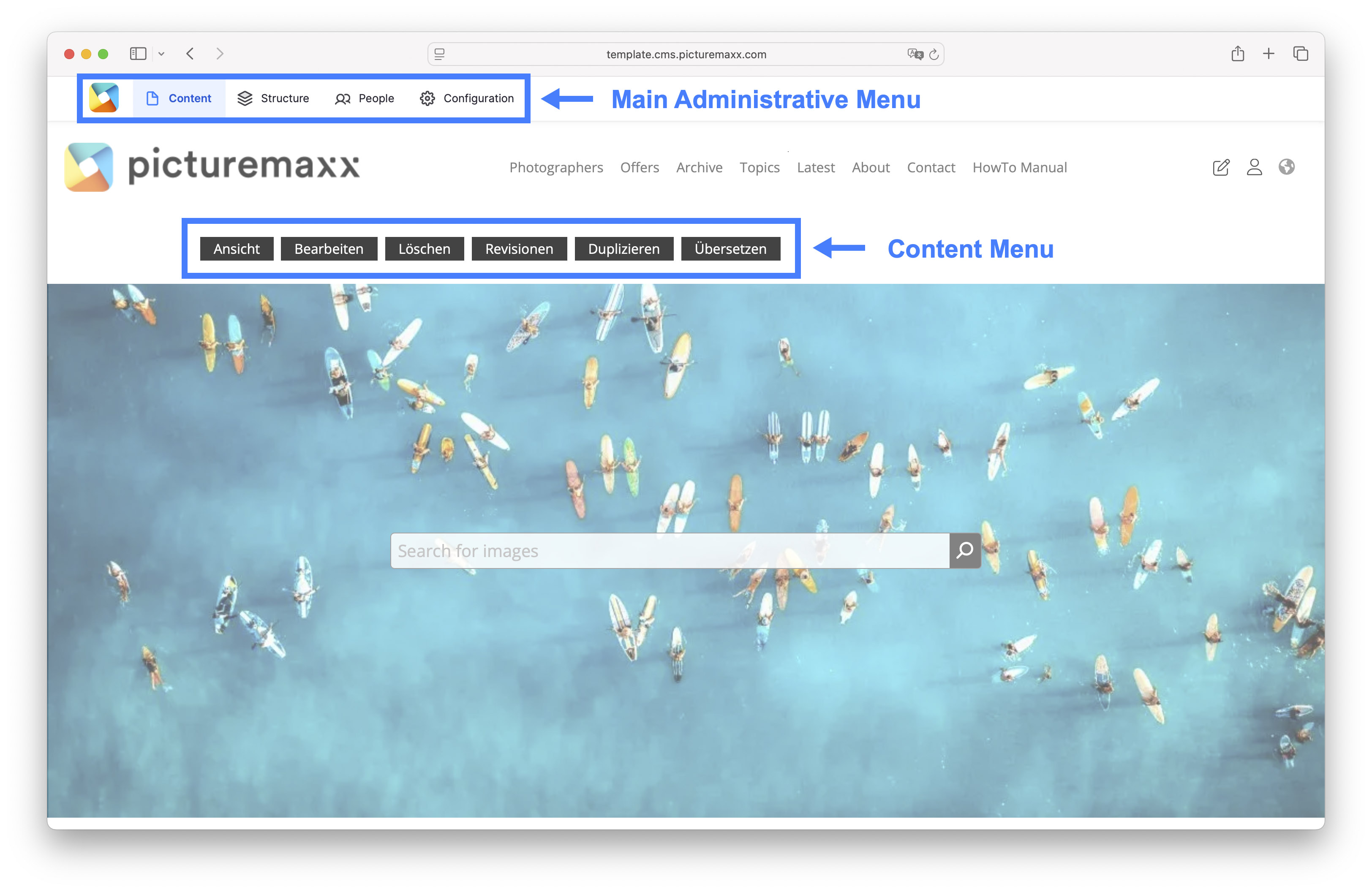
Main Administrative Menu
Main Administrative Menu (top left) is used to manage your website’s content and structure across the entire site.
From here, you can access all administrative areas, allowing you to customize the appearance of your website and add new pages:
Content
Here you create new pages and manage existing pages and content. To learn more, see Edit pages and files, and Organize your Media.
Structure
In this menu section, you manage site-wide structure elements. For example, use Block Layout to define the basic content structure across all pages. Under Menus, you can configure Header and Footer menu options or modify the main navigation of your site. Within Taxonomy, you can define terms that can later be used to link pages. You can also create and manage Contact Forms here.
People
Here you can manage your own site.admin access or add additional users. Learn more under Set up users.
Configurations
Use this menu section to access basic settings of various site features. Here, you can customize the look and feel, translate pages and menus, and manage SEO and Meta-Tags. The Web Services section is especially important, as it lets you control data privacy settings.
Content Menu
The Content Menu is the editing menu for each individual page. Once you are logged in, it appears at the top of every page. The menu allows you to quickly and easily update the content of any page.
It offers the following options:
View
Displays the page as it appears to users when it is published.
Edit
Use this option to modify the page design and update its content.
Delete
Allows you to delete the page if you don't need it.
Revisions
Each time you make changes to a page, a new revision is created. This serves as a history log, enabling you to track changes and, if necessary, revert to a previous version.
Duplicate
Make copies of existing pages and work on them separately. You are set as the author, while the menu and URL aliases are reset. "Clone of.." is added to the title to indicate that you are working on a copy rather than the original page.
Translate
Main Navigation
The main navigation is not actually a Drupal menu. Nevertheless, once it's set up, you will use it a lot while working on your website.