
Add pages to navigation menu
Overview
To help users find key content easily, link important pages to the navigation menu. There are two ways to add a page to the menu:
- Directly from the page editor.
- In the administration area.
Option 1: Add page directly from the page editor
- In the Main Administrative Menu, navigate to Content.
- Locate the page you want to add to the navigation menu and click Edit in that row. The page editor opens for the selected page.
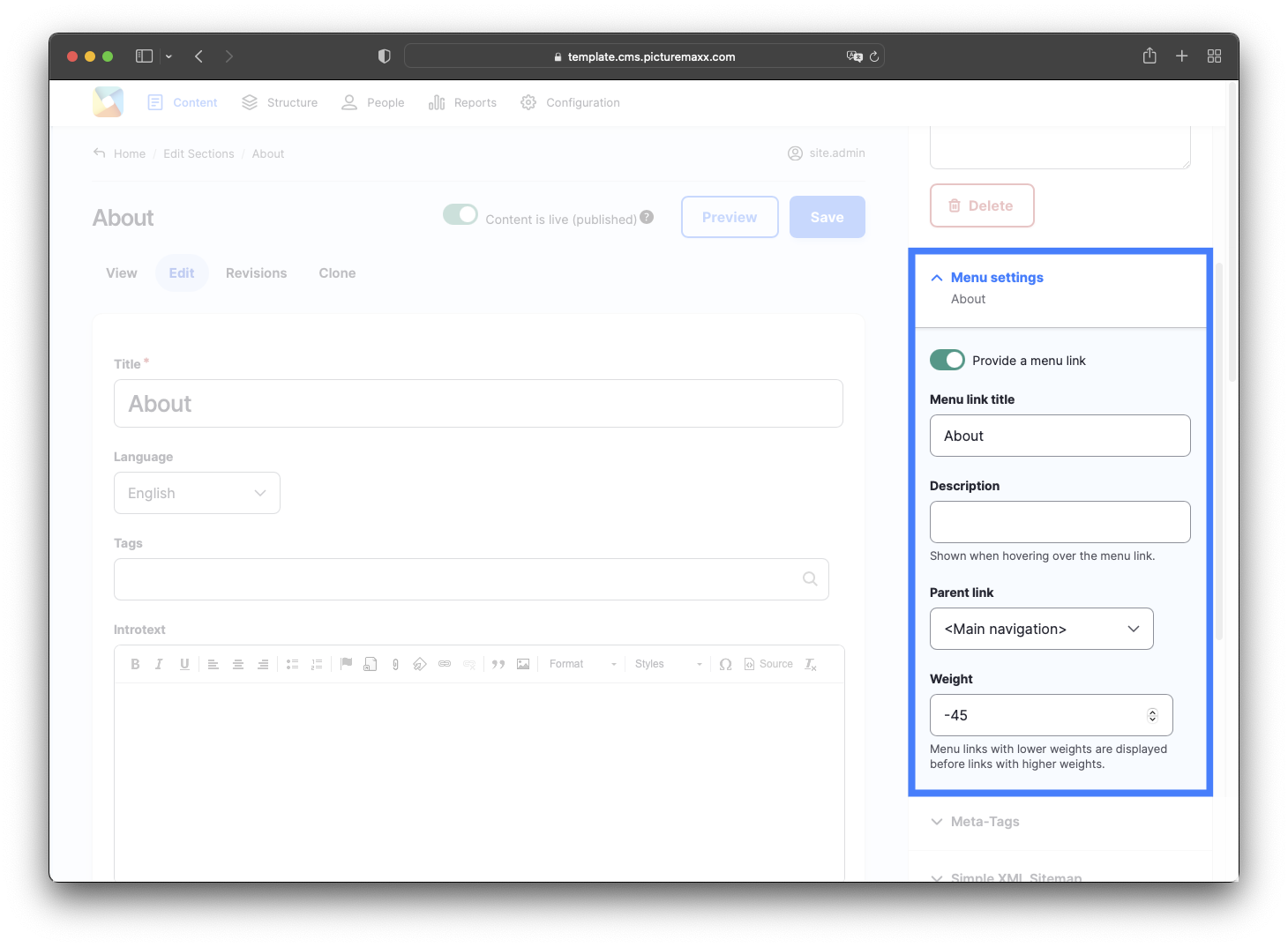
- Expand Menu settings on the right and enable Provide a menu link to display the menu options.
- Fill in the following fields:
- Menu link title
The text that appears in the navigation menu. - Description
Optional text displayed when users hover over the menu link. - Parent item
Determine where the page appears in the menu structure. For example,- Select “Main navigation” to place the page at the top level of the navigation menu.
- Select another menu item to create a submenu beneath it.
- Weight
Control the order of the menu items. Menu items with lower values appear first.
- Menu link title
Option 2: Add page through the administration area
- In the Main Administrative Menu, go to Structure > Menus > Main navigation > Add link.
- Configure the menu link:
- Menu link title
Enter the name for the menu link. - Link
Specify the page to link to. You can enter the page title or its URL. - Attributes > Display-Options
Define for each menu link where its child links are displayed. If no option is selected, the menu link will be visible in both the Header Navigation Bar and the Doormat. - Attributes > Link target
Choose how the linked page opens: Same window or New window. - Icon
Icons are not supported in the navigation menu. They can only be used in Header menus. - Language
Select the language for the menu link. - Parent Link
Choose a parent menu item if you want the link to appear as a submenu. - Display settings > Weight
Control the position of the menu item relative to other items at the same level. Lower values appear higher in the menu. - Display settings > Show as expanded
If enabled, any child menu items will be displayed automatically when the menu is expanded. - Description
Optional text displayed when users hover over the menu link. - Simple XML Sitemap
These settings are SEO-related and do not affect menu links. Leave the default values unchanged.
- Menu link title
![Screenshot of the picturemaxx Drupal demo page, showing how to add a page to the main navigation.]
Reorder menu items
After creating a menu link, you can adjust its position:
- Go to Structure > Menus > Main navigation.
- Drag and drop menu items into the desired order.
- You can also drag a menu item to the right to place it under another item as a child menu item.
- Save the updated menu structure.
Quick Demo: Reorder menu items in the navigation menu.