
Upload and edit media
Overview
The Media area (Content > Media) provides a central location for managing all media assets. From here, you can upload, edit, delete, publish, unpublish, and clone one or multiple media items. This section explains how to add, manage, and remove different types of assets.
Upload media
To add media assets to your library, navigate to Content > Media > Upload.. You can select and upload multiple files at the same time.
picturemaxx Drupal CMS allows uploading a variety of different formats:
Images
The following image file types are supported: .jpg, .png, .gif.
Tip
Best Practice
Avoid uploading high-resolution images whenever possible. Optimize images for web use before uploading them. Smaller file sizes improve page loading times and can contribute positively to search engine optimization (SEO).
Audio files
There are two audio file types available to add to the pages: aac & .mp3.
Videos
Only .mp4 video files can be uploaded.
Documents
picturemaxx Drupal CMS supports a wide range of document formats, including:
- Text files (TXT, RTF)
- Microsoft Office documents (Word, Excel, PowerPoint)
- PDF files
- OpenDocument formats (LibreOffice/OpenOffice documents, spreadsheets, presentations, and graphics)
- Apple iWork documents (Pages, Numbers, Keynote)
- vCard contact files
- ZIP archives
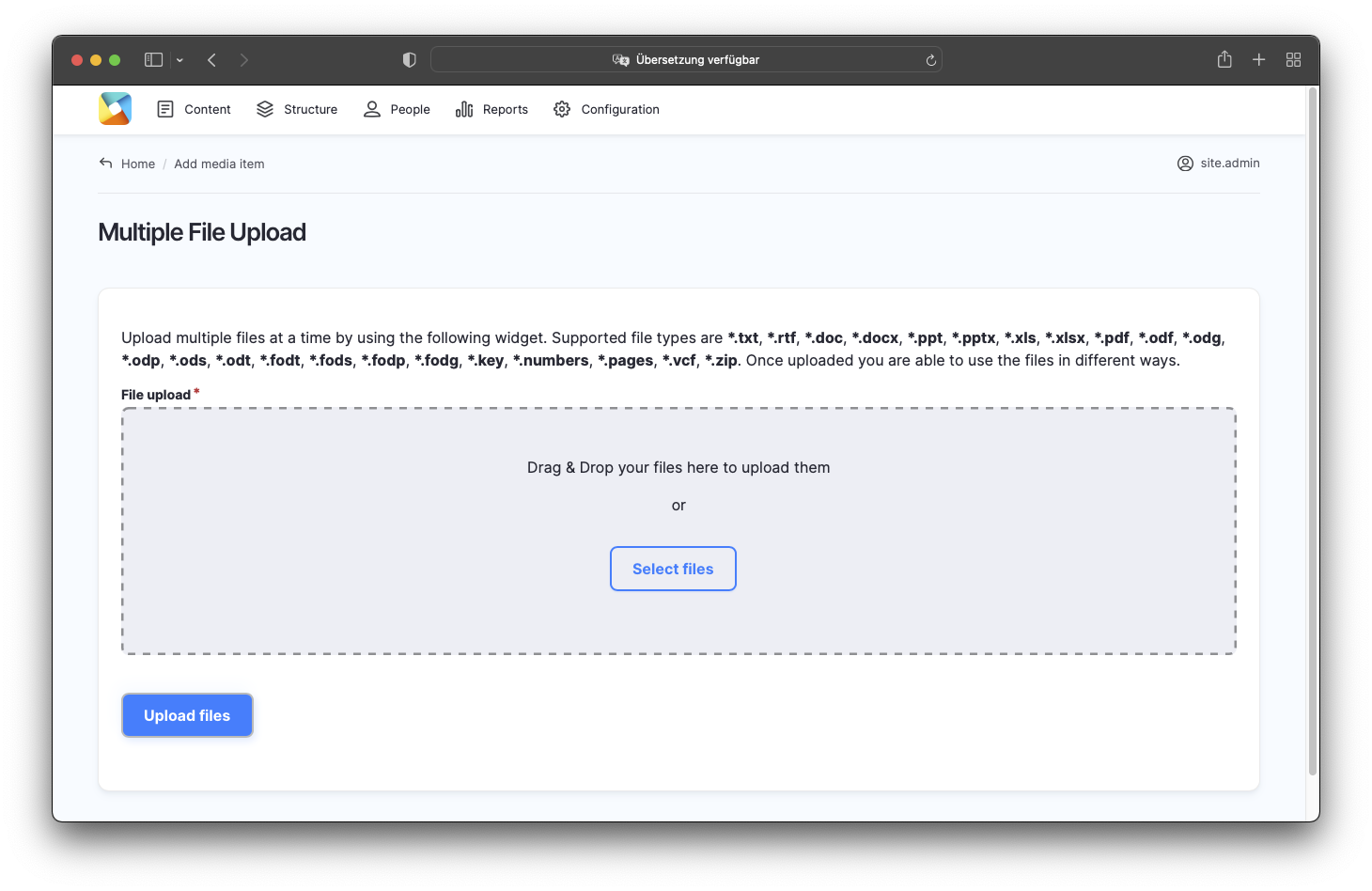
Manage media
You can view and manage all uploaded media assets in Content > Media.
For each media item, the Edit dropdown menu provides the following options: Edit, Clone, Translate, and Delete.
To perform actions on one or multiple media items:
- Select the desired item(s).
- Scroll down to the Action dropdown menu.
- Choose an action (Delete, Publish, or Unpublish).
- Click Apply to selected items.
Important
Deleting or unpublishing a media item removes it from all pages where it is currently published.
Quick Demo: View and manage multiple media assets.
Edit media
To edit your existing images, navigate to Content > Media in the Main Administrative Menu. From there, you can update the media item's properties: add alternative text and description, crop an image, and more.
Field Reference
Alternative text
A short description of the image used by screen readers and displayed when the image is not loaded.
Note
Meaningful alternative text is essential for making your website content accessible.
Crop images
picturemaxx Drupal CMS provides several image display formats. For each format, you can define which area of the image should be displayed by selecting a crop region.
Note
The image crop defined here is applied wherever the image is displayed throughout the website.
Link
You can add a link to an image, directing users to internal content within your website or external URLs.
Description
You can add a description text to your images. The text is then displayed in a Collection, for example.
Linking
Here you can associate images with related content, such as Categories (see Smart Linking) and Artists portfolios (see Artist).