Login and Logout
Overview
Learn how to access the admin area, log out securely, and get an overview of the main steps for setting up and managing your website.
Access the admin area
To log in and access the admin area:
- Add
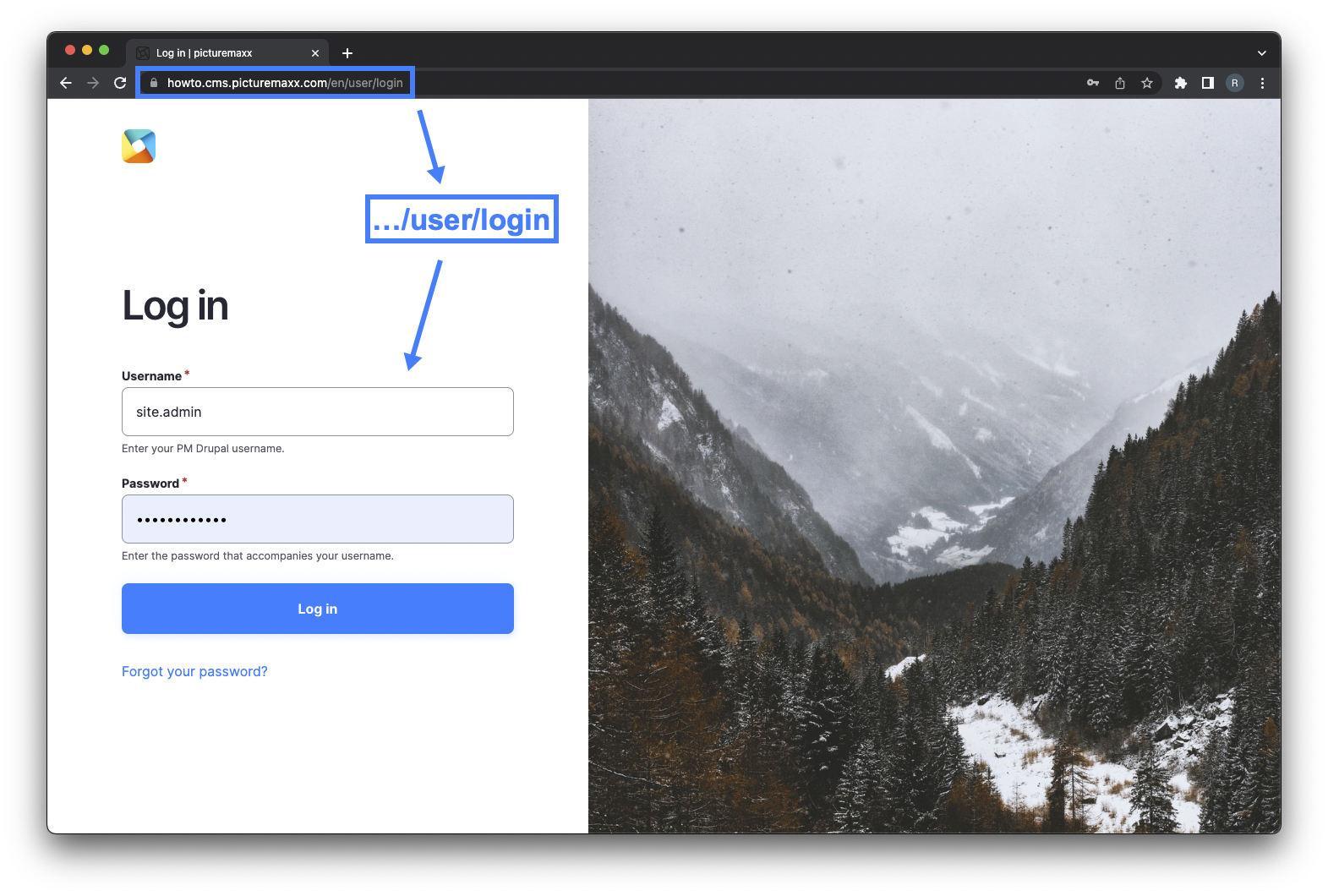
/userto the end of your homepage URL. For example:
https://howto.cms.picturemaxx.com/en/user - The login form becomes available.
- Enter the username and password provided by the picturemaxx Professional Services Team.
Important
You’ll only see the login form if you start from your website’s main page (homepage).
Log out of the admin panel
You can log out in the following ways:
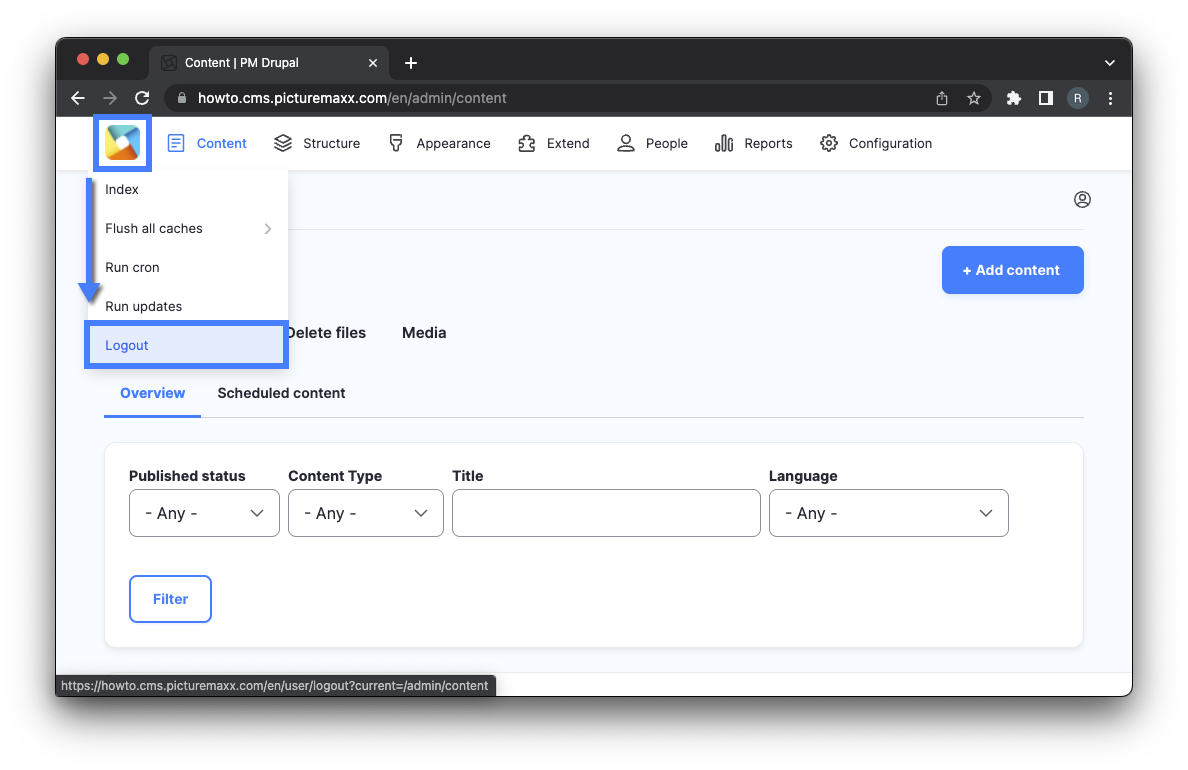
- Quickest method: Hover over the logo in the top left corner and click Log out.
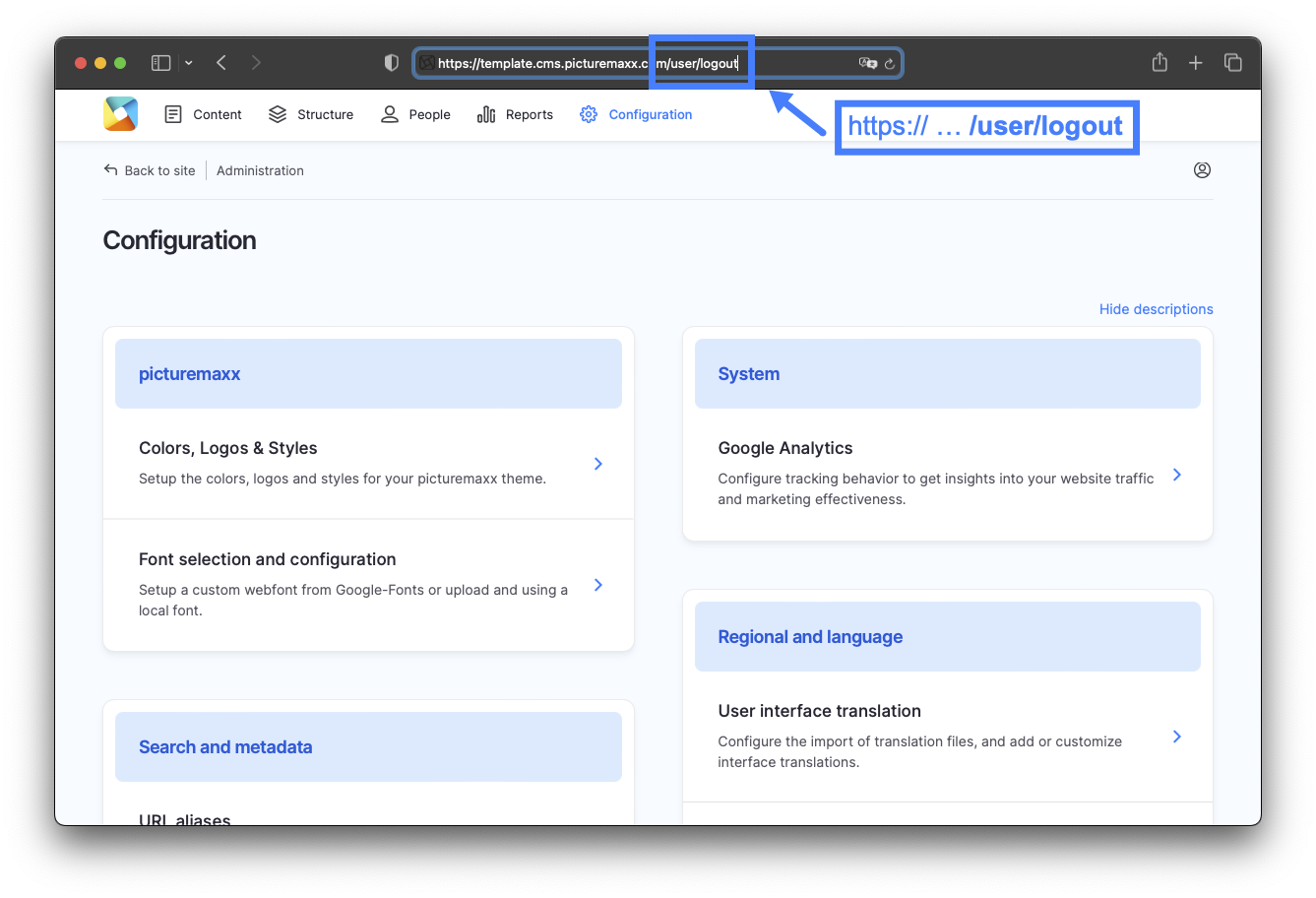
- Using URL: Add
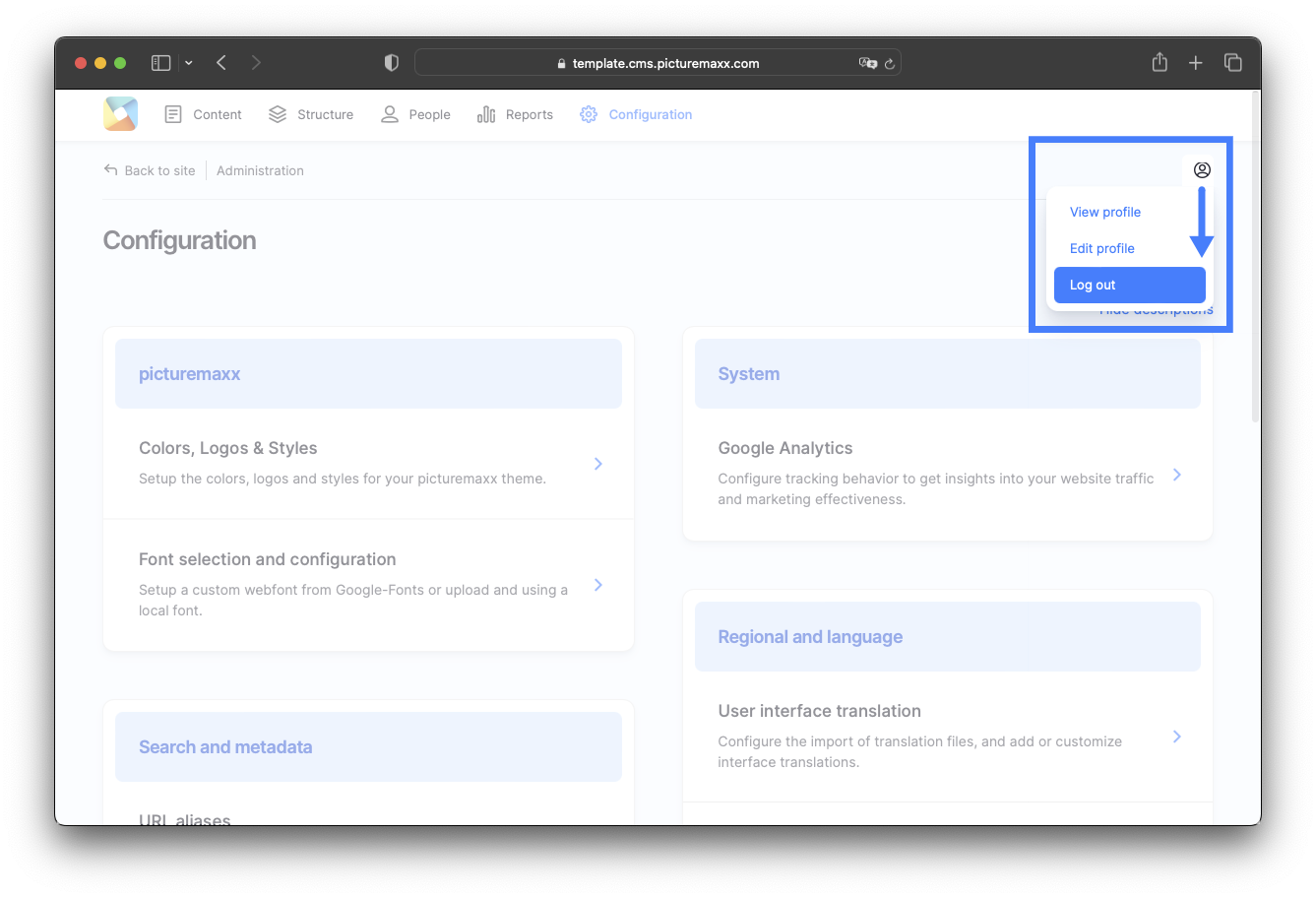
/user/logoutto your homepage URL. - Using profile icon: Click the profile icon in the top right of the admin panel and select Log out.