
Search Engine Optimization (SEO)
Overview
Effective SEO relies on several factors, including well-structured content, clear and user-friendly URLs, and accurate metadata. Build-in SEO tools help improve your site's discoverability and search engine ranking.
Sitemap
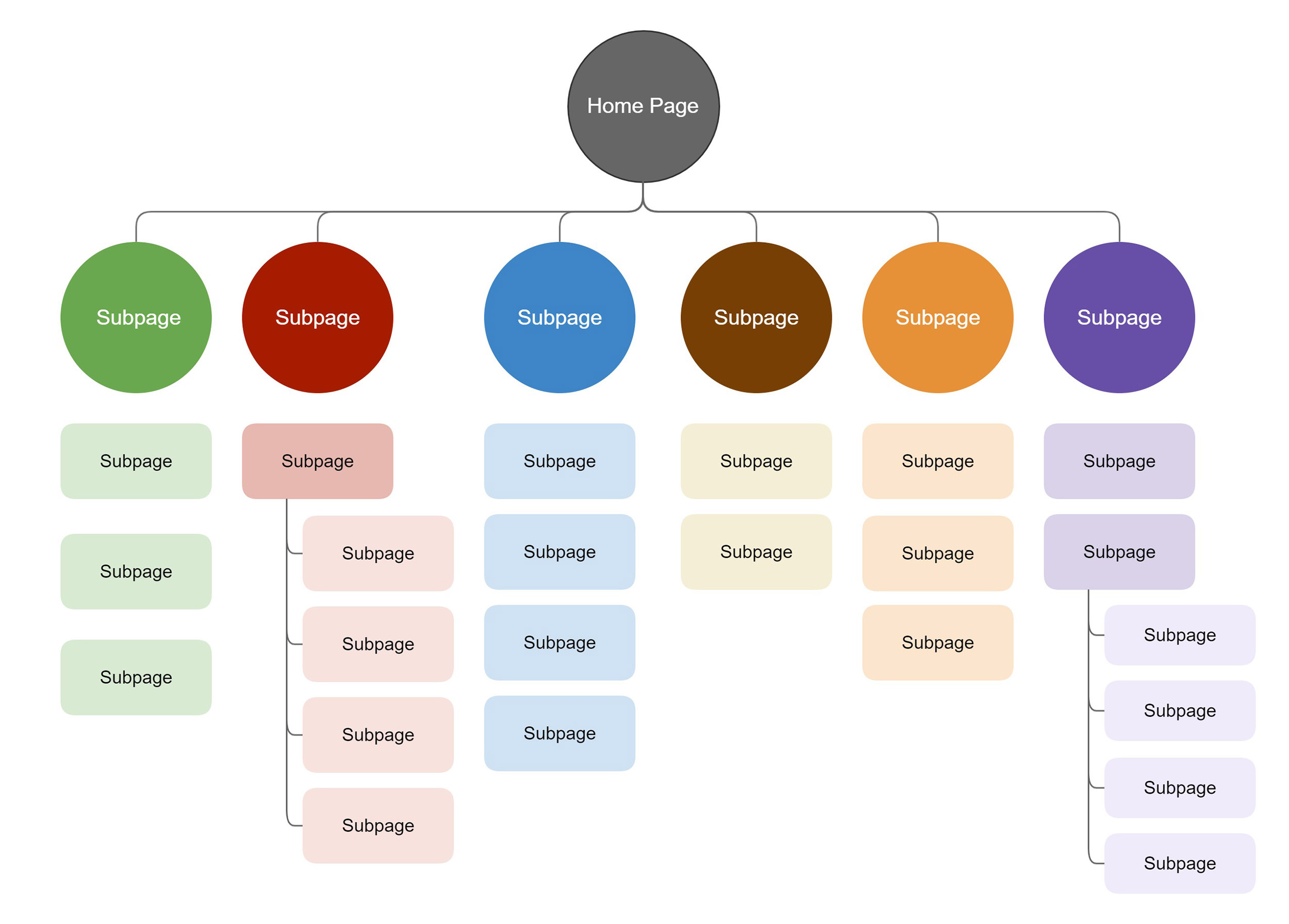
A sitemap is an automatically generated index of all your publicly visible pages. It helps search engines discover, crawl, and index your website content.
By default, all pages are included in the sitemap index. You can override this setting for individual pages.
Edit sitemap settings for a page
- Go to Content, locate the page you want to edit, and click Edit. The page editor opens.
- In the right-hand sidebar, expand the Simple XML Sitemap section.
- Configure the sitemap settings as needed. See Field Reference below.
Field Reference
Default
Choose whether the page should be included in or excluded from the sitemap index.
Priority
Specify the priority of the page within the sitemap. This value indicates the relative importance of the page compared to other pages on your website and can help search engines prioritize crawling.
Change frequency
Specify how often the page content is expected to change. Search engines may use this information as a guideline when determining how frequently to revisit and re-index the page.
Include images
Choose whether to include the images referenced within the page into the sitemap. 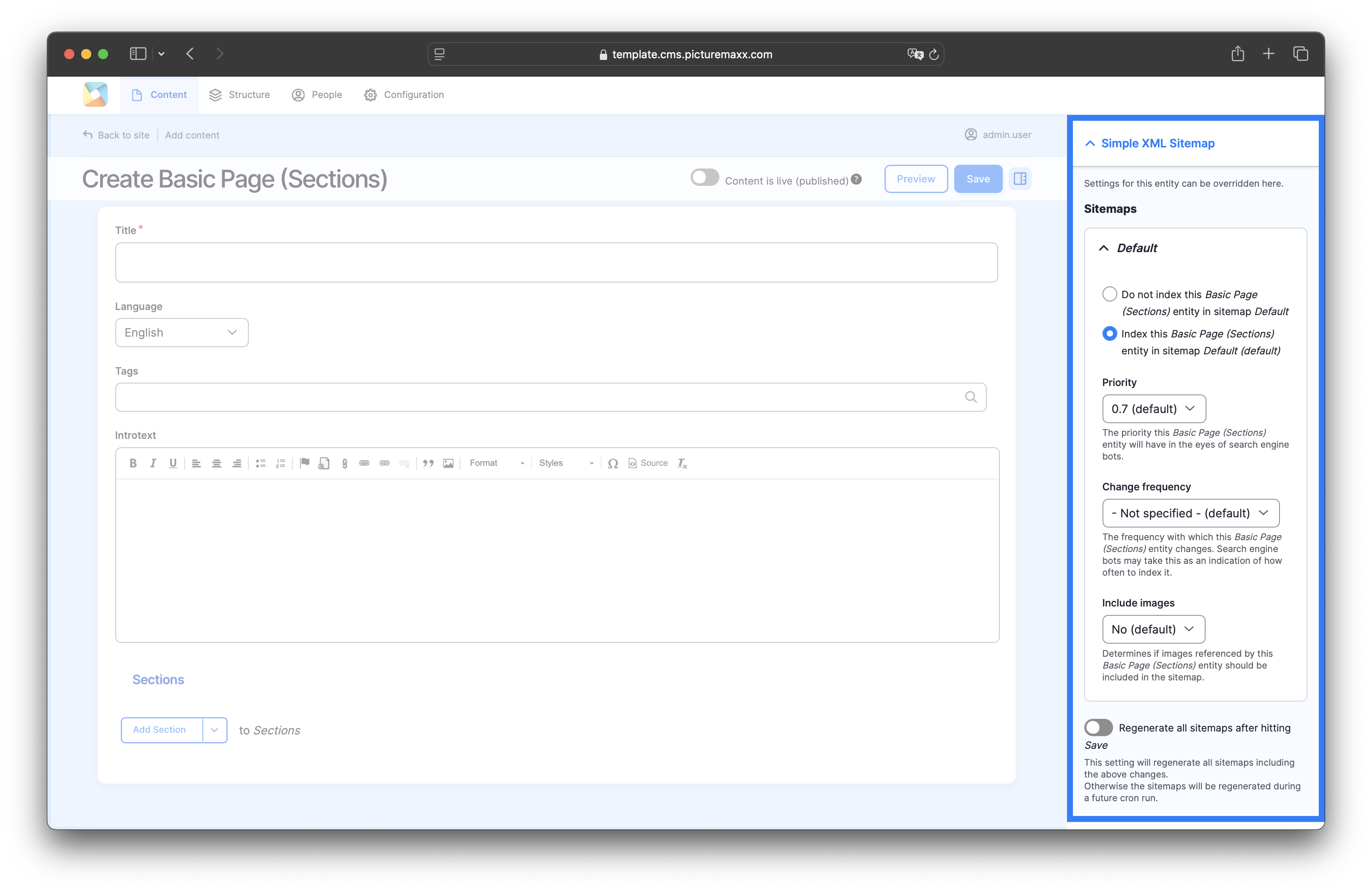
Simple XML sitemap diagram
Deep linking and URL alias
Deep links are URLs that direct users to a specific page within a website rather than to the homepage. They improve internal website navigation and make it easier for users to find specific content through search results. Deep links can benefit SEO because they help search engines discover and index specific pages within a website.
Example
This is a deep link because it points directly to a specific article:
https://www.example.com/news/update-collections
picturemaxx Drupal CMS automatically supports deep linking by assigning a unique URL to every published content item. With URL aliases you can further fine-tune deep links.
Refer to URL aliases to learn how to customize URLs.
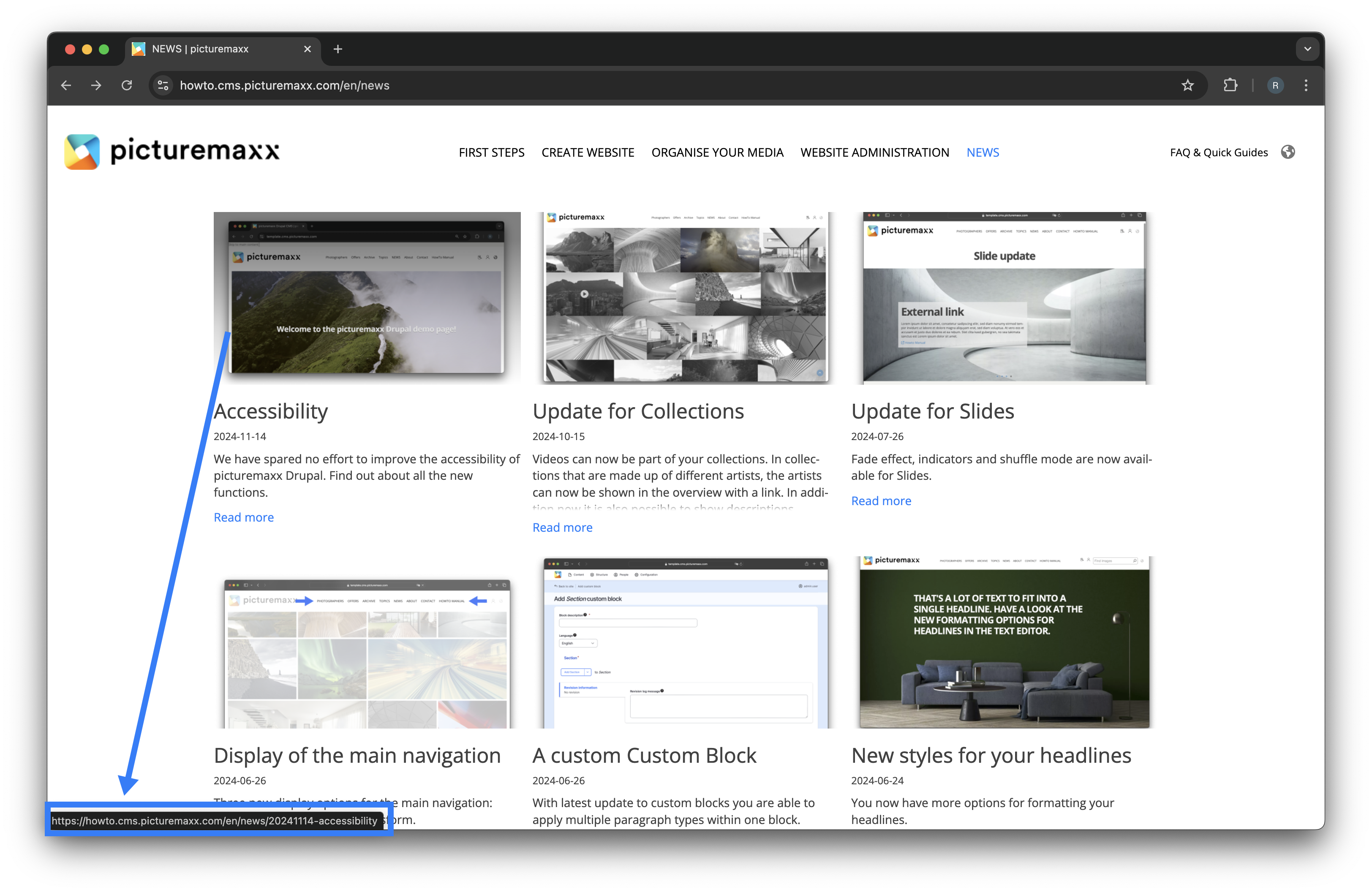
Deep Link example
When you hover your over the news article image, the link to the news subpage is displayed in the lower left corner of the browser window. This URL points directly to the related news article page rather than to the website's homepage, making it a deep link.
URL Alias
URL Alias provides an alternative to a system-generated URL. As a rule, you require a specific custom URL alias very rarely. In most cases it makes more sense to keep the default setup.
To create a custom URL alias:
- Go to Content, locate the page you want to edit, and click Edit. The page editor opens.
- In the right-hand sidebar, expand URL Alias.
- Turn off the Generate automatic URL alias option.
- Enter a custom URL alias.
Example:
Instead of:
/.../.../pages/new-page
you can create a simpler URL such as:
/new-page
Important
If you turn off Generate automatic URL alias, the URL will no longer be updated automatically when you change the page title.
Recommendation: In most cases it makes more sense to keep the default Generate automatic URL option enabled.
Meta tags
Meta tags are not visible to website visitors, but they are essential for external services such as search engines and social media platforms. They provide additional information about your page and help you control how it is presented on social media and search engines.
In picturemaxx Drupal CMS, Meta Tag module is designed to manage all page-level metadata from a single interface. This includes:
- Basic meta tags contain metadata commonly used for SEO, such as the page title and description.
- Advanced meta tags provide more detailed information about a page to optimize indexing and search engine behavior.
- Open Graph tags help control how pages appear when shared on social media platforms.
- Site verification to confirm page ownership with search engines. It is recommended to add the verification tag globally, refer to Site Verification for details.
To access the meta tag settings:
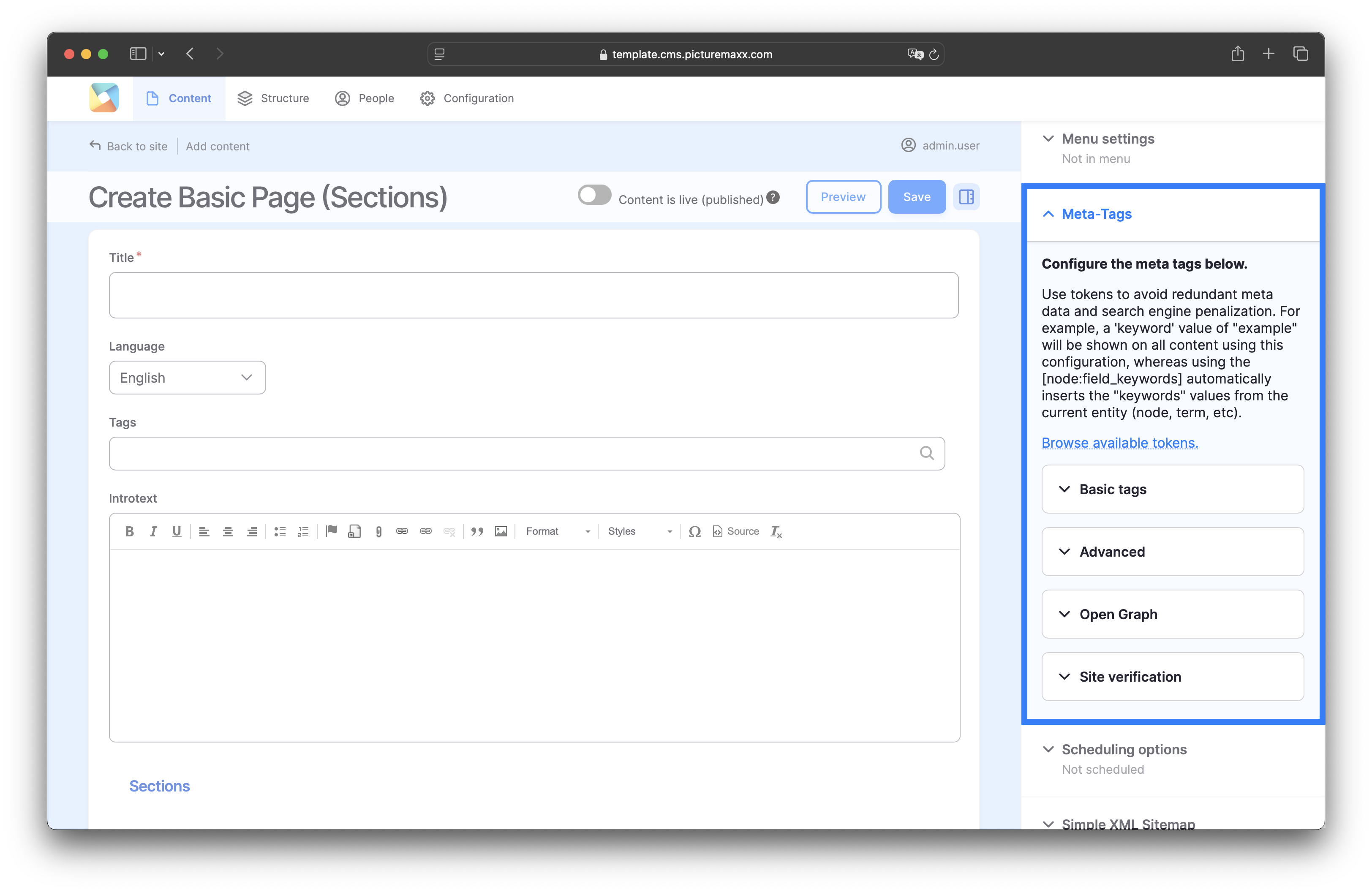
- Go to Content, locate the page you want to edit, and click Edit. The page editor opens.
- In the right-hand sidebar, expand Meta Tags.
- Configure the settings as needed.
- Most meta tags are self-explanatory. Brief descriptions of some important tags are provided below in the corresponding Field Reference.
Basic and Advanced meta tags
Meta tags are grouped into Basic and Advanced categories.
- Basic meta tags provide essential information about your page, such as its title and description.
- Advanced meta tags offer additional options to fine-tune how your content is presented.
In the right-hand sidebar of the selected page's editor, enter tags into corresponding fields to provide meta information.
For example, you can specify a page title and description that may appear in search engine results.
Some fields are pre-filled with default options (inside the square brackets). These are tokens, you can replace them with corresponding content from your website.
Basic Tags: Field Reference
Page title
This is the text displayed in the title bar of a visitor’s web browser when they view the page. It may also serve as the page title when a visitor bookmarks or favorites this page, or as the clickable headline in search engine results.
It’s common practice to append the token [site:name] to the title to automatically include the website name. For optimal display in search results, keep page titles between 55 and 65 characters, including spaces.
Important
It is not recommended to change the default configuration for Page title.
Description
A concise and accurate summary of the page's content, ideally no longer than 160 characters. This meta tag is often used by search engines to generate the preview snippet displayed beneath the page title in search results.
Abstract
A brief and clear summary of the page's content, preferably within 150 characters. While the Description meta tag is commonly used by search engines to display a snippet in search results, the Abstract tag was traditionally used for archiving purposes.
Note
The Abstract meta tag is no longer supported by major search engines.
Keywords
A comma-separated list of keywords relevant to the page content.
Note
The Keywords meta tag is no longer supported by most search engines.
Advanced Tags: Field Reference
Robots/Crawler
A robot (also known as a crawler or spider) is a program used by search engines to automatically discover, scan, and index web content. The Robots settings in the Advanced Meta Tags section allow you to control how search engine crawlers interact with a page. These settings help you manage your site's visibility in search engines.
Most relevant robots:
noindex
Prevents the page from being listed in search engine results on platforms like Google or Bing.
nofollow
Forbids the crawlers to follow any of the links on the page to discover additional content. The page itself is listed in search engine results, but links leading to other pages or websites are ignored.
Note
Not all crawlers respect these rules.
Open Graph
The Open Graph protocol enhances your website’s presence on social media platforms. It allows you to control how your content is displayed when shared. The protocol tells networks such as Facebook or X (formerly Twitter) which image and text to use to represent the website.
To use Open Graph effectively, complete at least the following four required fields:
- Site name
A human-readable name for the website, e.g., IMDb. - Content type
The type of content being shared, e.g., movie. - Page URL
Preferred page location or URL to help eliminate duplicate content for search engines, e.g.,<https://www.imdb.com/title/tt0117500/>. - Image
The URL of an image that should represent the shared content. Image requirements:- Minimum size: 200 × 200 pixels
- Recommended minimum size: 600 × 316 pixels
- Best results: 1200 × 630 pixels or larger
Note
With the Facebook Sharing Debugger you can preview how a page will appear when shared on Facebook. It also helps identify and troubleshoot Open Graph configuration issues.